CM170407AMA
• the AoA target (if present);
• the stabilization time;
• an indication, whether the leak test is required or not.
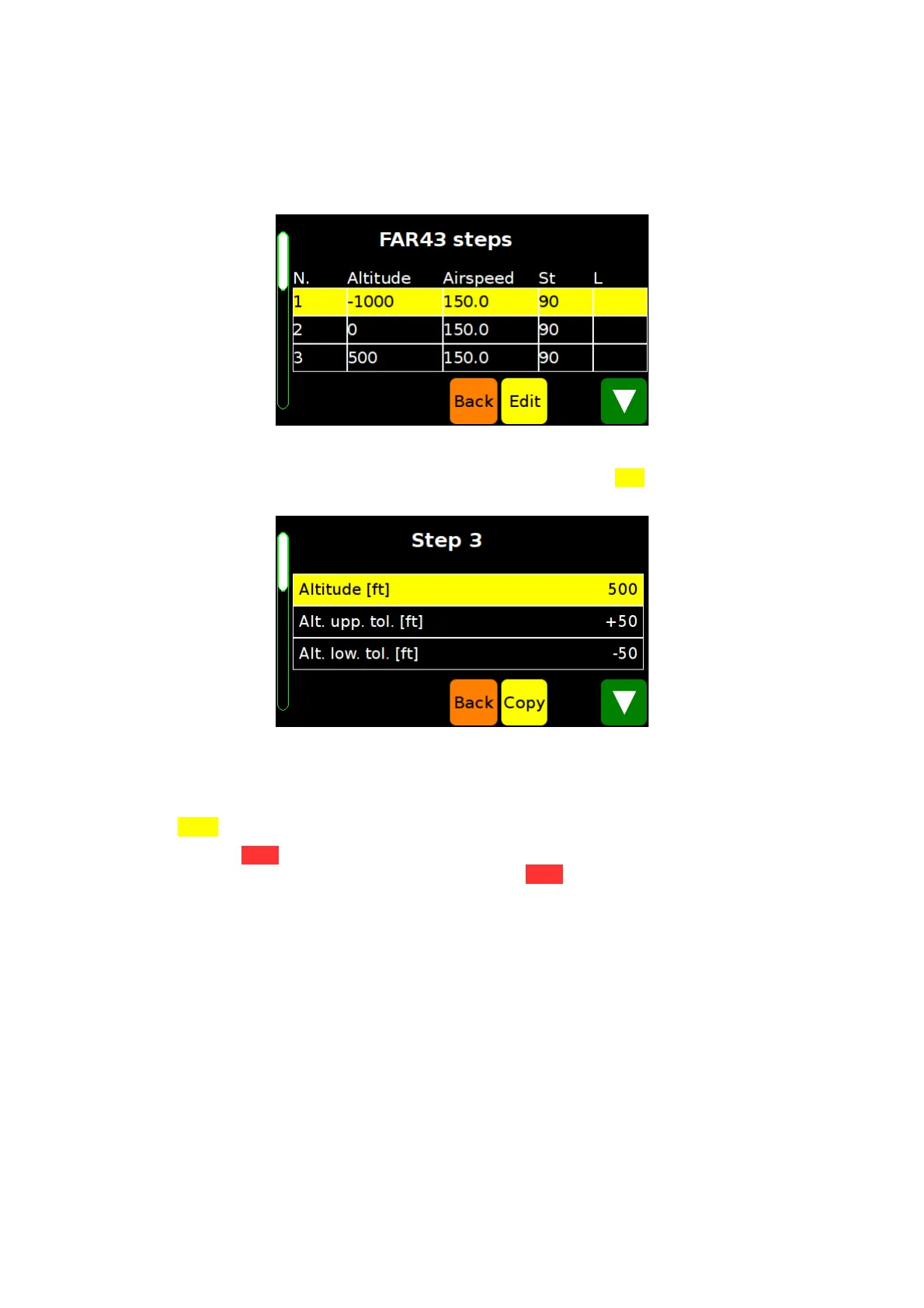
FIG 23 THE PROFILE STEP SELECTION SCREEN
The Operator can select a step and press the yellow button Edit to open the Profile Step
Editing Menu (FIG 24).
FIG 24 THE PROFILE STEP EDITING MENU
The Profile Step Editing Menu allows the Operator to change all the parameters of the
selected step.
The Copy button copies all the values from the previous step to the currently displayed one.
The orange Back button allows the Operator to return from each screen to the previous
one. After entering all the profile data, touch the Back button on the Profile Editing Menu
(FIG 22) and the MPS49 will ask whether to save the profile or not.
NOTE unsaved changes are immediately lost.
11.3 RUNNING TEST PROFILES
A test profile can be started by touching the “Run” button on the Profiles Menu. The display
will show the Profile Selection Menu for selecting the profile to run.
NOTE If the profile requires an altitude offset, the Operator will be asked to confirm it.
While a test profile is running, the MPS49 will show a slightly modified Status Screen (FIG
25); the lower-right part of the display summarizes the current state of the profile.
1. the commanded values of the set-points are set and stabilized;
2. if the stabilization time is not zero, the display shows the Profile Step Results Menu,
allowing the Operator to enter the UUT readings. The first line of the menu selects
D.Marchiori Copyright 44


 To Next Page