Vigor2820 Series User’s Guide
86
Also the Vigor router will discard any request that tries to retrieve the malicious code.
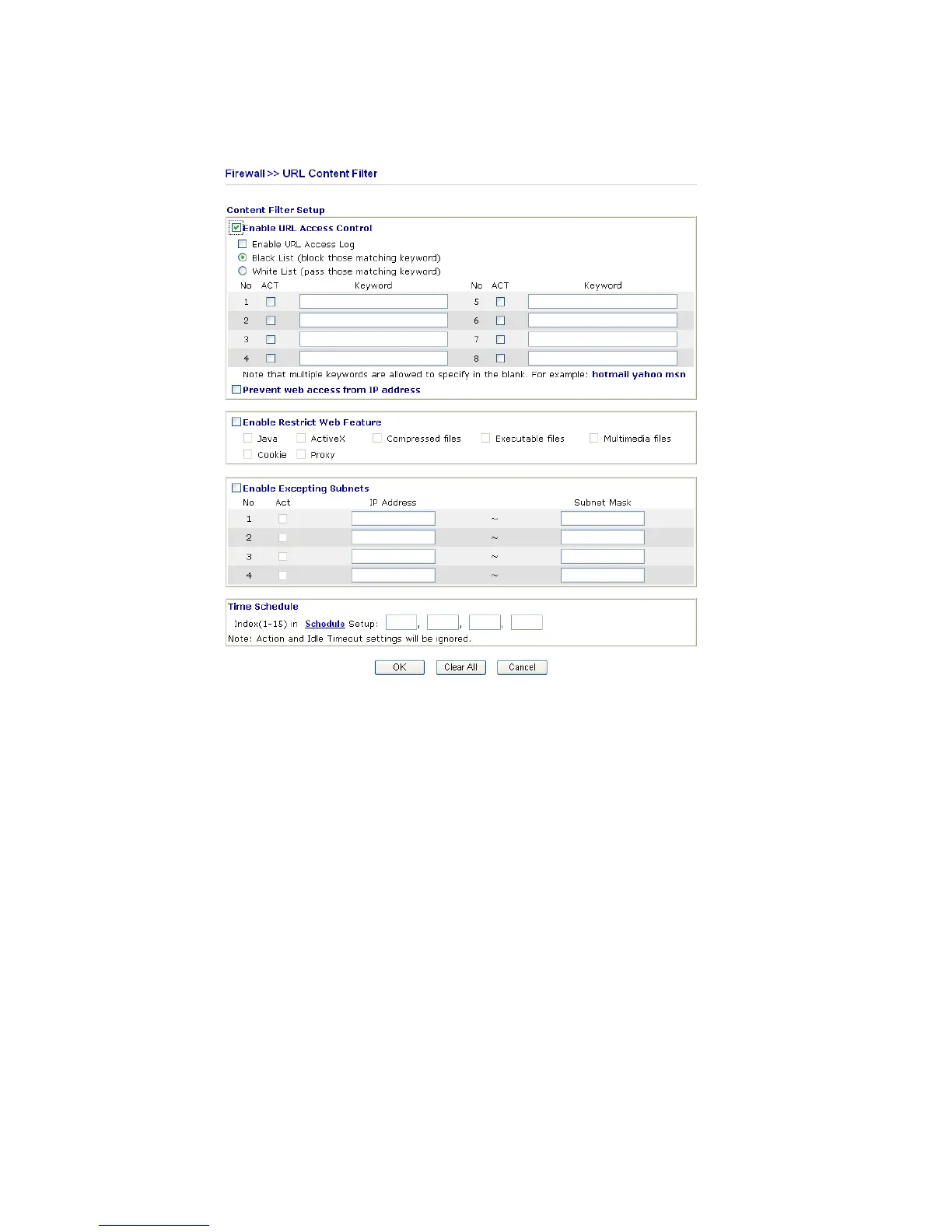
Click Firewall and click URL Content Filter to open the setup page.
Enable URL Access
Control
Check the box to activate URL Access Control.
Black List (block those
matching keyword)
Click this button to restrict accessing into the corresponding
webpage with the keywords listed on the box below.
White List (pass those
matching keyword)
Click this button to allow accessing into the corresponding
webpage with the keywords listed on the box below.
Keyword The Vigor router provides 8 frames for users to define keywords
and each frame supports multiple keywords. The keyword could be
a noun, a partial noun, or a complete URL string. Multiple
keywords within a frame are separated by space, comma, or
semicolon. In addition, the maximal length of each frame is
32-character long. After specifying keywords, the Vigor router will
decline the connection request to the website whose URL string
matched to any user-defined keyword. It should be noticed that the
more simplified the blocking keyword list, the more efficiently the
Vigor router perform.
Prevent web access
from IP address
Check the box to deny any web surfing activity using IP address,
such as http://202.6.3.2. The reason for this is to prevent someone
dodges the URL Access Control.






 To Next Page