29
C
C
h
h
a
a
p
p
t
t
e
e
r
r
3
3
W
W
e
e
b
b
C
C
o
o
n
n
f
f
i
i
g
g
u
u
r
r
a
a
t
t
i
i
o
o
n
n
This chapter contains important information to help you configure the settings for your VoIP phone
from the web browser.
If your VoIP phone is using factory default, it sets LAN/PoE port as DHCP client and enable Bridge
mode for PC port. To access the web configuration menu, do the following:
1. Connect one end of the Ethernet cable provided to the LAN/PoE port of your phone to your router
with DHCP service enable.
2. Connect one end of the network cable to the PC port of your phone, connecting to your personal
computer.
3. Plug in the power of the VoIP phone. Select the Menu soft key.
4. Select Network, LAN Port Settings, and then press the Info soft key.
You should be able to see the IP address displayed on the LCD screen.
Open your browser (such as Internet Explorer, Firefox, etc.) and type in the web address of the phone.
For example, if the IP address you obtain in step 4 above is 192.168.1.2, enter the web address: http://
192.168.1.2.
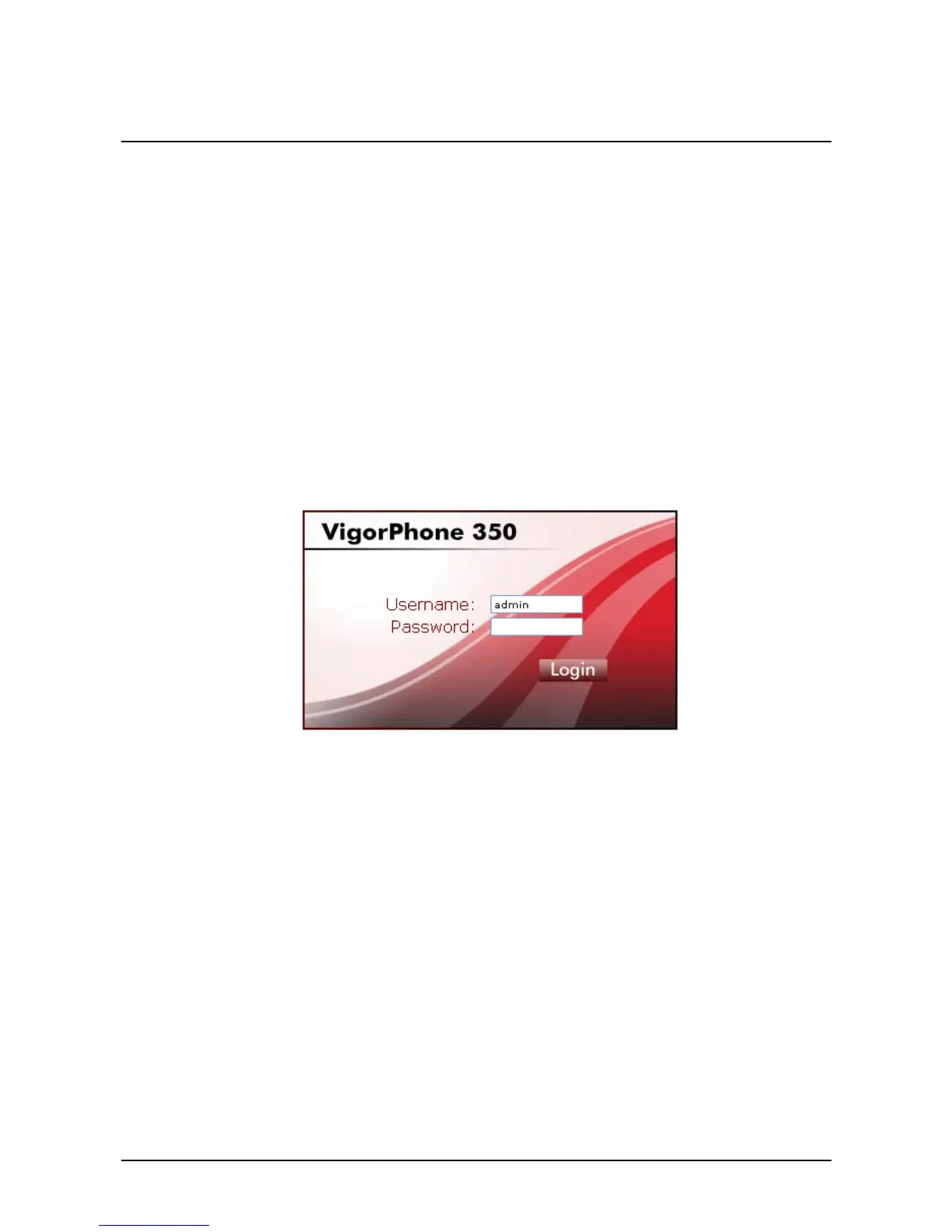
The Web login front page is displayed. Enter the user name and the password and click Login. The
administrator’s user name is “admin”, and no password is needed.



 To Next Page