42
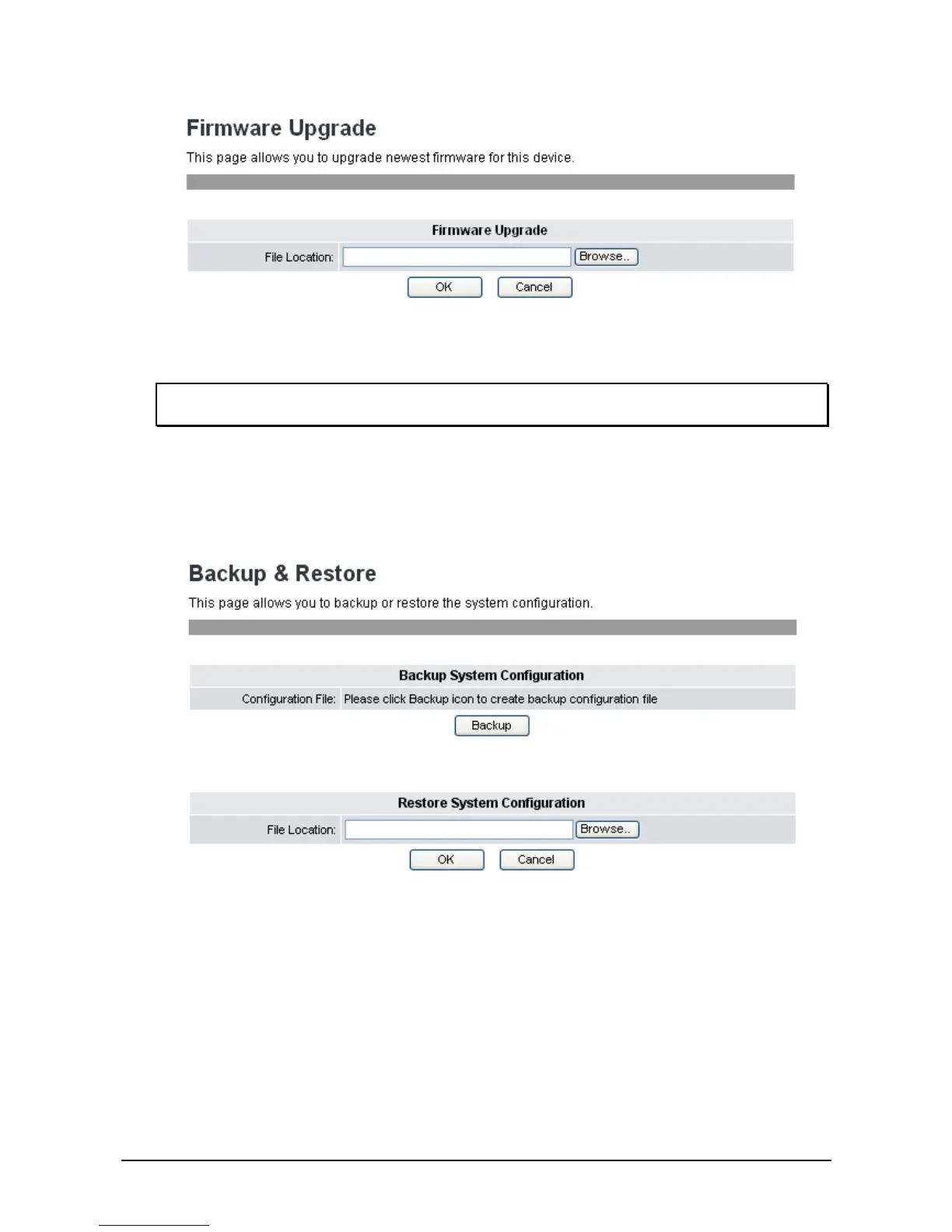
2. Click Browse to select the file location of the newest firmware.
3. Click OK to execute the firmware upgrade or Cancel to cancel.
Note: If your VigorPhone 350 Firmware Version is 12202.26.1.04 or after, please refer to Appendix
A for upgrade.
3
3
.
.
6
6
.
.
2
2
B
B
a
a
c
c
k
k
u
u
p
p
&
&
R
R
e
e
c
c
o
o
v
v
e
e
r
r
S
S
e
e
t
t
t
t
i
i
n
n
g
g
You can backup or recover the VoIP Phone configuration into a file to your PC. The setting is only
accessible through the web browser. Do the following:
1. Click System Settings>>Backup & Recover. The following screen will be displayed.
2. Click Backup button in the Backup System Configuration section to create the configuration files.
And click the file name to save the configuration file into your PC.
3. The section of Recover System Configuration is used to restore the system configuration from a
previously saved configuration file. Click Browse button to select a backup file from the PC.
4. Click OK to execute restoring system configuration.
5. After file upload is completed, the system will reboot.



 To Next Page