83
8.1 Using the Camera
Your Smartphone is equipped with a digital camera that can record both still pictures
and moving images.
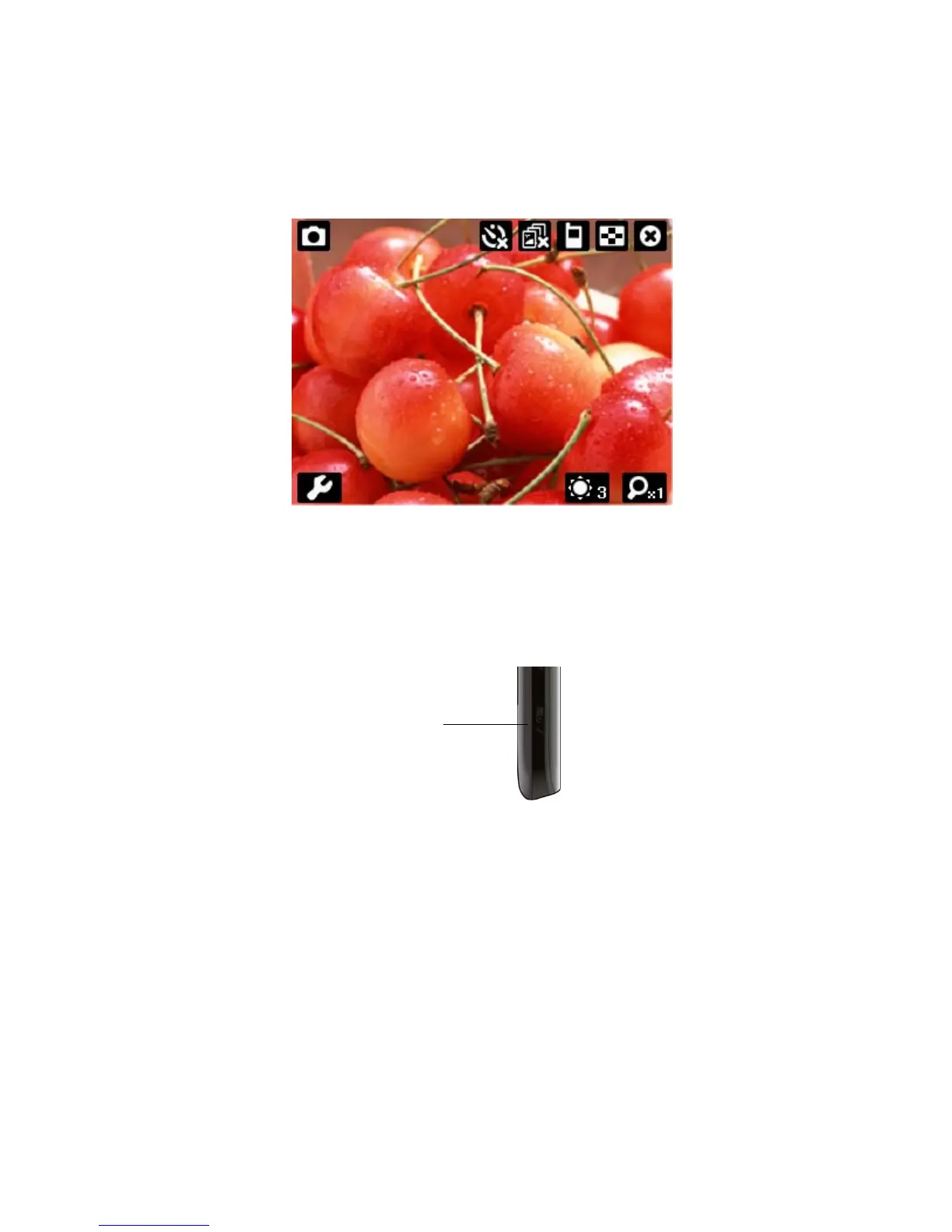
To launch the Camera
• Tap Start > Programs > Camera; or
• Tap Start > Programs > Pictures & Videos > Camera icon; or
• Press Camera button on the right side of your device.
.
To capture the pictures
In the middle of screen you will see the current image being seen by the camera. To
capture the picture, press the Camera button on the side of the device, or the center
button of the Navigation pad. You will hear a shutter sound and the picture will be
saved. The pictures could be captured as jpg format.
Tip If you enable “Preview after shoot” in the Advanced settings, it will display
the pictures you shot right after shooting and you can choose to save or
delete them. If you disabled “Preview after shoot”, pictures you shot will
be automatically saved then it back to preview screen.
To capture a video
From the camera screen, tap the camera icon on the top left corner. You will see
the icon turn into a video camera. This indicates you are now able to capture
Camera button



 To Next Page