84
moving images. To start recording, press the Camera button on the side of the
device, or the center button of the Navigation pad. You will see a progress bar with
a timer at the bottom of the screen and a red dot followed by the word “REC”
flashing on the top left of the screen. This indicates you are recording. To stop,
press the Camera button, or center button of the Navigation pad, or tap the “stop”
square on the screen itself and the video will be saved. Video is captured by default
as Mp4 format.
The maximum length of video capture is determined by the amount of free memory
of the device, or the storage card to which you are saving.
Camera Tools
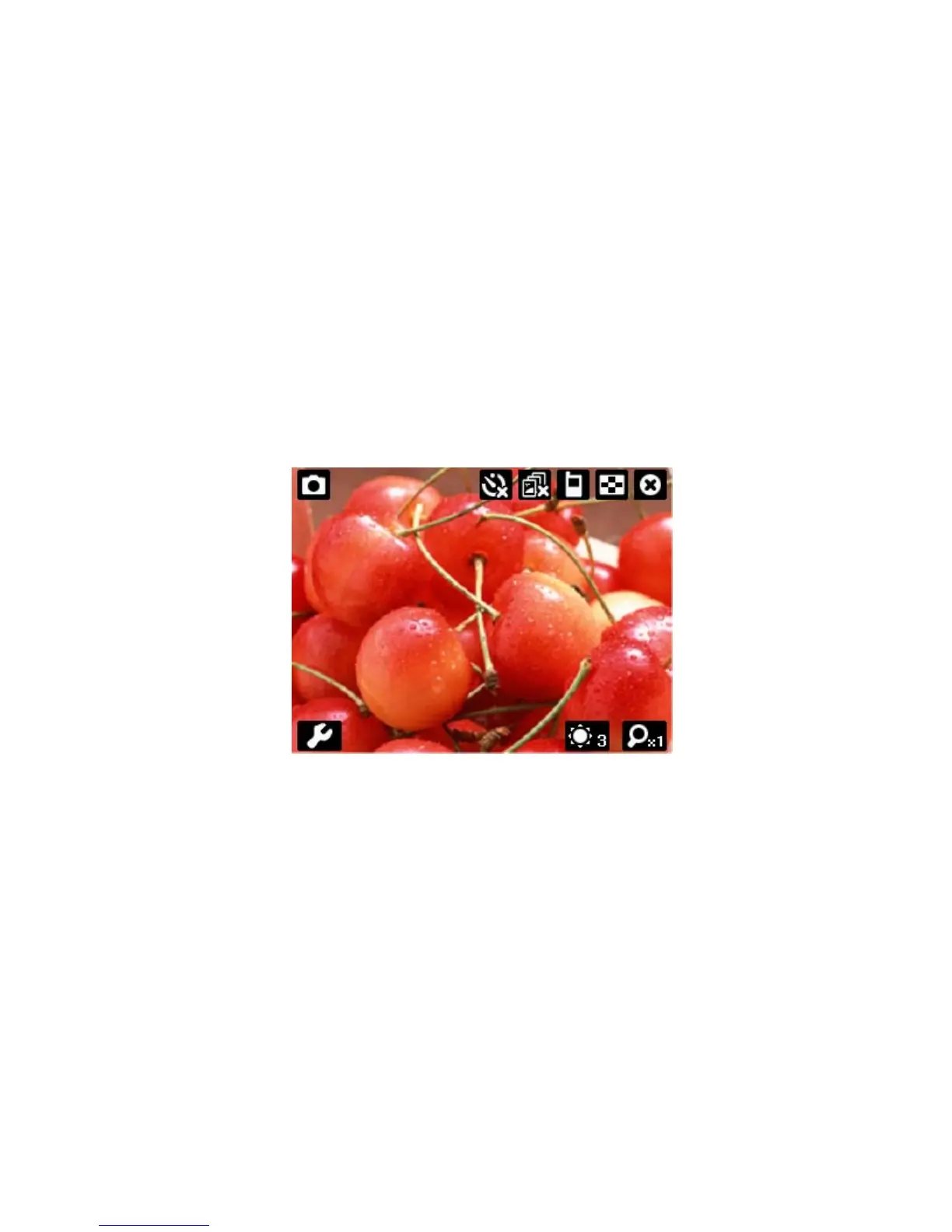
There are several tool icons on the camera screen. They allow you to do things like
switching between the still & video camera, setting a timer for picture capture or
video length, saving to the devices memory or the storage card, adjusting
brightness, zooming in and out, choosing color, black & white, or sepia tones, etc.
Take some time to become familiar with these features.
Micro Mode
You can adjust the zoom button on the back of the device (indicated in the phone
overview page) to allow you to choose between Micro mode for close-up shots & for
use with “WorldCard Mobile” business card recognition (flower icon – bottom
selection), or normal mode for regular pictures & video (pine icon – top selection).
Precautions when using the Camera
Fingerprints or grease sticking to the lens may result in problems such as picture
blurring or the obscuring of images. You should wipe the lens clean with a lens
tissue.
Try not to shake your phone capturing pictures. Keep the camera as still as possible
while capturing pictures. Movement of your device may lead to picture blurring.
To exit From Camera



 To Next Page