EasyManua.ls Logo

DSC LE2080 - User Manual

DSC LE2080
72 pages
Print Icon
To Next Page IconTo Next Page
Loading...
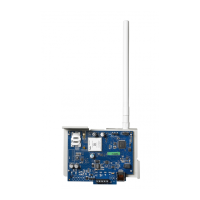
TL280LE(R) / TL280LE-EU /
TL280LE-LAT / TL280LE-AU
Internet and LTE/HSPA Dual-Path Alarm
Communicator
LE2080(R) / LE2080-EU / LE2080-
LAT / LE2080-AU
LTE/HSPA Alarm Communicator
3G2080(R)E
HSPA Cellular Alarm Communicator
TL2803G(R)E
Internet and HSPA Dual-Path Alarm Communicator
TL280(R)E
Internet Alarm Communicator
Installation Manual 5.X
Warning: This manual contains information on limitations regarding product use and function and information on the
limitations as to the liability of the manufacturer. The entire manual should be carefully read.
Please note that not all models and features listed are available in all markets.

Table of Contents

Other manuals for DSC LE2080

Questions and Answers

  • I
    Ian JacksonSep 3, 2025
    Why is the yellow LED on solid on my DSC Computer Hardware?
    • S
      Scott MackSep 3, 2025
      A solid yellow LED on your DSC Computer Hardware typically indicates a lack of signal. First, confirm that cellular network service is active in your area. Then, ensure the antenna is securely connected to the radio and that the antenna stub cable is also securely connected. If you're using an external antenna, check that it's properly screwed onto the antenna cable connector and inspect it for any damage or shorts.
  • D
    david54Sep 3, 2025
    What does it mean when all LEDs are flashing together on my DSC Computer Hardware?
    • T
      Tracy CurtisSep 3, 2025
      When all the LEDs on your DSC Computer Hardware are flashing together, it indicates that the boot loader has failed. To resolve this, disconnect the power and then reconnect it to the communicator module.
  • J
    Jill GarciaSep 4, 2025
    What does it mean when the yellow LED flashes 5 times on my DSC Computer Hardware?
    • S
      Sabrina DavisSep 4, 2025
      If the yellow LED on your DSC Computer Hardware flashes 5 times, it signals a cellular trouble. To resolve this, confirm that cellular service is available and active in your area. Check all antenna connections to ensure they are secure. Make sure the average radio signal strength is CSQ 5 or higher. Verify that the SIM card is properly inserted into the SIM card holder and that it has been activated, which can take up to 24 hours after installation. If the trouble persists, consider relocating the panel and communicator or installing an external antenna extension kit.
  • J
    James HayesSep 5, 2025
    What to do if the yellow LED flashes 6 times on my DSC Computer Hardware?
    • H
      Heather FreemanSep 5, 2025
      If the yellow LED flashes six times, it indicates an Ethernet trouble. Check with your ISP to confirm that Internet service is active in your area. Make sure the Ethernet cable is securely inserted into both the RJ45 jack of the communicator and the hub/router/switch. Check the link light on the hub/router/switch. If the link light is off, restart the hub/router/switch. If DHCP is used, ensure that the unit has an assigned IP address from the server. Check that a valid IP address is programmed. If not, contact the network administrator. If the problem persists, try replacing the Ethernet cable and RJ45 connector.
  • S
    Sarah WilliamsSep 6, 2025
    Why is the trouble LED flashing 2 times on my DSC Computer Hardware?
    • J
      Jonathan MercadoSep 6, 2025
      If the Trouble LED is flashing twice, it indicates a Panel Supervision Trouble. Ensure that section [382] toggle option [5] is ON (Alternate Communicator Enabled). Also, check that the PC-LINK cable between the panel and the communicator is connected properly (not reversed) and securely in place.
  • L
    Luis BoydSep 7, 2025
    What does it mean when the red and yellow LEDs are flashing together on my DSC Computer Hardware?
    • C
      Cassandra CastilloSep 7, 2025
      If the red and yellow LEDs are flashing together, the unit is still initializing. Please wait while the unit gets its programming and establishes a connection to all programmed receivers.

Summary

Panel Mounting

Pre Installation Configuration

Communicator Installation Steps

Installing Communicator in Panel

Installing the Communicator with HS20 XX Panels

Specific mounting instructions for HS20XX series panels.

Communicator Placement Test

Cellular Communicator Models Only

Specific placement test instructions for cellular models.

Initial Panel Programming

SMS Command and Control

Communicator Status LEDs

Explanation of the communicator's status LEDs.

Yellow Trouble LED

Details on the yellow trouble LED and its flash codes.

Communicator Status LEDs (Continued)

Red Network Connection Status LED

Explanation of the red network connection status LED and signal strength LEDs.

Communicator Reset;Update

Factory Defaults Reset

Steps to restore the communicator to its factory default settings.

Firmware Update

Information on how to update the communicator's firmware.

Communicator Troubleshooting

Panel Supervision Trouble (2 Flashes)

Explains panel supervision trouble and its causes/solutions.

Cellular Trouble (5 Flashes)

Details cellular trouble causes and troubleshooting steps.

Ethernet Trouble (6 Flashes)

Explains Ethernet trouble and how to resolve it.

Receiver Not Available (7 Flashes)

Information on receiver not available issues and fixes.

Communicator Troubleshooting (Continued)

Receiver Supervision Trouble (8 Flashes)

Troubleshooting receiver supervision issues.

FTC Trouble (9 Flashes)

Explains FTC trouble and its resolution.

Module Configuration Trouble (12 Flashes)

Details module configuration trouble and solutions.

Ethernet;Cellular Programming Options

Ethernet IP Address

Setting the IP address for Ethernet communication.

Ethernet IP Subnet Mask

Configuring the subnet mask for Ethernet.

Ethernet Gateway IP Address

Setting the gateway IP address for Ethernet.

Ethernet;Cellular Programming Options (Continued)

Primary Ethernet DNS IP

Setting the primary DNS IP address for Ethernet.

Backup Ethernet DNS IP

Setting the backup DNS IP address for Ethernet.

Programming Options (Continued)

Installer Code

Setting the installer code for programming access.

Account Code

Setting the account code for central station transmission.

System Test Options

Ethernet 1 Test Transmission

Enabling/disabling test transmissions for Ethernet 1.

Ethernet 2 Test Transmission

Enabling/disabling test transmissions for Ethernet 2.

Cellular 1 Test Transmission

Enabling/disabling test transmissions for Cellular 1.

Cellular 2 Test Transmission

Enabling/disabling test transmissions for Cellular 2.

System Test Options (Continued)

Ethernet Receiver 1 Options

Ethernet Receiver 1 Enabled

Enabling or disabling Ethernet Receiver 1.

Ethernet Receiver 1 Account Code

Setting the account code for Ethernet Receiver 1.

Ethernet Receiver 1 Options (Continued)

Ethernet Receiver 1 Address

Configuring the IP address for Ethernet Receiver 1.

Ethernet Receiver 2 Options

Ethernet Receiver 2 Address

Configuring the IP address for Ethernet Receiver 2.

Ethernet Options

Ethernet Test Transmission Time

Setting the time for Ethernet test transmissions.

Ethernet Test Transmission Cycle

Setting the interval for Ethernet test transmissions.

Cellular Receiver 1 Options

Cellular Receiver 1 Enabled

Enabling or disabling Cellular Receiver 1.

Cellular Receiver 1 Account Code

Setting the account code for Cellular Receiver 1.

Cellular Receiver 1 Address

Configuring the IP address for Cellular Receiver 1.

Cellular Receiver 1 APN

Setting the Access Point Name (APN) for Cellular Receiver 1.

Cellular Receiver 2 Options

Cellular Receiver 2 Enabled

Enabling or disabling Cellular Receiver 2.

Cellular Receiver 2 Account Code

Setting the account code for Cellular Receiver 2.

Cellular Receiver 2 Address

Configuring the IP address for Cellular Receiver 2.

Cellular Receiver 2 APN

Setting the APN for Cellular Receiver 2.

Cellular Options

Cellular Public Access Point Name

Setting the public APN for cellular DLS/firmware updates.

Cellular Options (Continued)

Cellular Test Transmission Time of Day

Setting the time for cellular test transmissions.

Cellular Test Transmission Cycle

Setting the interval for cellular test transmissions.

Command and Control Options (Continued)

Receiver Diagnostic Testing

Communicator Status

System Reset Defaults

UL;ULC Installation Requirements

DSC LE2080 Specifications

General IconGeneral
BrandDSC
ModelLE2080
CategorySecurity System
LanguageEnglish

Related product manuals