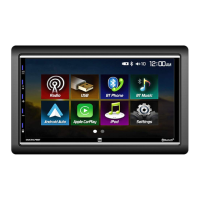
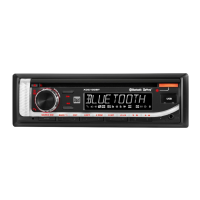
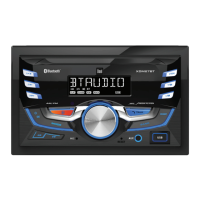
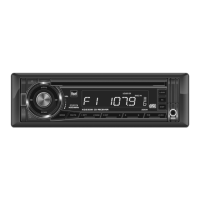
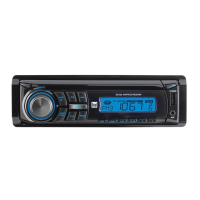
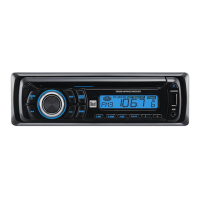
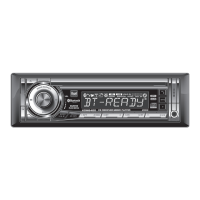
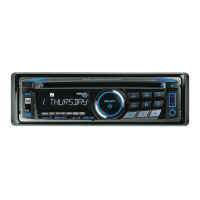
The XDCPA10BT is a media receiver designed for in-vehicle use, featuring Android Auto™ and CarPlay™ integration, along with a 7-inch digital TFT display. This device allows users to access various functions such as radio, USB media playback, Bluetooth connectivity for phone calls and audio streaming, and auxiliary inputs. Its primary function is to provide an enhanced in-car entertainment and information system, prioritizing driver safety through voice-controlled features and a clear display.
Function Description
The XDCPA10BT operates as a central hub for media and communication within a vehicle. It supports AM/FM radio tuning, allowing users to select stations, store presets, and scan for available frequencies. The device includes a USB port for playing MP3/FLAC files from a flash drive, offering a wide range of media compatibility. Bluetooth functionality enables hands-free calling and audio streaming from compatible mobile devices, with features like phone book access, call logs, and music control directly from the receiver.
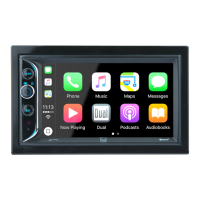
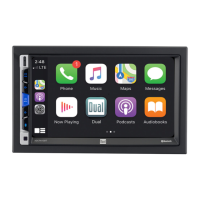
A key feature of the XDCPA10BT is its integration with Android Auto™ and CarPlay™. When an Android phone or iPhone is connected via USB, the device mirrors essential smartphone applications onto its 7-inch display. This includes navigation (Maps), communication (Phone, Messages), and music apps, all designed for safe in-car use. Voice control, primarily through Siri for CarPlay and Google Assistant for Android Auto, is heavily emphasized to minimize driver distraction. Users can make calls, send messages, get directions, and control music using voice commands, keeping their hands on the wheel and eyes on the road. The interface is designed to be intuitive, with large icons and simplified menus for easy access to functions.
The device also supports auxiliary audio/video inputs, allowing external media sources to be connected. An optional rear camera input is available, which automatically activates when the vehicle is in reverse, providing a visual aid for parking and maneuvering. The unit is equipped with a built-in SWC (Steering Wheel Control) interface, compatible with PAC steering wheel control modules, enabling users to control basic functions like volume, track, and mode directly from their steering wheel.
Usage Features
The XDCPA10BT offers a user-friendly experience with its touch screen interface and physical controls. The main menu provides quick access to different operation modes such as Radio, USB, CarPlay, Android Auto, BT Phone, BT Audio, AV In, and Settings. The display features a clear layout with large icons, making it easy to navigate while driving.
For radio operation, users can manually tune, seek up/down, and store favorite stations as presets. The AS/PS (Auto Store/Preset Scan) function simplifies the process of finding and storing available stations. USB playback includes controls for playing, pausing, skipping tracks, repeating, and shuffling songs. The device supports various file systems and formats, ensuring broad compatibility with USB flash drives.
Bluetooth pairing is straightforward, with the unit broadcasting its pairing signal when no devices are connected. Once paired, the device automatically connects to the last connected phone, allowing for seamless hands-free communication and audio streaming. The on-screen keypad facilitates dialing, and call logs provide a history of dialed, missed, and received calls. Music streaming via Bluetooth offers basic playback controls.
The Android Auto and CarPlay interfaces are designed to be familiar to smartphone users, mirroring the look and feel of their respective operating systems. Voice commands are central to these features, allowing users to interact with navigation, communication, and music apps without touching the screen. The home button on the CarPlay interface, for instance, functions similarly to an iPhone's home button, summoning Siri or returning to the main CarPlay menu. Exiting these modes is typically done by disconnecting the phone or pressing the unit's power/volume knob.
The device also includes general settings for customizing the user experience. These include adjusting date and time, setting the time format (12-hour or 24-hour), enabling/disabling beep tones, and selecting the radio region. Audio settings offer an equalizer with various presets (Default, User, Classic, Rock, Jazz, Electric, Pop, Soft) and options for time alignment, loudness, and subwoofer control (gain, on/off). Display settings allow users to adjust brightness and dimmer mode (Auto/Day/Night). Other settings include options to reset Bluetooth settings or reboot the system, and view the software version.
Maintenance Features
Maintaining the XDCPA10BT involves a few simple steps to ensure optimal performance and longevity. For cleaning the monitor, it is recommended to use only a dry silicone cloth or soft cloth. Harsh materials or volatile solvents like paint thinner and alcohol should be avoided, as they can scratch the screen surface or remove printing.
In case of abnormal operation or if the unit becomes inoperable, a reset button is provided behind the front panel, typically under the USB port. This button, accessible with the tip of a pen, resets the main processor to its default settings, which can resolve many software-related issues.
For fuse replacement, it is crucial to use a new fuse with the prescribed rating (15 amp ATC mini style fuse). Using an incorrect fuse type or amperage can cause damage to the unit. When replacing a fuse, the wiring harness should be disconnected first to prevent short circuits.
The installation instructions emphasize proper grounding of the unit to the vehicle chassis and avoiding installation in areas exposed to direct sunlight, excessive heat, dust, dirt, or excessive vibration. These precautions help prevent damage and ensure reliable operation.
The device also incorporates a parking brake lock-out feature for safety, which requires the parking brake to be fully engaged for certain functions to operate. The installer must connect the parking brake detect wire correctly to ensure this feature is operable. Users are warned against attempting to bypass this safety feature.
For technical assistance or warranty claims, users are advised to consult their nearest DUAL dealer or contact customer support. Keeping the original sales receipt is important for warranty purposes, as it serves as proof of purchase and indicates the purchase date. The product can also be registered online for support.


 To Next Page
 General