DynaVox Technologies
24
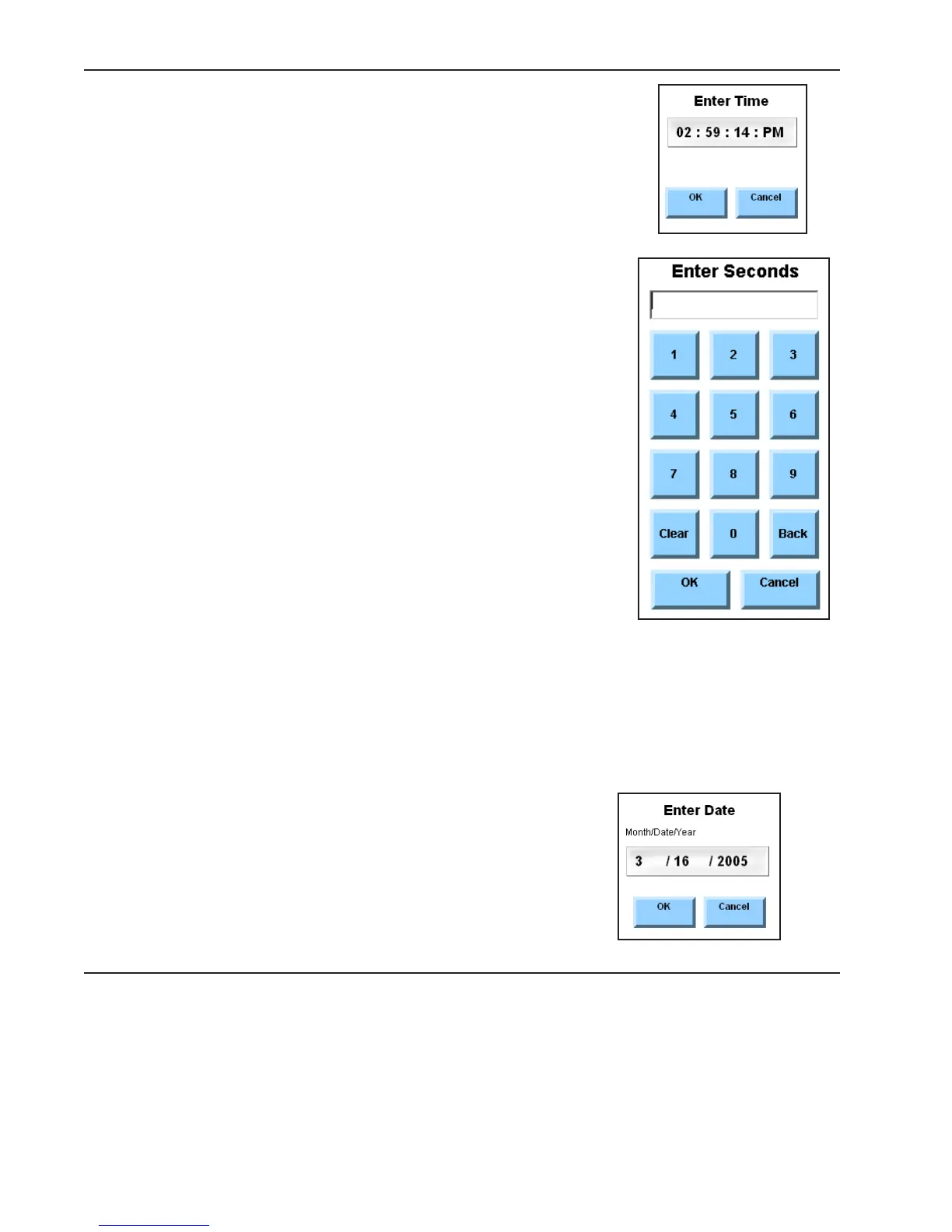
4. Select the Set Time button. The Enter Time menu will open.
5. Select the hour digits. The Enter Hours menu will open.
6. Use the buttons in the number pad in the Enter Hours menu to
enter the current hour (1-12).
7. Select the OK button to return to the Enter Time menu.
8. Select the minute digits. The Enter Minutes menu will open.
9. Use the buttons in the number pad in the Enter Minutes menu
to enter the current minutes (00-59).
10. Select the OK button to return to the Enter Time menu.
11. Select the seconds digits. The Enter Seconds menu will open.
12. Use the buttons in the number pad in the Enter Seconds menu
to enter the current seconds (00-59).
13. Select the OK button to return to the Enter Time menu.
14. Select the AM/PM setting. This setting toggles between the
two options. When you select this button, the displayed
setting will automatically change to the opposite setting.
15. Select the OK button to close the Enter Time menu.
16. Select the OK button to close the System Settings menu.
Setting the Date
Use these steps to change the date that is displayed by your device.
1. Select the pull-down menu button in the title bar at the top of the touch screen.
2. Select Setup in the main pull-down menu.
3. Select System Settings in the second pull-down menu.
The System Settings menu will open.
4. Select the Set Date button. The Enter Date menu will open.
5. Select the month digits. The Enter Month menu will open.



 To Next Page