Quick Start: Introducing DynaVox Series 4
Part # 400023
25
6. Use the buttons in the number pad in the Enter Month menu to enter the month (1-12).
7. Select the OK button to return to the Enter Date menu.
8. Select the day digits. The Enter Day menu will open.
9. Use the buttons in the number pad in the Enter Day menu to enter the current day (1-31).
10. Select the OK button to return to the Enter Date menu.
11. Select the year digits. The Enter Year menu will open.
12. Use the buttons in the number pad in the Enter Year menu to enter the current year.
13. Select the OK button to close the Enter Year menu.
14. Select the OK button to close the Enter Date menu.
15. Select the OK button to close the System Settings menu.
Adjusting the Brightness Setting
If the pages on your device’s touch screen are difficult to
see, the screen may be too bright or not bright enough.
Use these steps to adjust the brightness of the screen:
1. Select the pull-down menu button in the title
bar at the top of the touch screen.
2. Select Setup in the main pull-down menu.
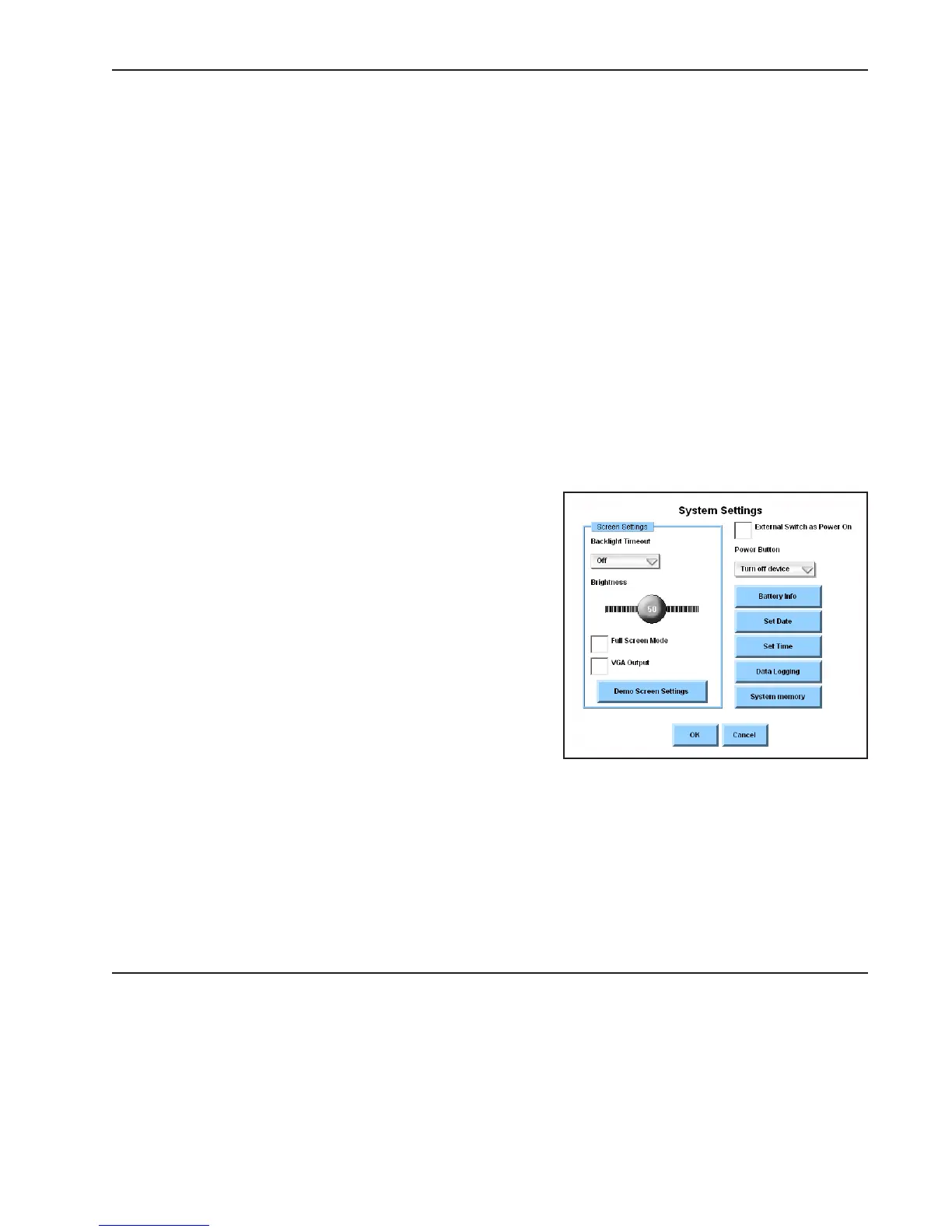
3. Select System Settings in the second
pull-down menu. The System Settings menu
will open.
4. Select the slider thumb on the Brightness
slider. Maintain the selection while you drag the
slider thumb to the left to dim the screen, or to the right to increase screen brightness.
5. Select the Demo Screen Settings button. The touch screen will adjust to reflect your new
brightness setting.
6. If your brightness setting still needs adjustments, repeat steps 4 and 5.
7. Select the OK button to close the System Settings menu.



 To Next Page