Quick Start: Introducing DynaVox Series 4
Part # 400023
27
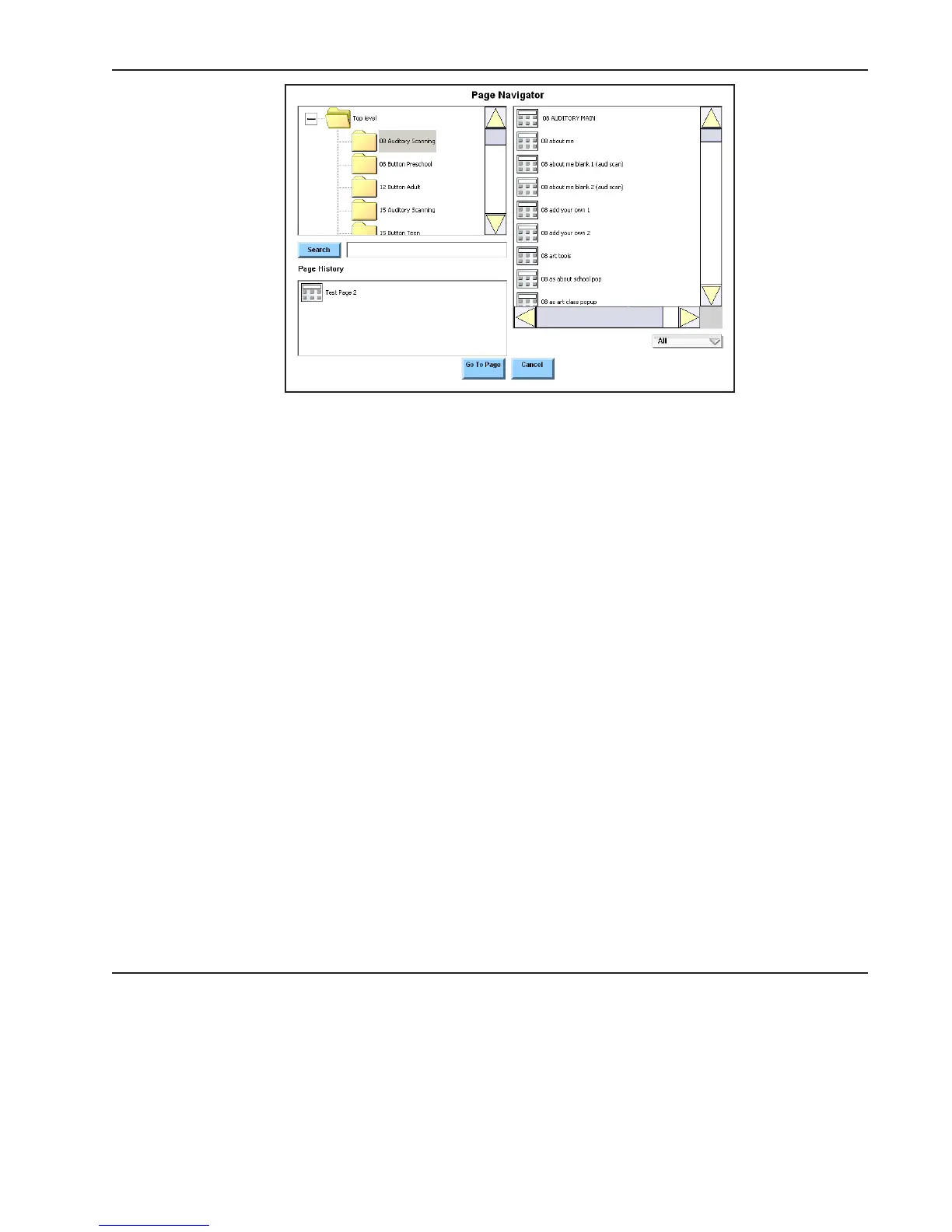
4. If you want to scroll to a page, choose the expansion box beside the Top level folder in the
left viewport and then complete the rest of this step.
4a. Select the scroll buttons beside the left viewport to look through all the page set folders.
4b. Select a page set folder in the left viewport. The right viewport will fill with a list of the
pages and popups that are included in the chosen folder.
4c. Select the scroll buttons beside the right viewport to look through the list of pages and
popups.
4d. Select the name of the page you want to open and then proceed to step 6.
5. If you want to search for a specific page, select the Search text box. A system keyboard
popup will open.
5a. Use the system keyboard to enter the name of the page you are looking for.
5b. Select the OK button to close the system keyboard. The page name you entered will be
highlighted in the right viewport of the Page Navigator menu. Proceed to step 6.
6. Select the Go to Page button at the bottom to close the Page Navigator menu and open the
page you selected.



 To Next Page