Quick Start: Introducing DynaVox Series 4
Part # 400023
31
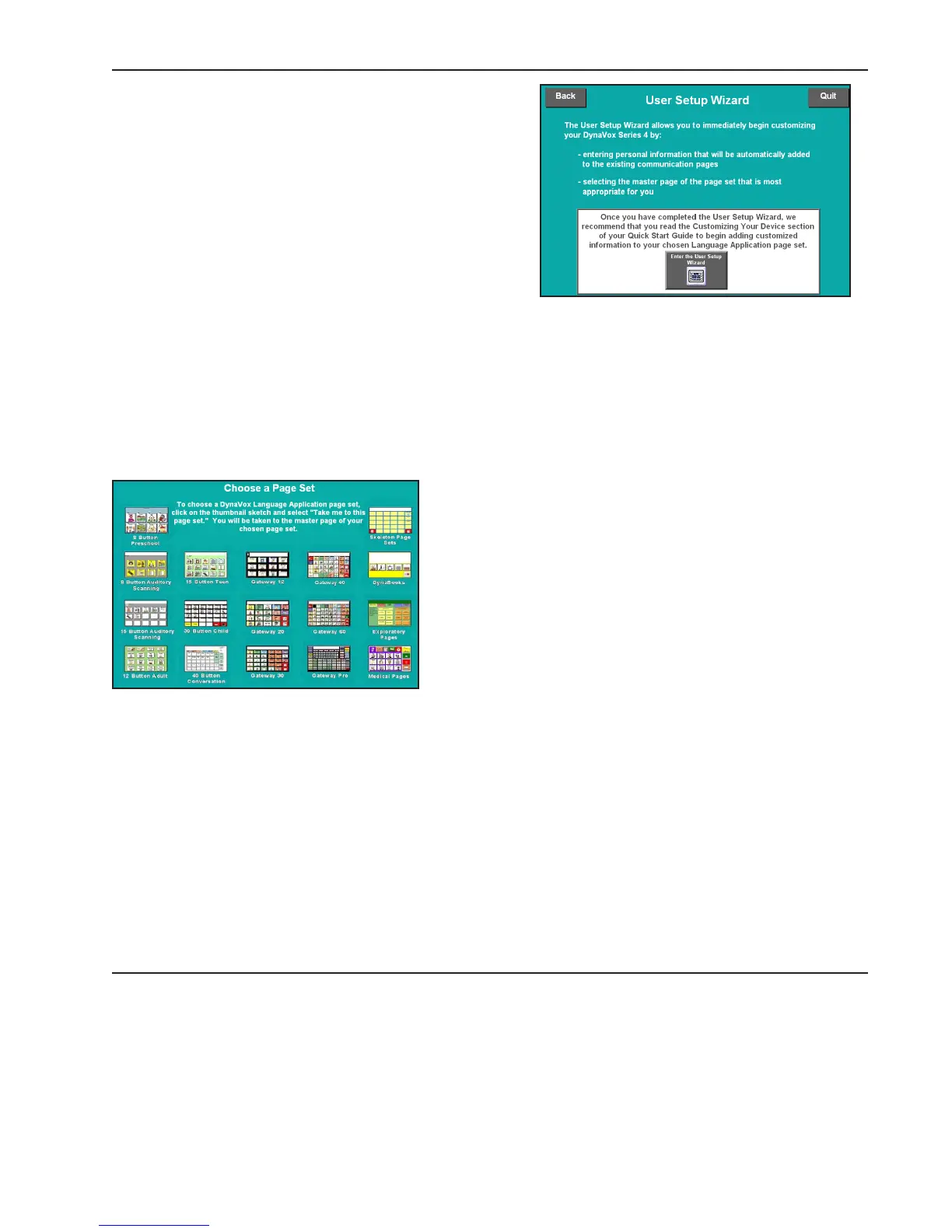
The next page (User Setup Wizard) introduces the
DynaVox Series 4 User Setup Wizard. This feature
provides a simple way to add customized information
like names and addresses to your DV4/MT4 device. It
allows you to create a database of personal information
that can be automatically added to the buttons on
communication pages. You can learn more about using
the User Setup Wizard by reading Section 5:
Customizing Pages in this Quick Start manual.
You may select the large button at the bottom of this
introductory page to automatically open the User Setup
Wizard. You can then fill in the requested information
by selecting the text boxes and using the system keyboard popup to enter text. Selecting the Next button
at the bottom of each window will take you to the next window. Once you have entered all the requested
information, you can review descriptions of the available selection methods and choose a default page
set. Once this is done, select the Finish button. A window will present an overview of all your
information. Select the Save button to confirm this information and close the User Setup Wizard. The
page set you selected will open automatically. You may want to read Section 5: Customizing Pages in this
Quick Start to learn about additional methods for customizing the page set you have selected.
If you do not want to open the User Setup Wizard, select
the gray Quit button in the top right corner of the page.
Selecting this button will take you to a page (Choose a
Page Set) that enables you to choose a page set. To
choose a page set, select the thumbnail graphic that
represents the page set you want to open. A confirmation
window will open. You may opt to return to the Choose a
Page Set page by selecting Cancel or to open the selected
page set. Once you have opened a page set, you can begin
communicating and adding your own unique information.
See Section 5: Customizing Pages in this Quick Start to
learn about simple ways to customize your selected page
set.



 To Next Page