MF2E-E -B 2
- 9 -
the IP Camera, for example : in picture 5 camera-1 ’ s IP is 192.168.1.126
( located in subnet 192.168.1 ) , PC-1 ’ s IP is 192.168.0.100 ( located in
192.168.0 ) , on this case, PC-1 can not access IP Camera-1, after changing
IP Camera-1 ’ s IP into 192.168.0.126, it can access;
2 ) computer and camera are in different LANs, but both of them can access
internet.
F or camera-1 and computer-2 in picture 3, to access camera-1 through
computer-2, then need to set step 1 ) first to confirm computer-1 can access
camera-1, then configure router-1 ( router-1 should support port
forwarding ) , then computer-2 can apply to access camera-1 via router-1.
Normally, computer-2 only can send message to router-1, so it can not
access camera-1 without configuration of router-1.
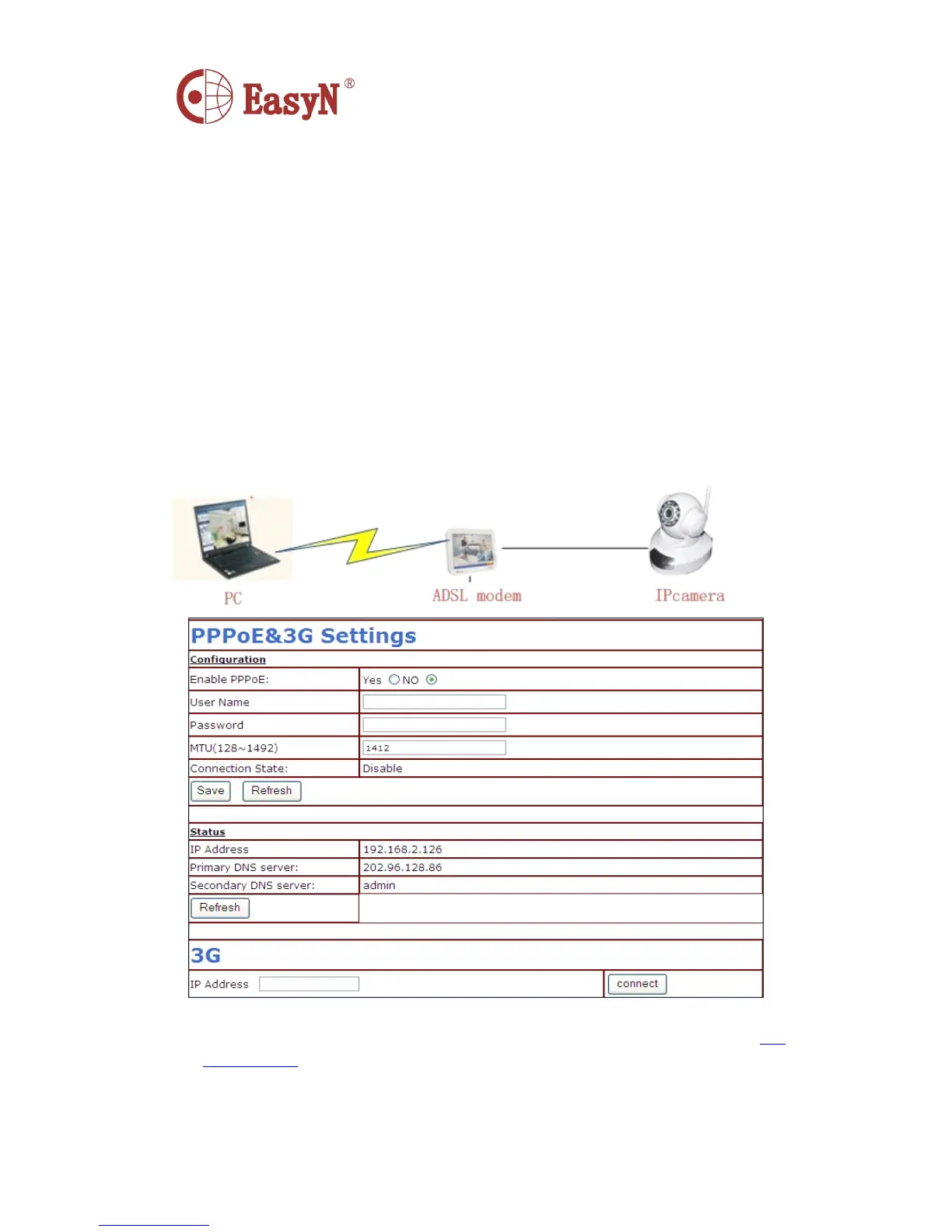
4.3 . CONNECT NETWORK VIA ADSL
�
Connect device to computer via cable .
�
Configure device basic settings through IP Camera tool ( details refer to : 5.1
IPcamera tool ).
�
Login device as administrator, access PPPOE setting page to input account user
and password .


 To Next Page