16
EN
EBS Ink-Jet Systeme 20111028#4.2
EN
3. There are three character
insertion modes you can use:
Single character, mode 1,
Single character, mode 2, Multi
character. Each of them
matches Windows® font charac-
ters with the capabilities of your
printer in a different way accord-
ing to the font type, language and
character insertion mode (the
Right to left editing parameter).
!
The number of characters to be input
with the use of the Windows fonts is
limited – it depends on the font type
and size.
Variable Fields
Variable fields are designated fields of
text whose contents are updated
automatically after every print. The
following events can impact on the
contents of variable fields: change in
date, change in time, activation of
release button 5 and other.
Up to 10 variable fields can be used
in one text at the same time.
!
Only the printer built-in fonts can be
used to print variable fields; no
Windows
®
fonts can be used.
Date and Time
In order to synchronize the date and
time of your printer with those of your
computer move to the Date tab and
click the
and
keys successively.
You can set a different date or time in
your printer by setting them in the
Date tab and transferring to the
printer with the
key.
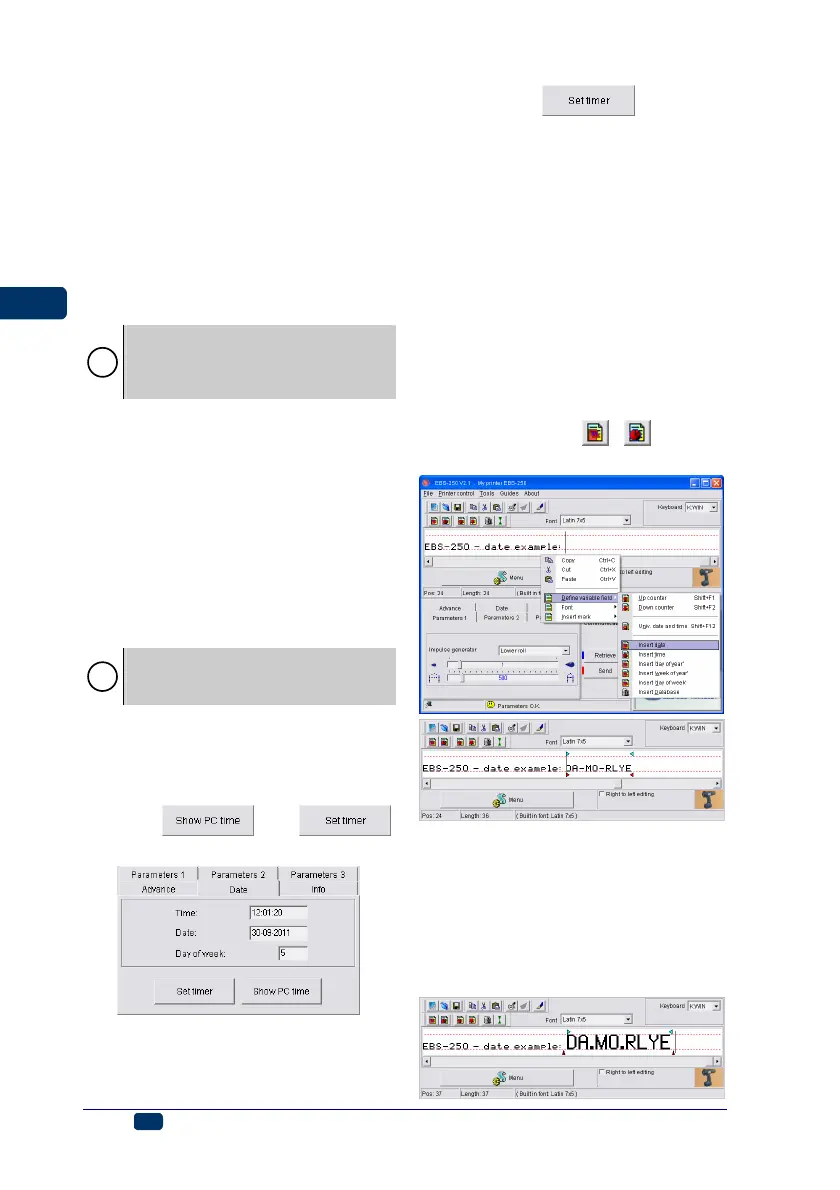
In order to insert the date (time) field
that is updated automatically, follow
the steps below:
1. In the text edit line position the
cursor in the place where you want
the date (time) to be displayed.
2. While holding the cursor on the
text edit line press the right
mouse button (or the MENU but-
ton) and select the command
Define variable field from the
menu displayed. Then select
Insert date (Insert time) in the
list displayed. You can also do
that using the
( ) key on
the tool bar of text edit window.
3. You can insert a font-change
marker on the left or right of the
date (time) field.
4. You can change separators inside
the date (time) field by replacing
the existing separators with differ-
ent characters. You can also re-
move proportional-text markers.


 To Next Page