20111028#4.2 EBS Ink-Jet Systeme
EN
25
EN
Intelligent Control of Hand
Movement
The printer system controls the print-
ing process and makes it impossible
to produce a misprint should the op-
erator’s hand or the printer be with-
drawn by chance. The control is en-
abled if the Shaft direction parame-
ter is set to Compatible with printing
direction or Contrary to printing
direction
(depending on whether objects are
labelled from left to right or from right to left)
.
The system detects every withdrawal
of the printer automatically and sus-
pends printing. After the printer has
returned to its proper position, printing
is resumed from the place /text part in
which the printer was drawn back.
The Shaft direction parameter is
available in the Advance tab sheet
after the Adv. options box has been
ticked. If the parameter is set to
Disabled, the printer will produce
labels in either direction.
!
In order to ensure that printing is
resumed exactly in the place where it
was interrupted, the lower roll, 3, of
the printer needs to have contact with
the surface to be labelled on a con-
tinuous basis.
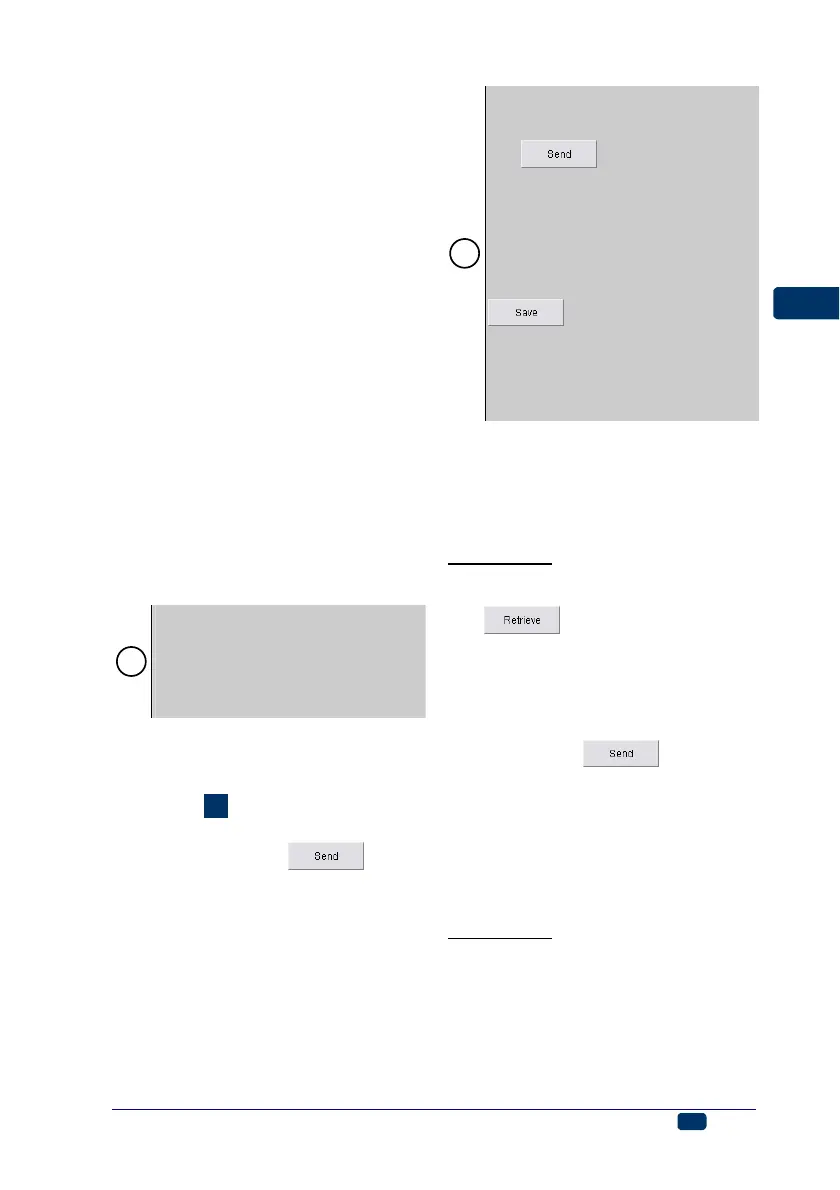
How to Transfer/Save Text Files
to/in the Printer
See figure
F
. In order to send a text
and print parameters to the printer,
you need to click the
key or
use the command Send text and
parameters from the Printer control
menu. Wait until an O.K. message is
displayed in the transmission status
window.
!
If you use the extended parameter
panel (which is available after the
Adv. options box has been ticked),
the key has a different
function. When such a panel is used
and text is sent to the printer, the text
file is not saved in the printer’s non-
volatile memory at the same time. If
the printer is switched off the text file
is lost. In order to save the text file in
the non-volatile memory press the
key or use the Save text
and parameters command from the
Save text and parameters menu. If
you do that and switch the printer off
and on, the text will be immediately
ready for printing.
How to Change a Text File
Stored in the Printer
Every text file can be changed in two
ways.
Method One:
1. Retrieve a text file from the print-
ers memory by clicking the
key or the command
Retrieve text and parameters.
2. Modify the text file and/or print
parameters with the text editor.
3. Save the text file in the non-
volatile memory of the printer by
clicking the
, bearing in
mind that an O.K. message
should be displayed in the trans-
mission status window each time
a file is saved.
See also the note in the section
entitled
How to Transfer/Save Text
Files to/in the Printer.
Method Two:
1. Open a project (text and parame-
ters) with the command Open
project or only a text file with the
command Open text (without
parameters) on your computer.
2. Save the text file in the non-
volatile memory of the printer by



 To Next Page