20111028#4.2 EBS Ink-Jet Systeme
EN
19
EN
NOTE: An increment (decrement) is added to the
counter each time button
5 is pressed and the
contents of the incremental (decremental)
counter increases (decreases). The only excep-
tion is when a text is to be printed repeatedly,
that is when the print parameter Text repeti-
tions>1 or is set to Continuous. In such a
situation button
5 does not time each of the
prints but rather groups of prints. The Refresh
var.fields parameter from the Parameters 3 tab
decides whether every successive repetitive print
modifies the contents of the counters or not. The
distance between the beginnings of two con-
secutive prints produced with repetitive printing
is defined with the Rep. distance parameter
from the Parameters 2 tab.
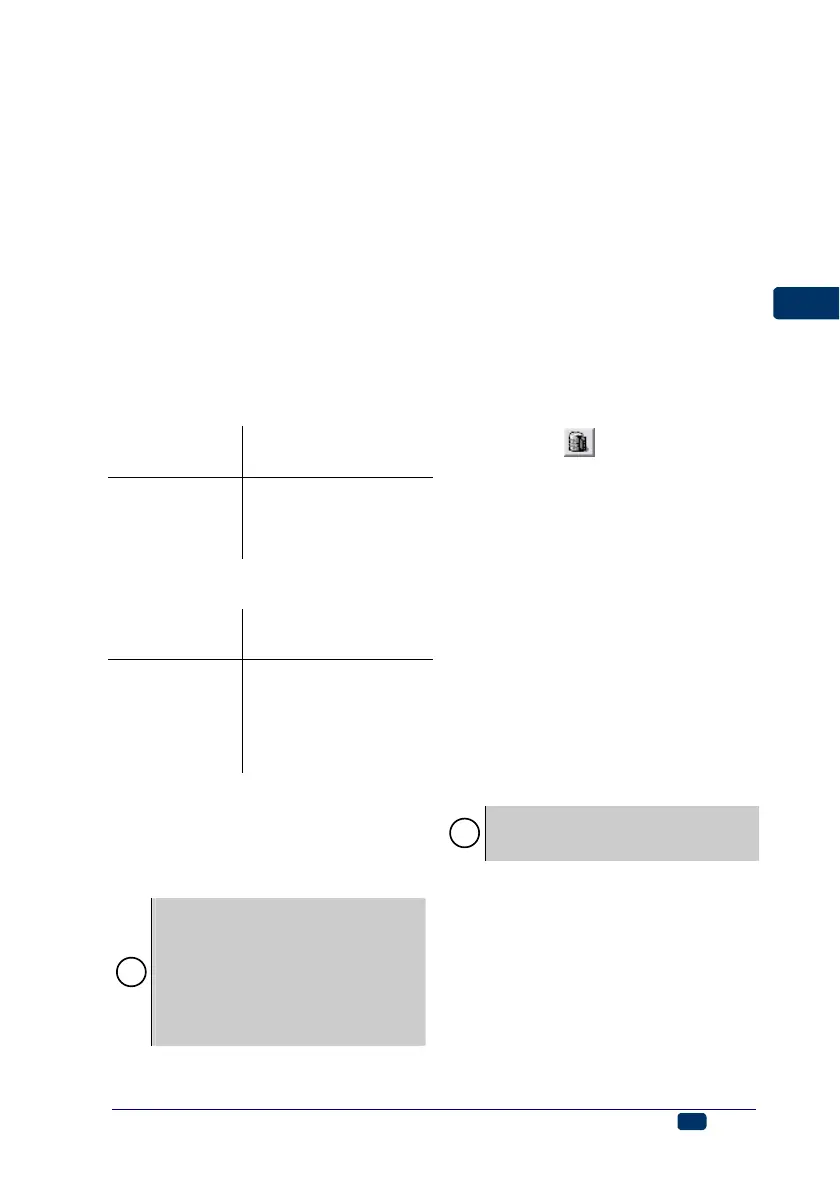
Example: For the counter defined as above set
the Text repetitions parameter to 3.
a). If the Refresh var.fields parameter is set to
OFF, the following prints can be produced:
If release button
5
is pressed for xth
time
The following counter
contents are printed:
1 0000 0000 0000
2 0001 0001 0001
3 0002 0002 0002
--- --- --- ---
999 0999 0999 0999
b). If the Refresh var.fields parameter is set to
ON, the following prints can be produced:
If release button
5
is pressed for xth
time
The following counter
contents are printed:
1 0000 0001 0002
2 0003 0004 0005
3 0006 0007 0008
4 0009 0010 0011
--- --- --- ---
333 0996 0997 0998
334 0999 1000 1001
Database Data
The contents of the database can be
printed automatically on every suc-
cessive object to be labelled owing to
the database variable field.
!
The database handling option is
available for the EBS250C printers
after an enable code has been typed
in. Contact your printer distributor to
obtain the code. After the code has
been input, the enable setting is
saved permanently in printer mem-
ory.
The database (also in the form of
Excel and text files) can be accessed
via an ODBC software interface.
In order to insert a database variable
field, follow the steps given below:
1. In the text edit line position the
cursor in the place where you
want the data to be displayed.
2. While holding the cursor on the
text edit line, press the right
mouse button (or the MENU but-
ton) and select the Define vari-
able field command from the
menu displayed. Then select
Insert Database from the list
displayed. You can also do that
using the
key on the tool bar
of the text edit window.
In the window displayed, configure a
link to the database:
1. Press the Connection settings
key and then choose Microsoft
OLE DB Provider for ODBC Driv-
ers in the Provider tab of the
Data Link Properties window and
press the Next key.
2. In the Specify the source data
item of the Connection tab
choose Use connection string
and press the Build... key.
3. In the Select Data Source win-
dow press the New... key to es-
tablish a link.
!
If a given source is to be used again,
it can be chosen from the list and
steps 3 to 7 can be omitted.
4. In the Create New Data Source
window choose a driver for han-
dling Excel files (*.xls) and press
the Next key.
5. Type in the name of a new source
of data and press the Next key.
6. Confirm whether the data source
settings are correct by pressing
the Finish key.
7. In the ODBC Microsoft Excel
Setup window indicate an *.xls


 To Next Page