EasyManua.ls Logo

EchoMaster Pro FCTP-GM2003 - User Manual

Default Icon
28 pages
Print Icon
To Next Page IconTo Next Page
Loading...
Installation Guide
FCTP-GM2003
Compatible with IOS and IOT Touchscreen Radios
Silverado/Sierra Heavy Duty Trucks (2020-Present)
Trailering Camera System
Question and Answer IconNeed help?

Do you have a question about the EchoMaster Pro FCTP-GM2003 and is the answer not in the manual?

Summary

Important Safety Information and Disclaimers

Understanding Warning, Caution, and Note Symbols

Understanding Warning, Caution, and Note Symbols used in the manual.

Manufacturer Liability Disclaimer

Disclaimer regarding manufacturer responsibility for installation damage or misuse.

Vehicle Preparation and Protection

Precautions for Battery Disconnection and Trim Removal

Precautions for disconnecting the battery and removing vehicle trim panels.

Whats in the Box

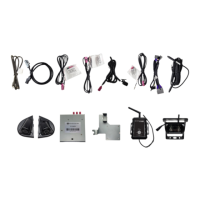
Identification of Included Parts

Identification and description of all parts included in the kit.

Dip Switch Configuration

Dip Switch Settings and Their Functions

Details on dip switch settings and their corresponding functions for the module.

Tools Required for Installation

Door Panel Disassembly - Part 1

Removing the Inner Handle Trim Panel

Instructions for removing the inner handle trim panel to access bolts.

Locating and Removing Door Bolts

Steps to locate and remove the 7mm bolts behind the door panel.

Door Panel Disassembly - Part 2

Releasing Door Trim Clips and Bolts

Procedure for releasing door trim clips and removing additional bolts.

Detaching the Door Panel

Steps to detach the main door panel from the vehicle.

Door Panel Disassembly - Part 3

Final Steps for Door Panel Removal

Final steps for lifting and removing the door panel after fasteners are released.

Disconnecting Door Latch Cable and Harness

Instructions for disconnecting the door latch release cable and harness.

Camera Cable Routing - Part 1

Mirror Cap Removal and Screw Extraction

Procedure for removing the mirror cap screw and the mirror cap itself.

Disconnecting Temperature Sensor Connector

Instructions for disconnecting the temperature sensor connector.

Camera Cable Routing - Part 2

Accessing and Slitting the Rubber Membrane

Accessing the rubber membrane and making a slit for cable passage.

Using Fish Tape to Route Cables

Feeding fish tape through the prepared opening to route cables.

Camera Cable Routing - Part 3

Securing Cable to Fish Tape and Pulling

Securing the camera cable to fish tape and pulling it through the membrane.

Grommet Release and Cable Routing

Releasing the rubber grommet and routing the cable into the door.

Camera Cable Routing - Part 4

Removing Speaker for Cable Routing

Removing the speaker to facilitate camera cable routing within the door.

Modifying Grommet for Cable Passage

Making a slit in the grommet to allow the camera cable to pass through.

Camera Cable Routing - Part 5

Connecting Camera Extension Cables

Connecting the camera extension cables to the main camera cable.

Securing Cables to Factory Door Harness

Securing the camera cables to the factory wiring harness using zip ties.

Camera Cable Routing - Part 6

Door Sill Plate Removal and Boot Adjustment

Removing the door sill plate and adjusting the door boot for cable routing.

Camera Cable Routing - Part 7

Removing the Under Dash Panel

Removing the under dash beauty panel by releasing push pin fasteners.

Routing Fish Tape to the Door Connector

Routing the fish tape along factory wiring to the door connector area.

Camera Cable Routing - Part 8

Final Cable Routing and Securing Procedures

Finalizing cable routing through the door boot and securing to factory wiring.

Specifics for Driver Side Cable Routing

Instructions for routing the cable on the driver's side, avoiding moving parts.

Installing Camera Pods

Connecting Sensor and Camera Pigtail

Connecting the temperature sensor and camera pigtail to the camera pod.

Securing Camera Pods and Removing Protective Film

Securing the camera pods into place and removing the protective lens film.

Rear Wireless Camera Receiver Setup

Preparing and Mounting the Wireless Receiver

Preparing the surface and mounting the wireless camera receiver to the back window.

Rear Wireless Camera Receiver Connections

Routing the Receiver Pigtail Cable

Routing the pigtail cable from the wireless receiver behind trim panels.

Connecting Receiver to In-line Power Filter

Connecting the receiver's cable to the in-line power filter cable.

Rear Wireless Camera Receiver Cable Routing

Door Sill Plate Removal and Cable Tuck-in

Removing the rear door sill plate and tucking the cable under carpet.

Routing Cables to the Front Kick Area

Routing the cable from the rear sill to the front kick area under trim panels.

Module Assembly and Installation - Part 1

Reference for DIP Switch Settings

Reference to page 4 for setting DIP switches prior to module connection.

Connecting Various Harnesses to the Module

Connecting the power, camera, and LVDS harnesses to the GMS3 module.

Removing the 10 mm Mounting Nut

Removing the 10mm retaining nut from the plastic bracket in the kick area.

Module Assembly and Installation - Part 2

Mounting the GMS3 Module Bracket

Placing and securing the GMS3 mounting bracket onto the vehicle's factory bracket.

Identifying and Disconnecting Factory Connectors

Identifying and disconnecting factory radio brain connectors and the LVDS cable.

Module Assembly and Installation - Part 3

Connecting Module Harnesses to Factory Connectors

Connecting the module's harnesses to the factory 28-pin connectors.

Final Connections to the Factory Radio Brain

Connecting the LVDS connector and harnesses to the factory radio brain.

System Testing - Initial Checks

Verifying Module LED Status Before Power-On

Ensuring module LEDs have stopped flashing before turning the ignition ON.

Acknowledging the On-Screen Warning Screen

Navigating the warning screen and pressing OK to confirm usage terms.

System Testing - Camera Verification

Selecting and Testing Individual Cameras

Selecting and testing each camera view from the Intellihaul 2.0 home screen.

Adjusting Camera View Parameters

Adjusting the camera view by pressing and holding the screen center.

Functional Testing with Turn Signals and Reverse Input

Verifying camera display with turn signals, reverse gear, and using the keypad tester.

Summary

Important Safety Information and Disclaimers

Understanding Warning, Caution, and Note Symbols

Understanding Warning, Caution, and Note Symbols used in the manual.

Manufacturer Liability Disclaimer

Disclaimer regarding manufacturer responsibility for installation damage or misuse.

Vehicle Preparation and Protection

Precautions for Battery Disconnection and Trim Removal

Precautions for disconnecting the battery and removing vehicle trim panels.

Whats in the Box

Identification of Included Parts

Identification and description of all parts included in the kit.

Dip Switch Configuration

Dip Switch Settings and Their Functions

Details on dip switch settings and their corresponding functions for the module.

Tools Required for Installation

Door Panel Disassembly - Part 1

Removing the Inner Handle Trim Panel

Instructions for removing the inner handle trim panel to access bolts.

Locating and Removing Door Bolts

Steps to locate and remove the 7mm bolts behind the door panel.

Door Panel Disassembly - Part 2

Releasing Door Trim Clips and Bolts

Procedure for releasing door trim clips and removing additional bolts.

Detaching the Door Panel

Steps to detach the main door panel from the vehicle.

Door Panel Disassembly - Part 3

Final Steps for Door Panel Removal

Final steps for lifting and removing the door panel after fasteners are released.

Disconnecting Door Latch Cable and Harness

Instructions for disconnecting the door latch release cable and harness.

Camera Cable Routing - Part 1

Mirror Cap Removal and Screw Extraction

Procedure for removing the mirror cap screw and the mirror cap itself.

Disconnecting Temperature Sensor Connector

Instructions for disconnecting the temperature sensor connector.

Camera Cable Routing - Part 2

Accessing and Slitting the Rubber Membrane

Accessing the rubber membrane and making a slit for cable passage.

Using Fish Tape to Route Cables

Feeding fish tape through the prepared opening to route cables.

Camera Cable Routing - Part 3

Securing Cable to Fish Tape and Pulling

Securing the camera cable to fish tape and pulling it through the membrane.

Grommet Release and Cable Routing

Releasing the rubber grommet and routing the cable into the door.

Camera Cable Routing - Part 4

Removing Speaker for Cable Routing

Removing the speaker to facilitate camera cable routing within the door.

Modifying Grommet for Cable Passage

Making a slit in the grommet to allow the camera cable to pass through.

Camera Cable Routing - Part 5

Connecting Camera Extension Cables

Connecting the camera extension cables to the main camera cable.

Securing Cables to Factory Door Harness

Securing the camera cables to the factory wiring harness using zip ties.

Camera Cable Routing - Part 6

Door Sill Plate Removal and Boot Adjustment

Removing the door sill plate and adjusting the door boot for cable routing.

Camera Cable Routing - Part 7

Removing the Under Dash Panel

Removing the under dash beauty panel by releasing push pin fasteners.

Routing Fish Tape to the Door Connector

Routing the fish tape along factory wiring to the door connector area.

Camera Cable Routing - Part 8

Final Cable Routing and Securing Procedures

Finalizing cable routing through the door boot and securing to factory wiring.

Specifics for Driver Side Cable Routing

Instructions for routing the cable on the driver's side, avoiding moving parts.

Installing Camera Pods

Connecting Sensor and Camera Pigtail

Connecting the temperature sensor and camera pigtail to the camera pod.

Securing Camera Pods and Removing Protective Film

Securing the camera pods into place and removing the protective lens film.

Rear Wireless Camera Receiver Setup

Preparing and Mounting the Wireless Receiver

Preparing the surface and mounting the wireless camera receiver to the back window.

Rear Wireless Camera Receiver Connections

Routing the Receiver Pigtail Cable

Routing the pigtail cable from the wireless receiver behind trim panels.

Connecting Receiver to In-line Power Filter

Connecting the receiver's cable to the in-line power filter cable.

Rear Wireless Camera Receiver Cable Routing

Door Sill Plate Removal and Cable Tuck-in

Removing the rear door sill plate and tucking the cable under carpet.

Routing Cables to the Front Kick Area

Routing the cable from the rear sill to the front kick area under trim panels.

Module Assembly and Installation - Part 1

Reference for DIP Switch Settings

Reference to page 4 for setting DIP switches prior to module connection.

Connecting Various Harnesses to the Module

Connecting the power, camera, and LVDS harnesses to the GMS3 module.

Removing the 10 mm Mounting Nut

Removing the 10mm retaining nut from the plastic bracket in the kick area.

Module Assembly and Installation - Part 2

Mounting the GMS3 Module Bracket

Placing and securing the GMS3 mounting bracket onto the vehicle's factory bracket.

Identifying and Disconnecting Factory Connectors

Identifying and disconnecting factory radio brain connectors and the LVDS cable.

Module Assembly and Installation - Part 3

Connecting Module Harnesses to Factory Connectors

Connecting the module's harnesses to the factory 28-pin connectors.

Final Connections to the Factory Radio Brain

Connecting the LVDS connector and harnesses to the factory radio brain.

System Testing - Initial Checks

Verifying Module LED Status Before Power-On

Ensuring module LEDs have stopped flashing before turning the ignition ON.

Acknowledging the On-Screen Warning Screen

Navigating the warning screen and pressing OK to confirm usage terms.

System Testing - Camera Verification

Selecting and Testing Individual Cameras

Selecting and testing each camera view from the Intellihaul 2.0 home screen.

Adjusting Camera View Parameters

Adjusting the camera view by pressing and holding the screen center.

Functional Testing with Turn Signals and Reverse Input

Verifying camera display with turn signals, reverse gear, and using the keypad tester.

Overview

This document is an installation guide for the EchoMaster FCTP-GM2003 Trailering Camera System, designed for Silverado/Sierra Heavy Duty Trucks (2020-Present) equipped with IOS and IOT Touchscreen Radios.

Function Description:

The EchoMaster FCTP-GM2003 Trailering Camera System enhances visibility for heavy-duty truck drivers, particularly when trailering. It integrates multiple cameras to provide comprehensive views around the vehicle, displayed on the factory touchscreen radio. The system includes left, right, front, and rear camera options, with provisions for additional trailer cameras. This allows drivers to monitor blind spots, assist with parking, and improve overall situational awareness, especially when maneuvering with a trailer. The system is designed to work seamlessly with the existing vehicle's infotainment system, offering an integrated user experience.

Important Technical Specifications:

  • Model Number: FCTP-GM2003
  • Compatibility: Silverado/Sierra Heavy Duty Trucks (2020-Present) with IOS and IOT Touchscreen Radios.
  • Components: The system includes a comprehensive set of components:
    • USB Update Cable for FC-GMS3 Interface (GMS3-USB-CBL)
    • Camera Harness for FC-GMS3 (GMS3-CEH-HAR)
    • LVDS Harness for FC-GMS3 (GMS3-LVDS-HAR)
    • 48" 4 Pin Camera Extension Harness (GMS3-M2F-48)
    • Power / CAN Harness for FC-GMS3 (GMS3-PTH-HAR)
    • Power Filter Harness for RVC-W8 (RVC-W8-FLTR-HAR)
    • 108" 4 Pin Camera Extension Harness (GMS3-M2F-108)
    • Keypad Tester for FC-GMS (GMS3-KEYPAD)
    • Side Mirror Cap Camera Mounts (L&R)/Cameras (SCPT1HD/SVC-03)
    • Interface Module For 2019+ GM Trucks (FC-GMS3)
    • Mounting Bracket for FC-GMS3 (FC-GMS3-BRK)
    • Wireless Trailer Camera and Receiver (RVC-W8)
  • Dip Switch Settings: The interface module features 8 dip switches to configure camera functions:
    • Switch 1: Left Camera On / Off
    • Switch 2: Right Camera On / Off
    • Switch 3: Front Camera On / Off
    • Switch 4: Trigger Wire (On) / CAN (Off)
    • Switch 5: Rear Camera - Aftermarket (On) / OEM (Off) Camera
    • Switches 6, 7, 8: No Function (Must Remain Off)
  • Camera Connections: The system supports various camera types, including GMS3-M2F48 (Right), GMS3-M2F108 (Left), GMS3-M2F144 (Optional Front Camera), and TRAILER (Optional 2nd Trailer Camera).
  • Wireless Connectivity: Includes a wireless trailer camera and receiver (RVC-W8) for flexible trailer monitoring.

Usage Features:

  • Integrated Display: Camera views are displayed directly on the vehicle's factory IOS and IOT touchscreen radios.
  • Camera Selection: Users can select different camera views (Left, Right, Front, Trailer, MultiCam) from the Intellihaul 2.0 home screen on the radio.
  • Automatic Activation: The system can be configured to automatically display camera views based on vehicle actions, such as activating turn signals (for left/right cameras) or engaging reverse gear (for the rear camera).
  • View Adjustment: A minor camera view adjustment feature is built into each view. By pressing and holding the center of the screen for 5 seconds, users can drag the image to adjust the desired view.
  • Keypad Tester: A keypad tester (GMS3-KEYPAD) is provided to cycle through camera inputs (left, right, front, rear) and assist in identifying which camera is being displayed, with labels overlaid on the screen.
  • Expandability: The system supports optional front and second trailer cameras, indicating a modular and expandable design.

Maintenance Features:

  • Installation Guide: A detailed installation guide is provided, emphasizing safety warnings and cautions, especially regarding vehicle preparation, battery disconnection, and trim panel removal.
  • Troubleshooting: The guide includes steps for initial testing and verification of camera functionality, such as checking LED indicators on the module and ensuring the touchscreen is responsive.
  • Cable Management: Instructions stress the importance of securing camera cables to factory wiring to prevent damage and ensure longevity.
  • Software Updates: The inclusion of a USB Update Cable (GMS3-USB-CBL) suggests the possibility of future software updates for the FC-GMS3 interface module.
  • Protective Film Removal: Users are reminded to remove the protective film from camera lenses after installation to ensure clear picture quality.
  • Support Contact: Contact information (tel: 1-866-766-2267, email: gmsupport@echomaster.com) is provided for customer support.
  • Warranty/Agreement: The manual includes an agreement stating that the end-user must comply with instructions and laws, and EchoMaster disclaims liability for misuse. The product is intended for off-road and passenger use only.

EchoMaster Pro FCTP-GM2003 Specifications

General IconGeneral
BrandEchoMaster Pro
ModelFCTP-GM2003
CategoryAutomobile Accessories
LanguageEnglish

Related product manuals