13
eSteer10 User Manual
B. Regular Line Guidance
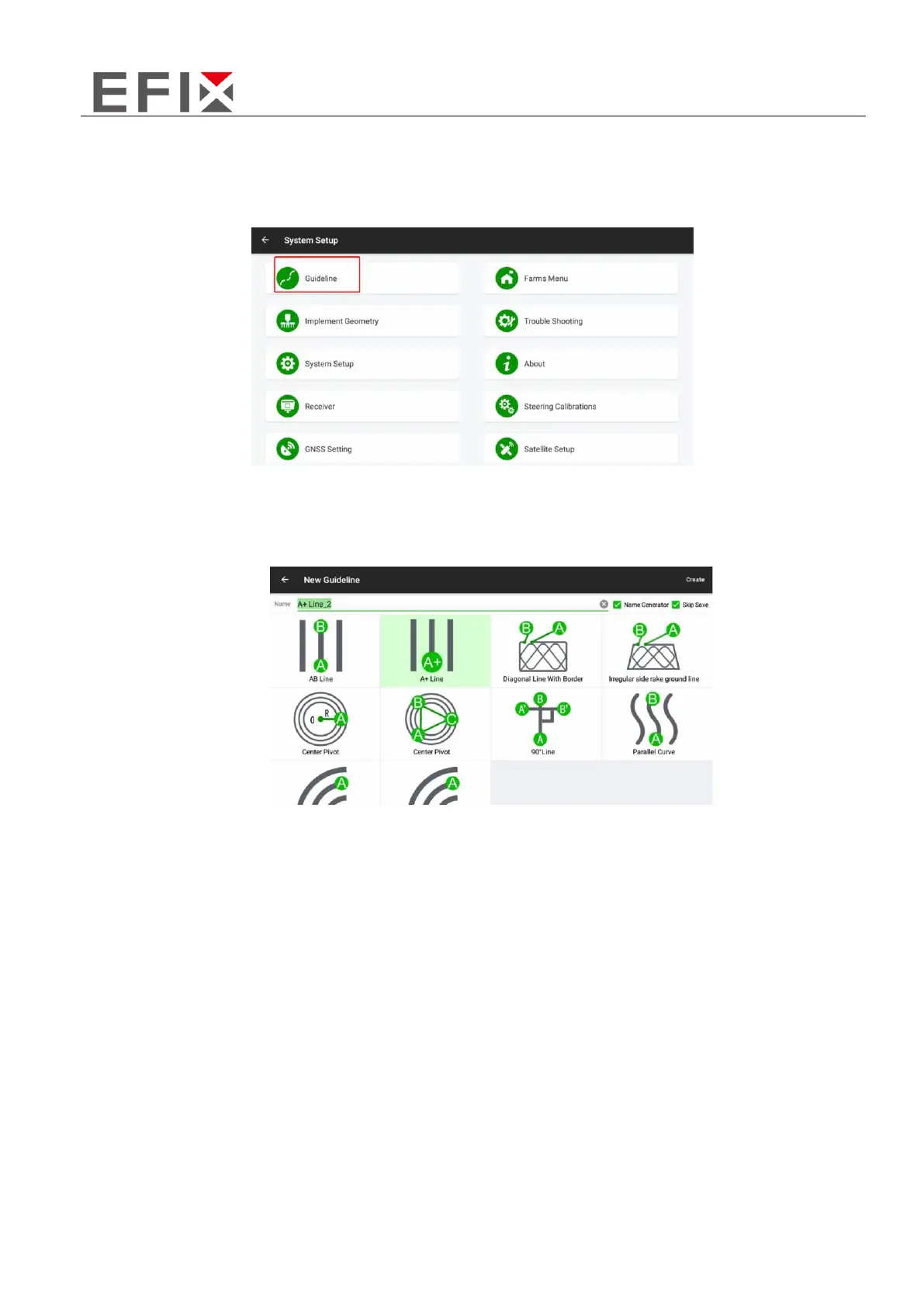
Step 1: Click on "Settings" and then "Line Guidance" to access the Line Guidance management
interface.
Step 2: Click on the "Add" button on the right side of the screen. Select the desired type of line
guidance to be created. Enter a name for the line, keeping it distinguishable for easy identification.
Click on the "Create" button on the right side to proceed.
The available line types include:
AB Line
A+ Line
90° Line
Harrowing line
Center Pivot
Parallel Curve
Identical Curve
Parallel Curve
Curve Advanced
Please select the desired line type based on your specific requirements and operational needs.
Step 3: Click on the "Create" button in the top-left corner to go back to the main interface and start
the line guidance process.



 To Next Page