26
eSteer10 User Manual
4.5 Camera
By clicking on the "[ ]" button located at the top right corner of the main interface, you can open
the camera. The camera view will replace the background of the main interface. To close the camera,
simply click on the button again.
4.6 Error Message Viewing
This software has a self-diagnosis feature. When there is a software or hardware failure that prevents
normal automatic driving, the automatic driving button will turn red and display "Fault".
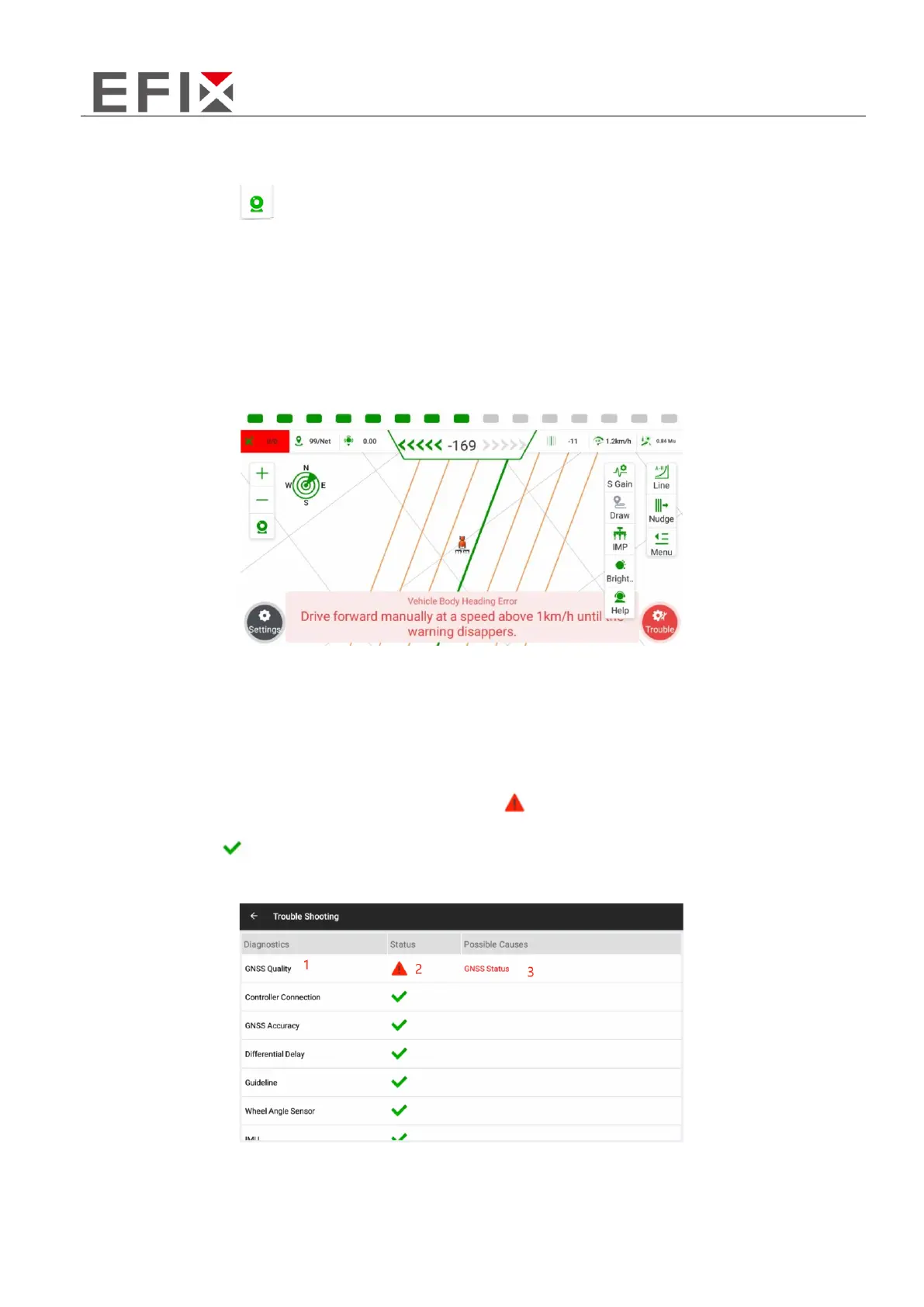
By clicking on "Fault," you can access the error information viewing interface, as shown in the image
below.
① The number area represents the diagnostic items, which can help you identify the specific
component or area where the problem occurred.
② The number area represents the status bar. The "[ ]" symbol indicates an abnormal working
state, while "[ ]" indicates a normal working state.
③ The number area displays the error cause or reason.



 To Next Page