19
eSteer10 User Manual
4.3 Help
To access the Help interface, follow these steps:
From the main interface, click on the "Menu" button.
In the menu options, click on "Help."
By doing so, you will enter the Help interface, where you can find various assistance features and
functionalities.
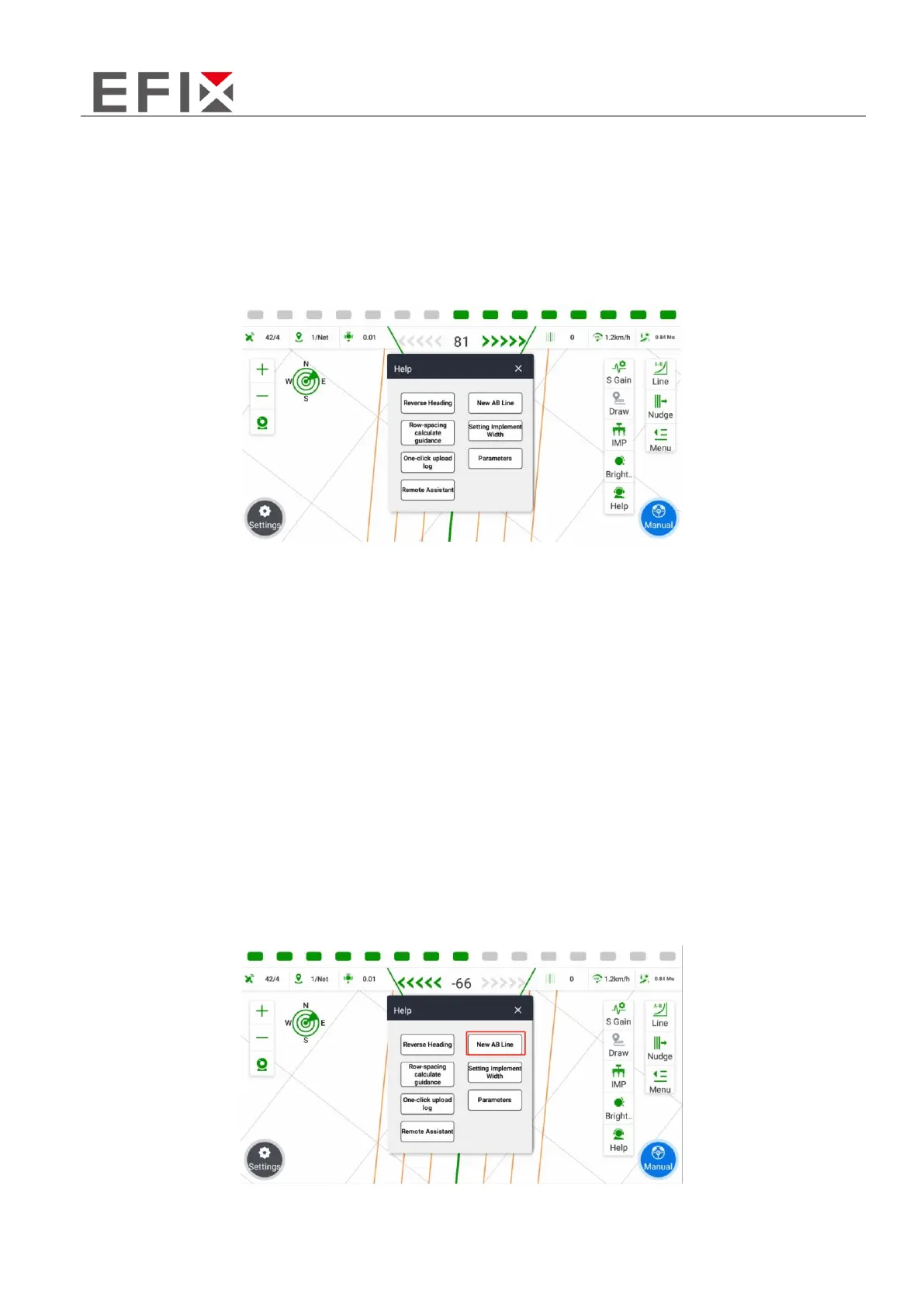
The "Help" interface provides seven main functionalities: Reverse Heading, Line Guidance, Transition
Row Calculation Guidance, Width Guidance, One-Click Assistance, Parameter Viewing, and One-Click
Log Upload.
A. Reverse Heading: If the vehicle's heading is not aligned with the actual direction of travel, click on
"Reverse Heading" to adjust the heading and align it with the actual direction.
E. One-Click Assistance: By clicking on "One-Click Assistance," the software will send the current
vehicle positioning data and the parameters of the last 100 meters of autonomous driving to the
cloud server. This allows technical support personnel to determine the vehicle's location and assist in
resolving issues.
B. Line Guidance: This feature provides step-by-step guidance for setting up lines. During the guidance
process, clicking on other areas will not be functional. To interrupt the guidance, click on "Exit."
Step 1: Click on "Line Guidance" in the "Help" menu to initiate AB Line guidance.
Please note that the provided translations are based on the given descriptions and may require
further context or adjustment to fit the overall context of your application.



 To Next Page