EasyManua.ls Logo

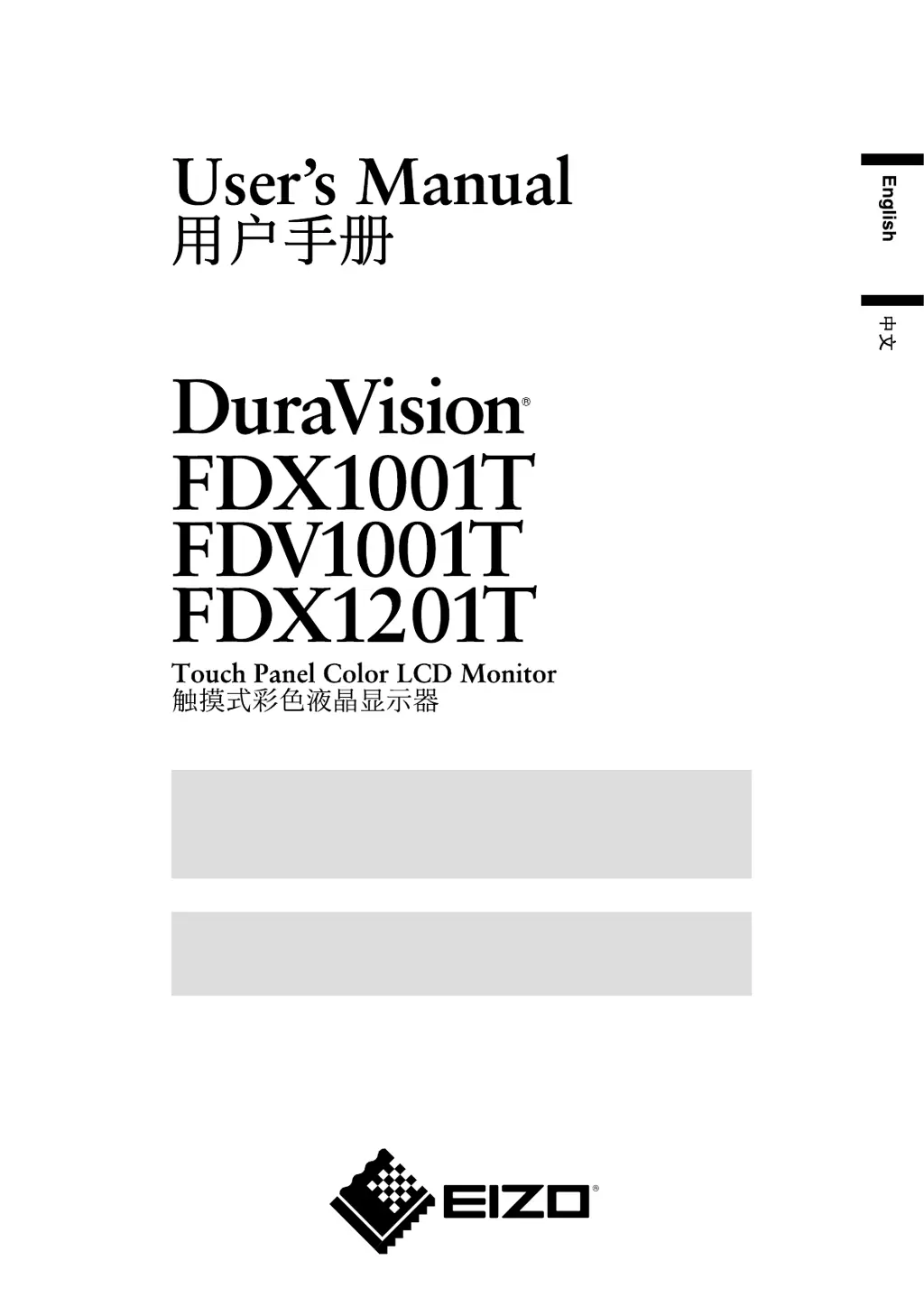
Eizo DURAVISION FDX1201T - User Manual

Eizo DURAVISION FDX1201T
34 pages
Print Icon
To Next Page IconTo Next Page
Loading...
Important
Please read this User’s Manual carefully to familiarize yourself with safe and
effective usage.
Please retain this manual for future reference.
重要
请仔细阅读用户手册,熟练掌握其安全和有效的操作程序。
请妥善保存此手册,供日后参考。

Questions and Answers

  • V
    Veronica MclaughlinSep 23, 2025
    Why are there green dots on my Eizo DURAVISION FDX1201T Monitor screen?
    • M
      Margaret WatersSep 23, 2025
      The appearance of green, red, blue, or white dots on your Eizo monitor is due to the LCD panel characteristics and does not indicate a failure.
  • E
    eharveyAug 25, 2025
    Why is touch operation not working on my Eizo DURAVISION FDX1201T?
    • K
      Kristina BrownAug 25, 2025
      If you are experiencing issues with touch operation on your Eizo Monitor, check whether 'EEPROM Calibration' in the [Calibration] menu is not checked in the [UPDD Console] settings of the touch panel driver. If it is checked, release the check before calibrating.
  • A
    Amy CooperAug 25, 2025
    Why is the calibration result not reflected on my Eizo Monitor?
    • K
      Kelsey PearsonAug 26, 2025
      If the calibration result is not reflected on your Eizo Monitor, click 'Handling Whole desktop' in the [Hardware] menu of the [UPDD Console] window, set 'Whole' in the [Desktop Area] window, and then perform the calibration.
  • D
    Daniel McclureAug 27, 2025
    Why is there no picture on my Eizo Monitor?
    • R
      Robert GarnerAug 27, 2025
      Check if the power cord of your Eizo Monitor is correctly connected. If the problem continues, turn off the power, wait a few minutes, and then turn it on again.
  • R
    Ryan BowersAug 27, 2025
    Why does my Eizo DURAVISION FDX1201T Monitor say the input signal is out of range?
    • E
      Elizabeth SchultzAug 27, 2025
      If your Eizo monitor displays a message indicating that the input signal is out of the specified frequency range, ensure that your PC's signal settings match the resolution and vertical frequency settings supported by the monitor. If necessary, reboot your PC or select an appropriate display mode using your graphics board’s utility.
  • M
    madisonsmithSep 13, 2025
    What are the interference patterns on my Eizo DURAVISION FDX1201T Monitor screen?
    • A
      Adam GriffinSep 14, 2025
      If you see interference patterns or pressure marks on the screen of your Eizo monitor, leave the monitor displaying a white or black screen for some time. This symptom may disappear over time.
  • A
    Alison FarleySep 12, 2025
    Why is the cursor position incorrect on my Eizo Monitor?
    • J
      James ComptonSep 12, 2025
      If you're experiencing cursor position issues with your Eizo monitor, try turning the monitor off and on again. If the problem persists, perform a calibration on the monitor. Ensure you are only touching the screen with one finger and that the monitor is connected to the PC with the correct cable as specified in the user manual. Using a conversion adapter may also cause the touch panel to not operate properly.
  • L
    Lindsay RichSep 12, 2025
    What does it mean when my Eizo monitor displays a message?
    • J
      Julia TaylorSep 12, 2025
      If the message appears on your Eizo monitor, this indicates that the signal is not being input correctly, even if the monitor is functioning properly.
  • M
    martinmelissaSep 4, 2025
    What to do if the Eizo Monitor power light is blue but there's no display?
    • B
      Barbara SmithSep 4, 2025
      If the power indicator on your Eizo Monitor lights blue but there is no picture, check that the connected device is powered on, switch the input signal, and increase the [Brightness] and [Contrast] settings.
  • J
    Joseph ArmstrongSep 2, 2025
    How to fix vertical bars on my Eizo DURAVISION FDX1201T Monitor screen?
    • K
      Kim RodriguezSep 2, 2025
      If vertical bars appear on the screen or a part of the image is flickering on your Eizo Monitor, try adjusting the settings using the [Clock] function.

Summary

PRECAUTIONS

Chapter 1 Introduction

1-3. Controls and Functions

Explains the location and operation of all buttons, ports, and indicators on the monitor.

Chapter 2 Connecting Cables

2-1. Connection Procedures

Step-by-step instructions for connecting the monitor to various input sources.

Chapter 3 Settings and Adjustments

Chapter 4 Troubleshooting

Common Problems

Addresses general issues like no picture, screen brightness, dots, interference, and afterimages.

PC Display Issues

Covers messages like "No PC Signal", "PC Signal Error", and display position problems.

Touch Panel Problems

Discusses cursor issues, ineffective touch operation, and calibration reflection problems.

Eizo DURAVISION FDX1201T Specifications

General IconGeneral
Screen Size12.1 inches
Resolution1024 x 768
Panel TypeTFT LCD
Contrast Ratio700:1
Input SignalDVI-D, VGA
Operating Temperature0 - 40 °C
Viewing Angle160°/140° (H/V)

Related product manuals