9
Chapter 1 Introduction
●
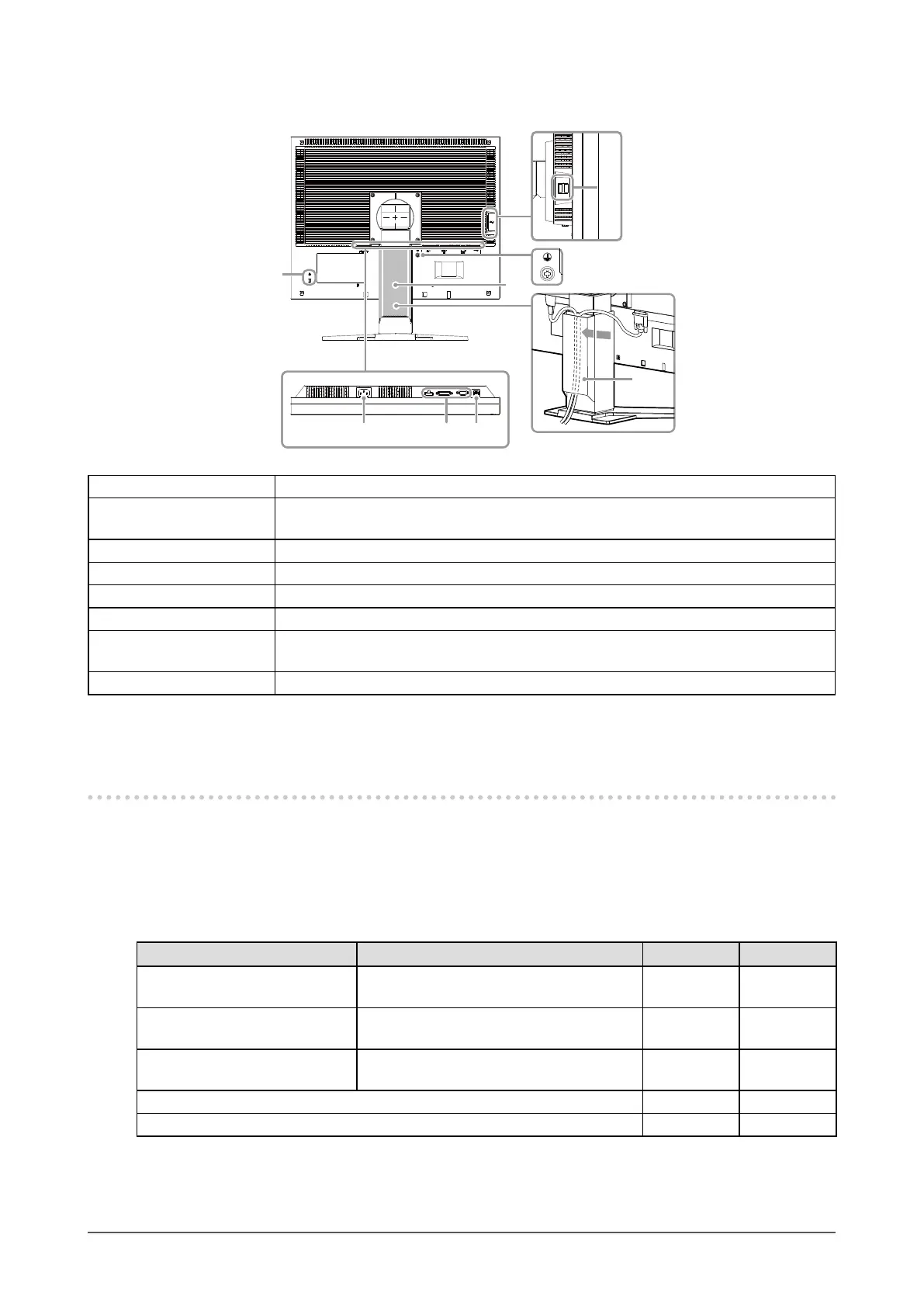
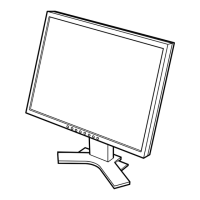
Rear
14
1210
11
13
17
15
16
10. Power connector Connects the power cord.
11. Input signal connector Left: DisplayPort connector / Center: DVI-D connector / Right: D-Sub mini15-pin
connector
12. USB port (UP) Connects the USB cable for using the USB Hub function (page 37).
13. Security lock slot Complies with Kensington’s MicroSaver security system.
14. Stand
*2
Adjusts the height and angle (tilt and swivel) of the monitor.
15. USB port (DOWN) Connects a peripheral USB device.
16. Protective earth
terminal
This terminal is used to connect the earth wire. Use an earth wire with minimum
conductor size of 0.75 mm, and with a terminal of suitable material.
17. Cable holder Covers the monitor cables.
*2 An optional arm (or an optional stand) can be attached by removing the stand (see “6-1. Attaching the Optional
Arm” (page 35)).
1-3. EIZO LCD Utility Disk
An “EIZO LCD Utility Disk” (CD-ROM) is supplied with this product. The following table shows the disk
contents and the overview of the software programs.
●
Disk contents and software overview
The disk includes software programs for adjustment, and User’s Manual. Refer to Readme.txt le on
the disk for software startup procedures or le access procedures.
Item Overview Windows Macintosh
Screen adjustment pattern les Used when adjusting the image of analog
signal input manually.
√ √
ScreenManager Pro for LCD
(DDC/CI)
Software for adjusting the screen using the
mouse and keyboard.
√ -
EIZO ScreenSlicer Software that divides a screen and lays out
multiple windows efciently.
√ -
User’s Manual of this monitor (PDF le) √ √
Readme.txt le √ √
●
To use “ScreenManager Pro for LCD (DDC/CI) / EIZO ScreenSlicer”
For the installation and use of “ScreenManager Pro for LCD (DDC/CI) / EIZO SceenSlicer”, refer to
the respective User’s Manual on the disk.




 To Next Page