ATS-5X User Manual Page 11 of 44
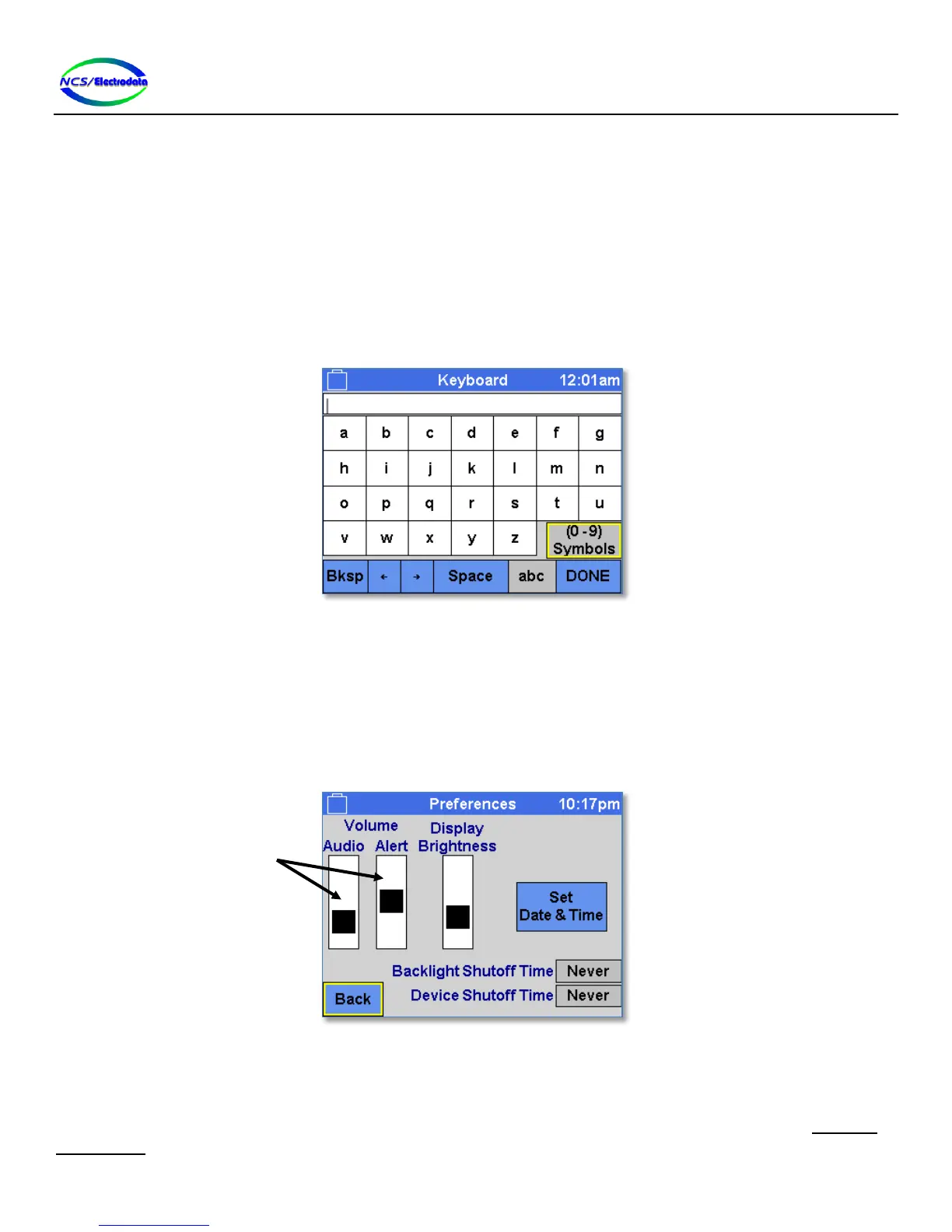
Bksp: Backspace – delete the character to the left of the cursor in the text entry field at the top of
the screen
(Left arrow): Move the text entry field cursor one character to the left
(Right arrow): Move the text entry field cursor one character to the right
Space: Insert a blank space character at the cursor location in the text entry field
DONE: Accept the changes made to the text
The functionality of the toggle controls is defined as follows:
abc/ABC: Toggle capitalization of the letters within the grid control
(0-9) Symbols/Letters: Toggle the character set of the grid control
Figure 13 – On-Screen Keyboard
2.4.3.7 Slider Control
The slider control allows visual adjustment of a setting (see Figure 14). The slider control cannot be focused and
therefore cannot receive keypad or USB keyboard input. To adjust the slider setting, use the touchscreen or USB mouse
to momentarily press within extents of the control to bring the slider set-point to the center of the pressed location. To
continuously adjust the slider set-point, press and hold within the control boundary, moving the touchscreen press
location or USB mouse while holding.
Figure 14 – Slider Control
2.4.3.8 Graph Display
The graph display shows a sequence of data points connected by lines (see Figure 15). Unless otherwise disabled, the
graph display can be focused and activated for keypad or USB keyboard input. Once activated, pressing the UP ARROW or
DOWN ARROW keys will change the vertical axis limits so that current “view” of the data is shifted either up or down.


 To Next Page