8
www.home-comfort.com
Info
This section displays current information about
the device: model, Wi-Fi connection status and
the firmware version of the device.
Wi-Fi connection status options:
• module reset to factory settings Wi-Fi
• module connection error
• the module is connected
• to the module in access point mode
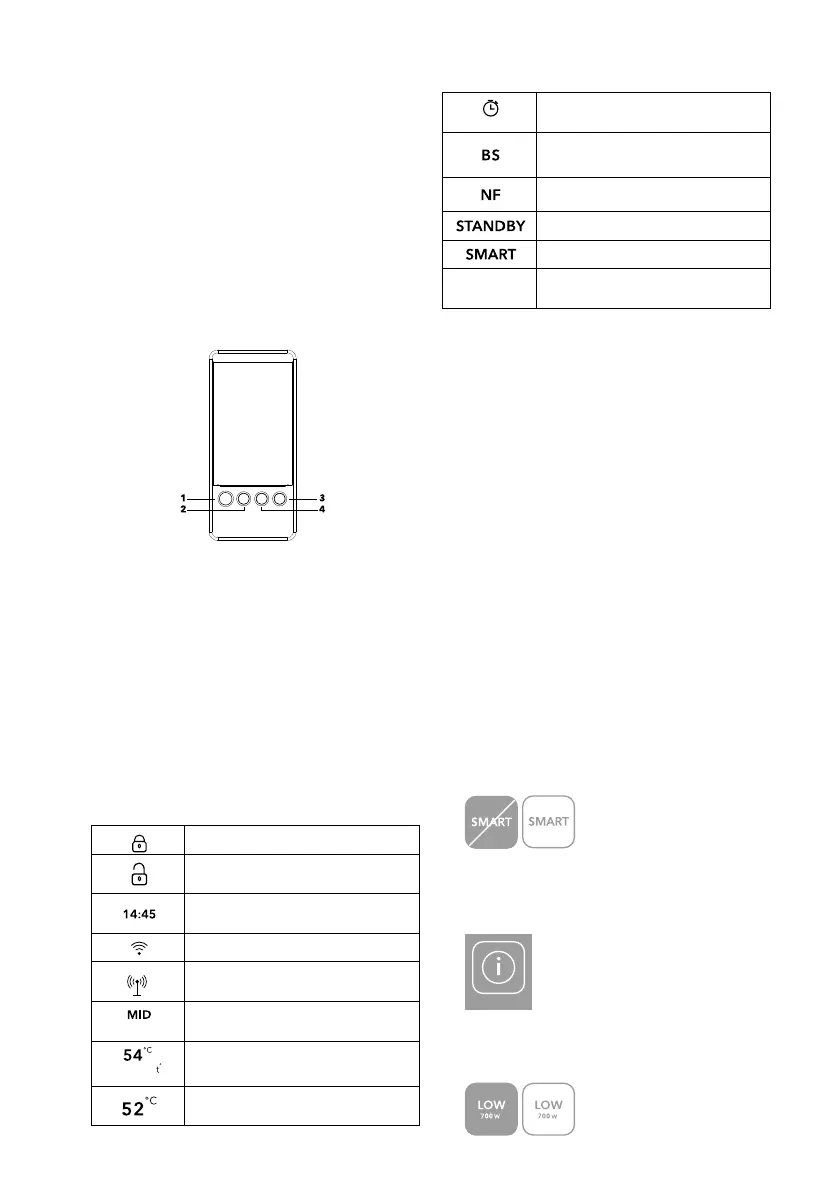
Control Panel
Fig. 3
1. On/off/back button.
On/off button to turn the unit on/off. Button to
return to the previous menu section.
2. Menu, OK.
Menu entry button, selection confirmation
button.
3. Menu navigation button: up, left.
4. Menu navigation button: down, right.
Information indicators on the display
Locking Display Buttons
Unlocking Display Buttons
Display the current time
Wi-Fi connection
Display electric anode
Power
Display current heating power
Target
temperature
Displaying target temperature
values
Display current temperature
value
Timer is on
Activate Timer function
Activate Bacteria Stop function
Turning on No Frost function
Turning on standby mode
Switch on Smart function
HEATING UP
Heating progress display
Turning on the device
Press and hold button 1, the display will
alternately show the Electrolux logo and the
name of the device when the device is switched
on. If this is the first time you have switched on
the heater, you will first be prompted to select the
interface language and then set the current date
and time. When the initial setup is complete, the
device will go into Stand by mode.
Standby mode (standby mode)
The heater does not heat water in this mode. The
temperature in the tank and the current time are
displayed.
Changing the display orientation
Since a horizontal If the unit is mounted vertically
or horizontally, the orientation of the display
can also be changed horizontally and vertically
accordingly. To change the orientation, press
buttons 1 and 2 simultaneously for a few seconds.
Icon color indication
• The element is grayed out and/or crossed out.
This function is disabled and not selected:
SMART MODE
SMART MODE
• Element and caption in white.
This section is not selected:
INFO
• The item and the caption are in blue.
This feature is enabled and not selected:



 To Next Page