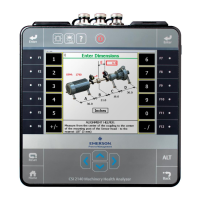
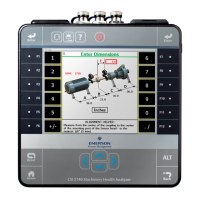
ALT 2 keys—Advanced horizontal alignment jobFigure 1-2:
ALT 2 keys—horizontal alignment
Option Description
F1 Notes Create, add, or remove notes from an alignment job or the AMS 2140.
Notes can be saved with the job to help you remember important
information about a machine.
F2 Job Mode Select Advanced or Basic.
F3 Machine Config Select the machine components for the alignment job.
F4 Laser Align
Method
Select the alignment method.
This is intentionally blank when the job mode is set to Basic. Manual 4
Point is the only alignment method available in Basic mode.
F5 Intentionally blank.
F6 Tolerance Type Select Standard or Jackshaft tolerance.
F7 Exit Laser Align Exit the Laser Align Application and return to the Home screen.
F8 Head Config Specify or view the placement of the laser and sensor.
This is also where you can check the status of the laser and sensor.
F9 Job Manager Perform job-related tasks such as creating, activating, copying, or
editing a job.
This is also where you can select the Connect for Transfer button that
enables you to transfer jobs between the AMS 2140 and the PC.
Quick Start Guide December 2018
6 AMS 2140 Advanced Laser Alignment Application


 To Next Page
 Loading...