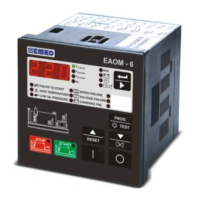
For loading parameters from EAOM-6 unit to PC follow the steps below. If user is in operator
parameters window, only operator parameters will be viewed. If user is in Technician Parameters
Window, all parameters will be viewed. Press 'Upload' in Program menu. While loading the
parameters, the hour-glass cursor is displayed. Please wait for the upload operation to complete,
when the cursor returns to normal.
For loading parameters from PC to EAOM-6 follow the steps below. If user is in operator
parameters window, only operator parameters will be loaded. If user is in Technician Parameters
Window, all parameters will be loaded. Press 'Download' in Program menu. While loading the
parameters, the hour-glass cursor is displayed. Please wait for the download operation to
complete, when the cursor returns to normal.
Click 'Open' in File menu. Choose configuration file which includes operator or technician
parameters on Open Dialog Box. When the user clicks the 'Open' button on the Open Dialog Box,
parameters will be transferred to PC window.
Click 'Save' in File menu. After choosing where to save the file, enter the file name. When the user
clicks the 'Save' button on Save Dialog Box, all parameters will be saved to the file.
4.3.13 Load the Configuration File From the Disc
4.3.14 Save the Configuration File to the Disc
4.3.15 Upload
4.3.16 Download
21
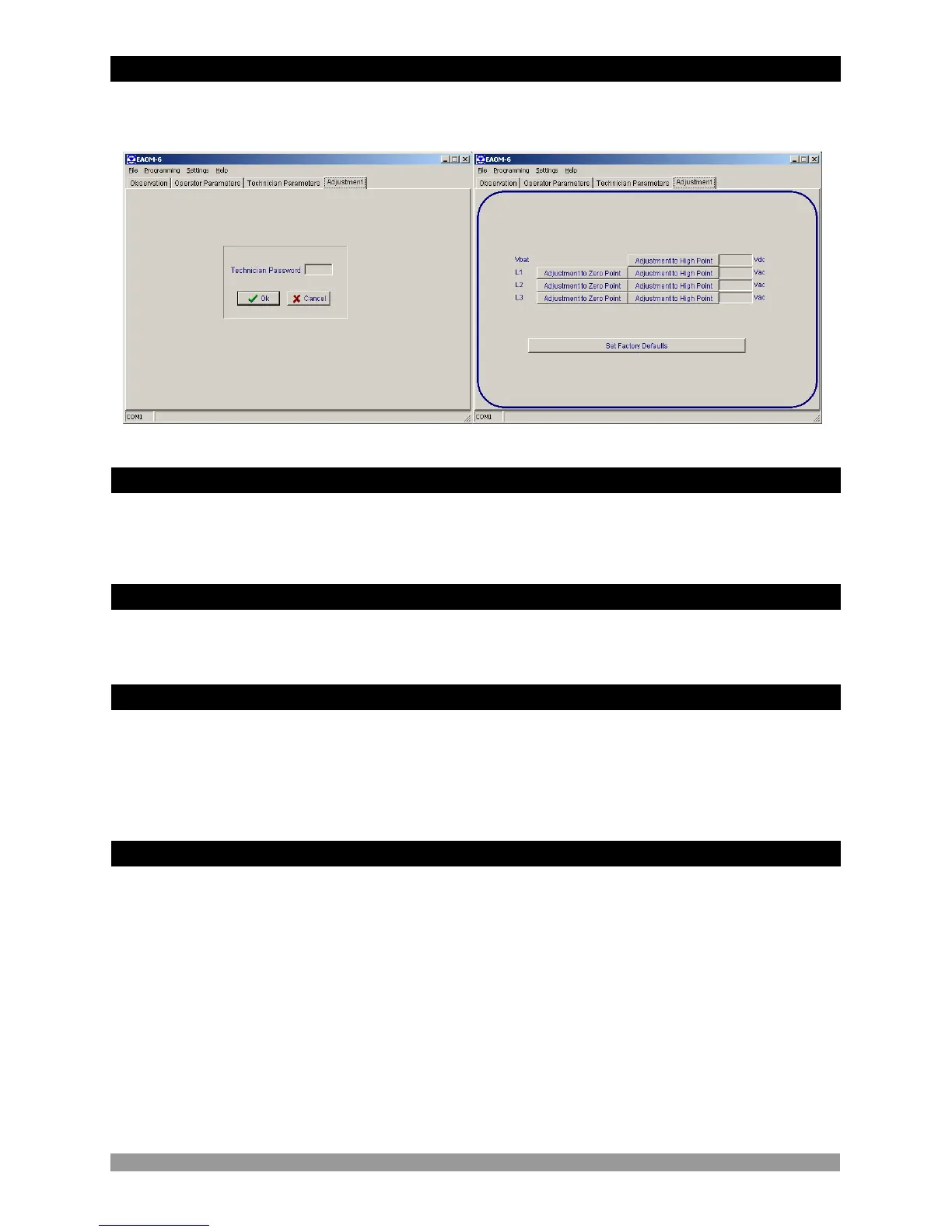
Click Adjustment tab. Enter the Technician Parameter password. If password is correct,
adjustment window will be viewed.
4.3.12 Entering to the Adjustment Window


 To Next Page