29
ENTR® Dead Bolt User Manual
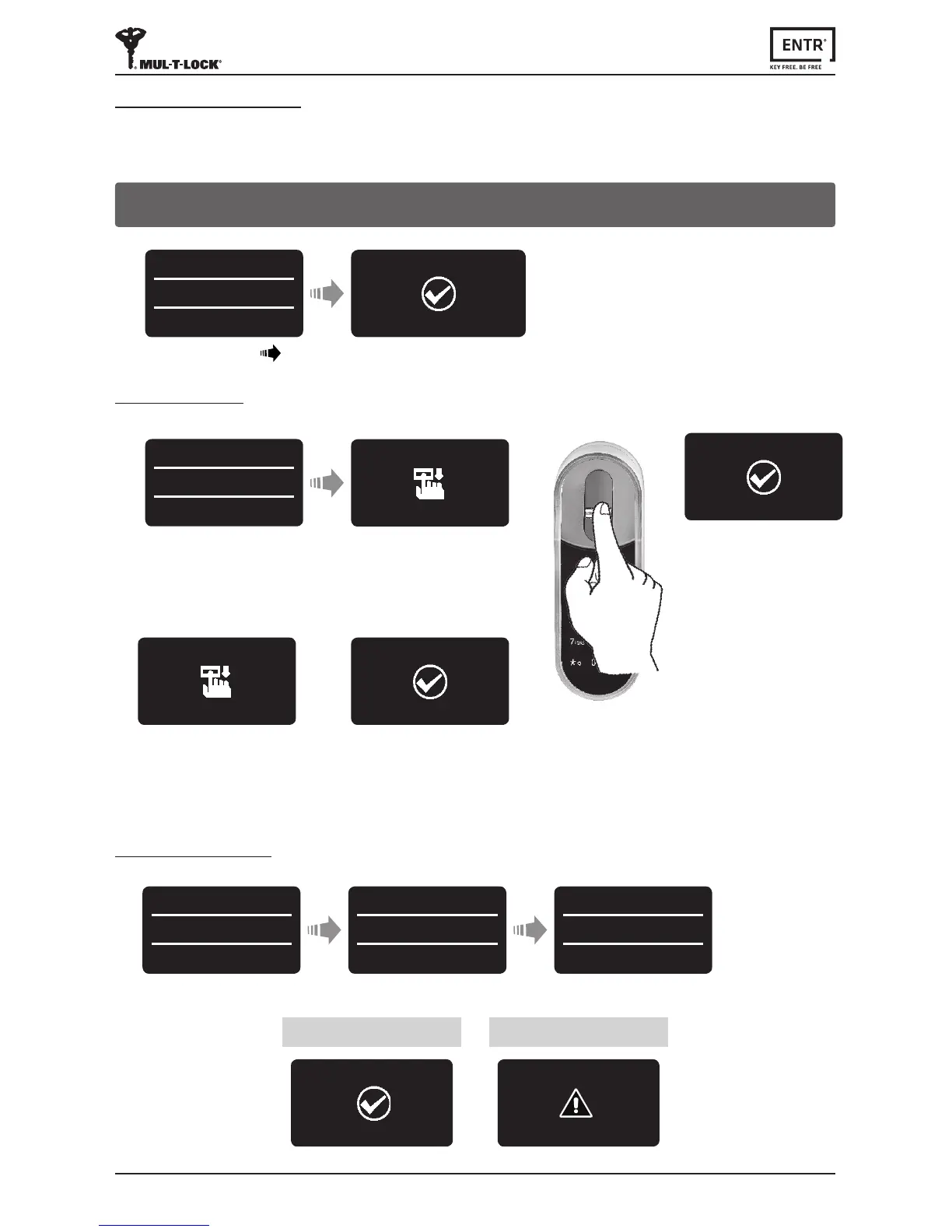
GreenLEDblinking.
Placengeronscanner,wait
forbeep,thenswipenger
downseveralmesover
ngerprintscannerunltwo
conrmaonbeepsemied.
Blue LED illuminates.
Press [OK]
Type in [Master name] [OK]
SengaMasterUserrequiresbothngerprintandPINcode.Itispossibletohaveupto
two Master Users.
MASTERNAME
JOHN
MASTER #01
JOHN
ADD USER
SET FINGER
GreenLEDblinking.
Placengeronscanner,wait
forbeep,thenswipenger
downseveralmesover
ngerprintscannerunltwo
conrmaonbeepsemied.
SWIPE
1
ST
FINGER
SUCCESS
1
ST
FINGER
SWIPE
2
nd
FINGER
SUCCESS
2
nd
FINGER
Note:Atanystageyoucanpressandholdthe[
*
] key to move to standby mode.
Retype [PIN Code]
Press [OK] Press [OK]
ADD USER
SET CODE
RETYPE CODE
******
4-10 digits
ENTER CODE
******
4-10 digits
ENTER CODE
Type in [PIN Code],(4to10digits)
Press [OK]
6.4.2 Set Finger
6.4.3 Set PIN Code
SET CODE
SUCCESS
Matched Codes Mismatched Codes
FAILED
INVALID
6.4.1 Add Master User



 To Next Page