14
V
CAUTION
While wearing headphones, do not connect or disconnect them or
turn the unit on or put it into standby.
Doing so could result in a sudden loud noise that could harm your
hearing.
Before putting headphones on, always set the volume to mini-
mum (display should show “0” when set to “STEP (0-100)” or
“−∞ dB” when set to “dB”) (page19).
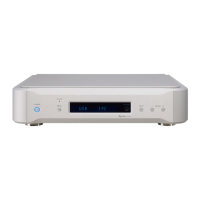
UNBALANCED
Connect headphones with a standard 6.3mm (1/4") stereo plug here.
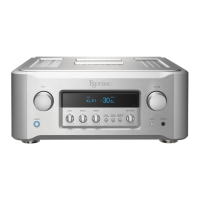
BALANCED
Connect headphones with a 4-pin XLR plug here.
PIN assignments of
this unit
1: L+, 2: L-
3: R+, 4: R-
Connecting headphones
Downloading the remote app
To use the ETHERNET port or USB drive (USB DRIVE and ) ports,
you must also use a tablet or smartphone that has the dedicated app
(free) installed and connect it to the same network as the unit.
By installing the app on a tablet or smartphone, you can use it over a
wireless network to operate the unit.
o You can download and use the app for free.
Finding the tablet/smartphone app
Search for “ESOTERIC Sound Stream” in the App Store or Google Play
Store.
Playing audio files on a USB flash drive or other
device connected to a USB drive port
1) Put audio files on the USB flash drive or other USB storage device
and connect it to a USB drive port.
2) Follow the procedures in “Getting started” of the ESOTERIC
Sound Stream User’s Manual to open the Setup menu.
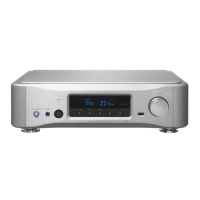
3) In the Music Player section, select ESOTERIC N-05XD.
4) Select Music Library, and then select ESOTERIC N-05XD USB
Music Server.
o Refreshing the music library could take several minutes if it has
many audio files.
This completes preparation for playing audio files on a USB flash drive
or other device connected to the USB drive port.
Refer to the ESOTERIC Sound Stream User’s Manual to prepare playl-
ists and play audio files.
NOTE
Network module firmware is updated through ESOTERIC Sound
Stream. We recommend that you regularly select this unit in
ESOTERIC Sound Stream, and update it with the latest firmware.
A pop-up window recommending a firmware update will appear if
one is available.


 To Next Page