3 Program 31
Adjust Channel Range
It’s possible to select any channel range and adjust proportionally in the Channels menu.
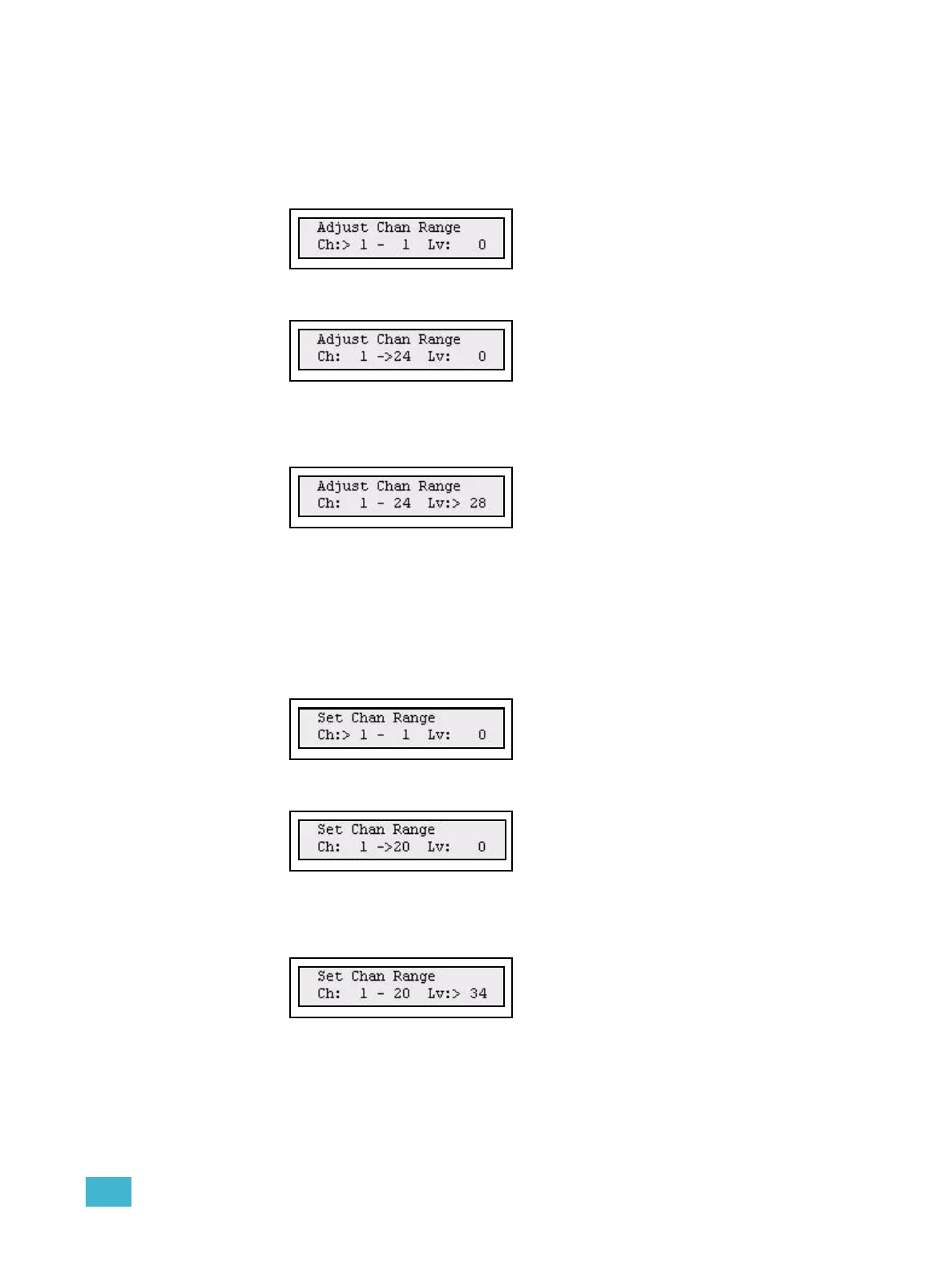
Step 1: Open the Adjust Channel Range menu:
Menu>Channels>[Adjust Channel Range]
Step 2: Use the wheel to select start channel.
Press (MENU) to confirm and move to end channel.
Step 3: Use the wheel to select end channel.
Press (MENU) to confirm and move to the level.
Step 4: Use the wheel to adjust the levels for the selected range. The level displayed is
the value of the first channel in the selected range, other channels will be altered
proportionally from their starting values.
Press (MENU) to set a new start channel or exit.
Set Channel Range
It’s possible to select any channel range and set a level in the Channels menu.
Step 1: Open the Set Channel Range menu:
Menu>Channels>[Set Channel Range]
Step 2: Use the wheel to select start channel.
Press (MENU) to confirm and move to end channel.
Step 3: Use the wheel to select end channel.
Press (MENU) to confirm and move to the level.
Step 4: The level displayed is the value of the first channel in the selected range, as the
wheel is moved other channels will be forced to this value and then all will be
altered in parallel to the same dialed value
Press (MENU) to set a new start channel or exit.



 To Next Page