4 Edit 47
Insert a Step
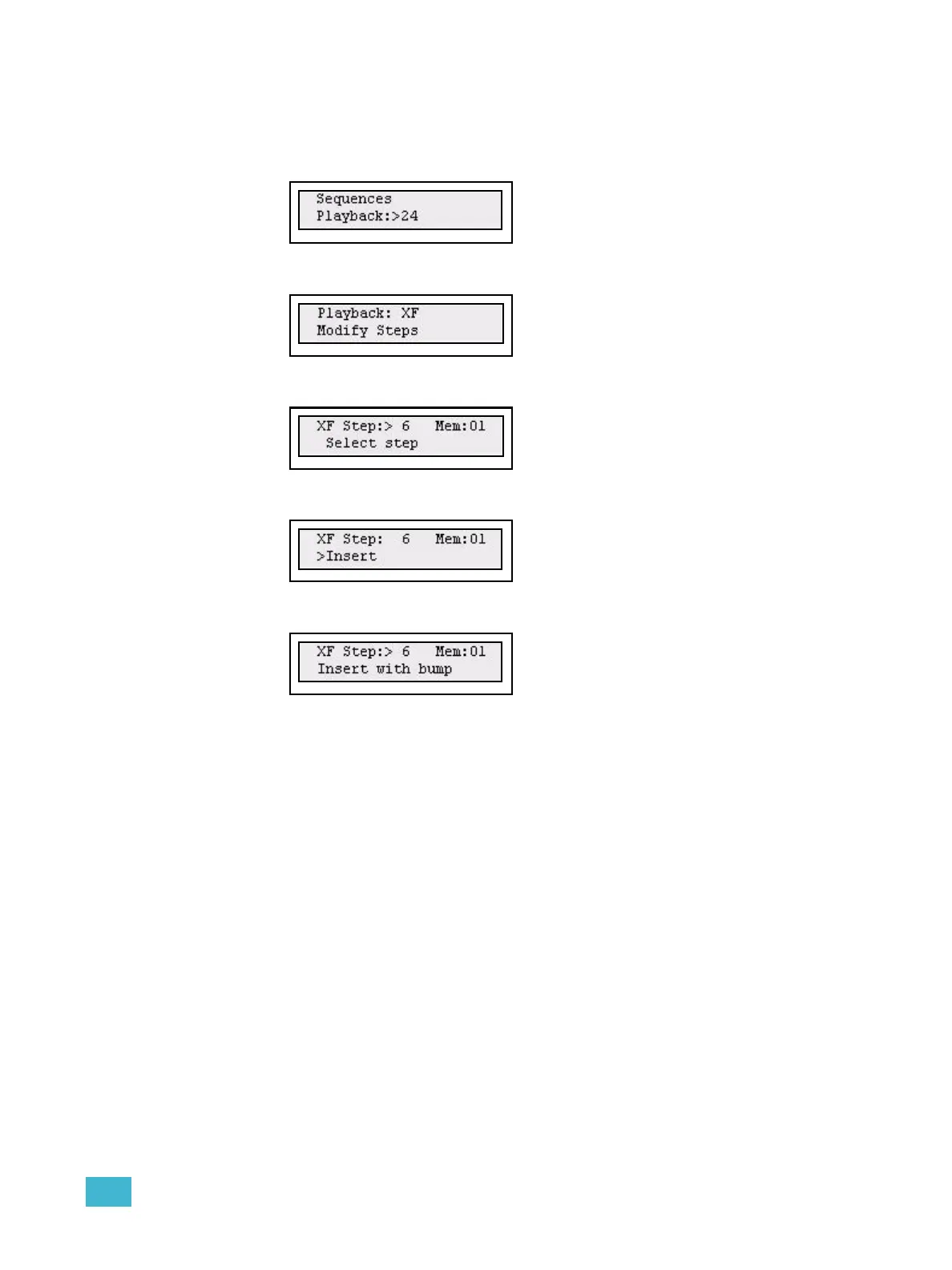
Step 1: Open the Sequences menu:
Menu>[Sequences]
Step 2: Use the wheel to select Sequence (1-24) or Stack (XF).
Press (MENU) to confirm.
Step 3: Use the wheel to select Modify Steps.
Press (MENU) to confirm.
Step 4: Use the wheel to select Step:#.
Press (MENU) to confirm.
Step 5: Use the wheel to select Insert.
Press (MENU) to confirm.
Step 6: You will be asked to insert by pressing a bump for a channel or memory fader.
Press (MENU) to confirm. The new step will be inserted after the selected step.
You can continue selecting steps and inserting steps. You can press UNDO to
skip and revert to the data previous to this action.



 To Next Page