EN 05
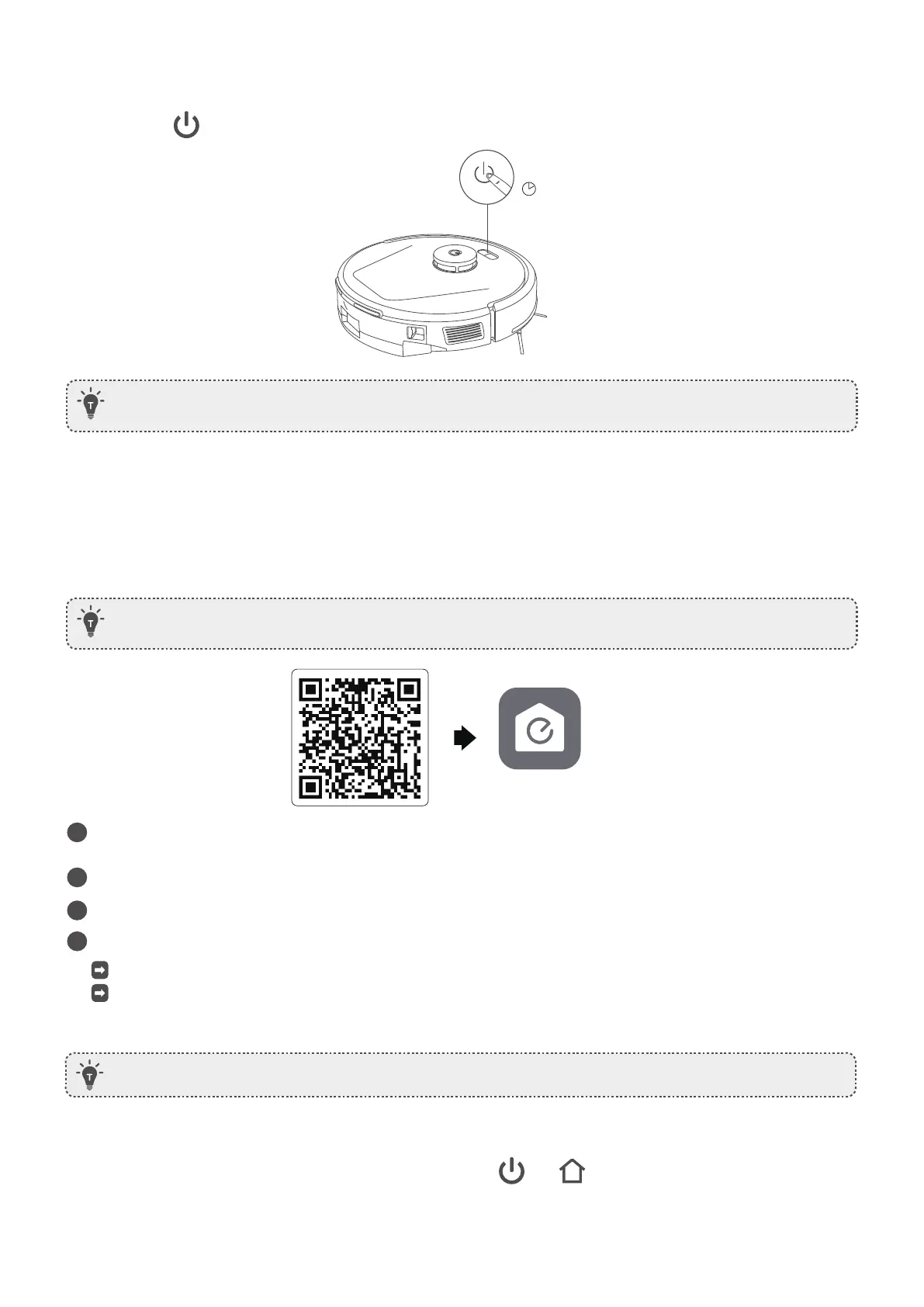
Power On / Off
Use Your RoboVac with the eufy Clean App
Press and hold for 3 seconds to power RoboVac on or off.
To reset the Wi-Fi connection, press and hold the two buttons and simultaneously for 3 seconds until you
hear a voice prompt.
You will hear a voice prompt when the Wi-Fi connection has been reset, and the LED indicators on RoboVac will
quickly flash red. Now you can follow the Wi-Fi instructions in the app to set up the Wi-Fi connection.
3S
• After powering on RoboVac, please wait for 20 seconds after the startup music sounds before
proceeding to the next operation.
• Note that L50 (T2265) only supports the 2.4GHz frequency band, while L60 (T2267) supports both
2.4GHz and 5.0GHz frequency bands.
To enjoy all the available features, it is recommended to control your RoboVac via the eufy Clean app.
eufy Clean
1
Download the eufy Clean app from the App Store (iOS devices) or Google Play (Android devices), or by
scanning the QR code.
2
Open the app and create a user account.
3
Tap the “+” icon to add RoboVac to your eufy Clean account.
4
Follow the instructions in the app to set up the Wi-Fi connection.
After connecting successfully, you can control RoboVac via the app.
With the app, you can enable Quick Mapping, select cleaning modes, select cleaning at your desired suction
level, schedule cleaning, view the cleaning map, set up “No-Go” zones, check the network connection status,
and access additional features.
• If RoboVac gets stuck in any space, tap Find My Robot in the app to find the device.
Before you start, make sure:
• Your smartphone or tablet is running iOS 11 (or above) or Android 8.0 (or above).
• The 2.4GHz band wireless signal is enabled on your wireless router.
Reset the Wi-Fi Connection







 To Next Page