Section 3: Automation Utilities
Euphonix CS3000/2000 MixView 3.0 Software Supplement 3 - 7
SECTION 3 : AUTOMATION UTILITIES
T
he Punch menu allows you to accomplish three useful automation tasks:
1. Establish an automation “Punch Group” to allow a collection of objects
to be punched in with a single DSC keystroke.
2. Disable Write In, Write Out and Write Through at the end of each
automation pass via a menu preference.
3. Allow the punch out “Filter” to follow the Object select keys via a
menu preference.
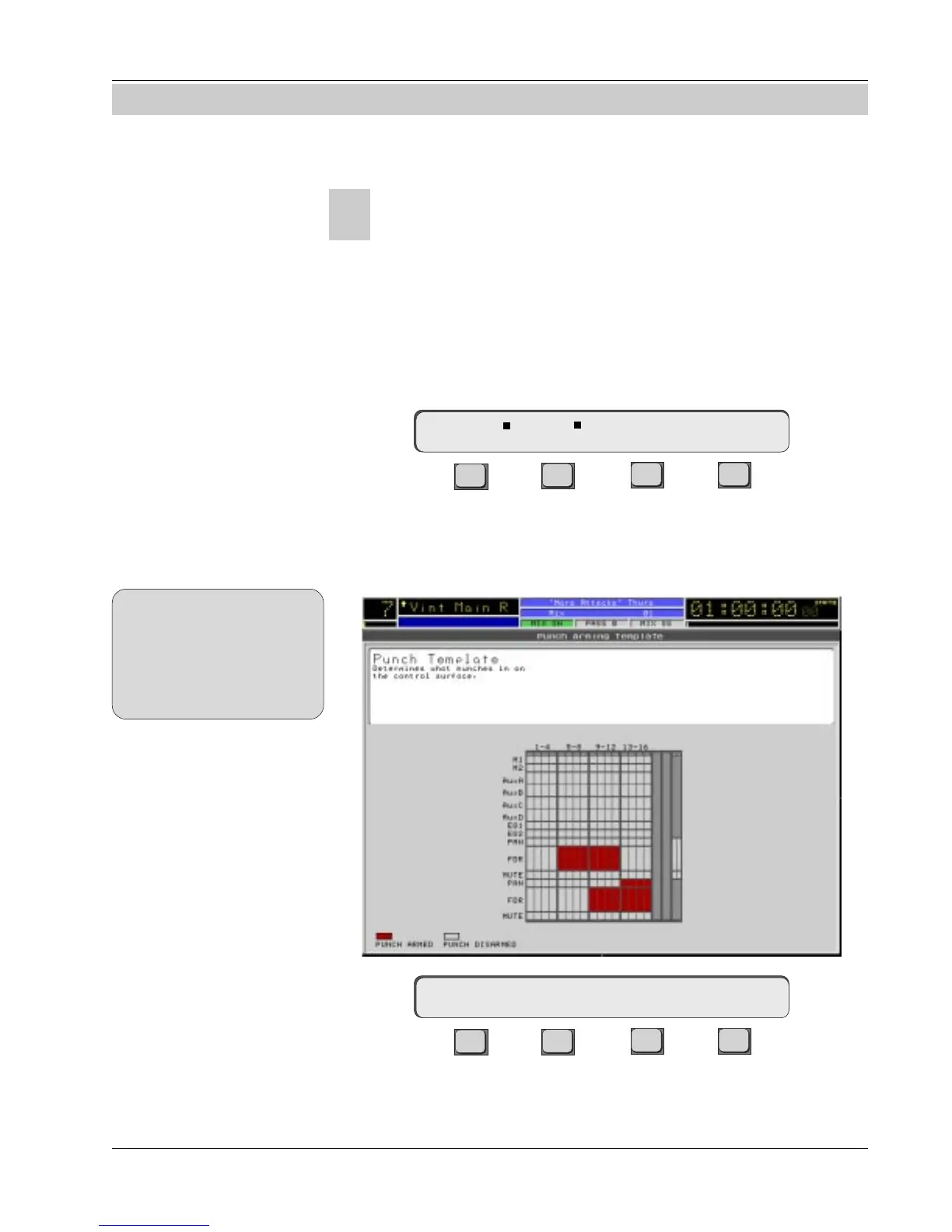
Make sure that the DSC [Mix On] key is lit and press the DSC [Pnch] key:
F3F1 F2 F4
[F1] (Touch) and [F2] (Rel) correspond to the identical settings in the Moving
fader menu. Changes in either menu are reflected in the other.
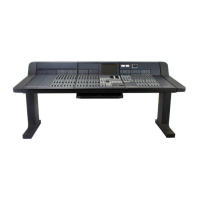
Press [F3] (Tplt) to view the Punch menu and screen template:
F3F1 F2 F4
The Punch template screen allows you to select any combination of mute,
fader, pan, EQ1, EQ2, Aux A, B, C, or D objects on any channel(s). All armed
objects can then be punched-in by pressing the [*ST] key. While the punch
Punch Menu
Touch Rel Tplt Setup
You can check the status of the
Touch and Release settings
without a title loaded by
accessing the Moving Faders
menu. See the section on Moving
Faders for more details.
SIDE NOTE:
Punch -> Select objects
Punch Menu


 To Next Page