Section 3: Automation Utilities
Euphonix CS3000/2000 MixView 3.0 Software Supplement 3 - 11
Once the list is complete, the next step is to select the objects that will be
included in a Join operation. This can include all objects on the console or only
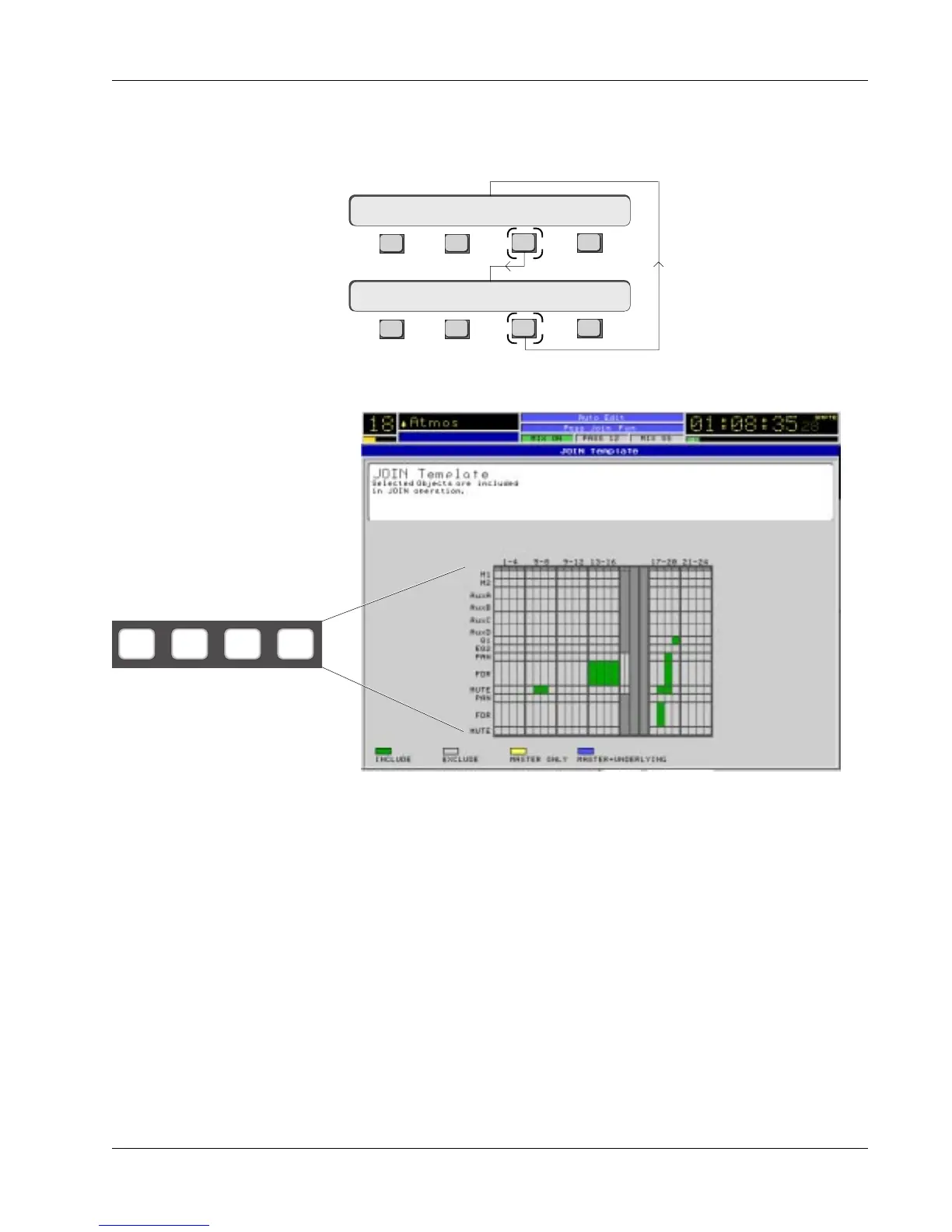
a select few. Objects are selected in the Pass Join template. From the Pass
Join menu, press [F3] to see the template on the screen display:
With nothing selected, all objects in the template will appear grey. Selections
are made in this template in a similar manner as other templates. Choose the
type of object to be included using the DSC’s Object keys (Pan, Fader, On, etc.),
then use the I/O block attention keys to include the individual objects.
For example, press and light the [Fdr/A] object key then 4 fader attention keys.
You will see the selected fader blocks turn green in the template. Press the
attention key again to deselect the object or press the [Clr] key above the
SpinKnob to clear the entire template. Try the same with a few pan and On
objects to get the idea.
Press and light the [Fdr/A] object key then press the DSC [All upper] key. You
will see all upper faders turn green. Press [Clr]. Likewise, press [All lower] to
select all lower faders. Press [Clr]. With the [Fdr/A] key lit, pressing [All aux]
DSC Automation Object keys
Fader
A
Pan
B
On
CD
F3F1 F2 F4
F3F1 F2 F4
Join? Edit Tplt ON
Join? Edit View ON
F3 toggles between the Template and the Join list.
Object Included/
Excluded
Join Template


 To Next Page