B Manta 2 Control User Interface
B1 Connecting the Manta 2 to a PC
If you’re reading B1, we know you didn’t read A1 and A2. Go back and do that.
B2 Main Screen
We call the Manta 2 Control Software’s main screen the “Main Screen” because it’s the screen that
first appears when you click on the Eureka desktop icon, and because you can access all the Manta 2
Control Software functions from this screen. The MS functions are:
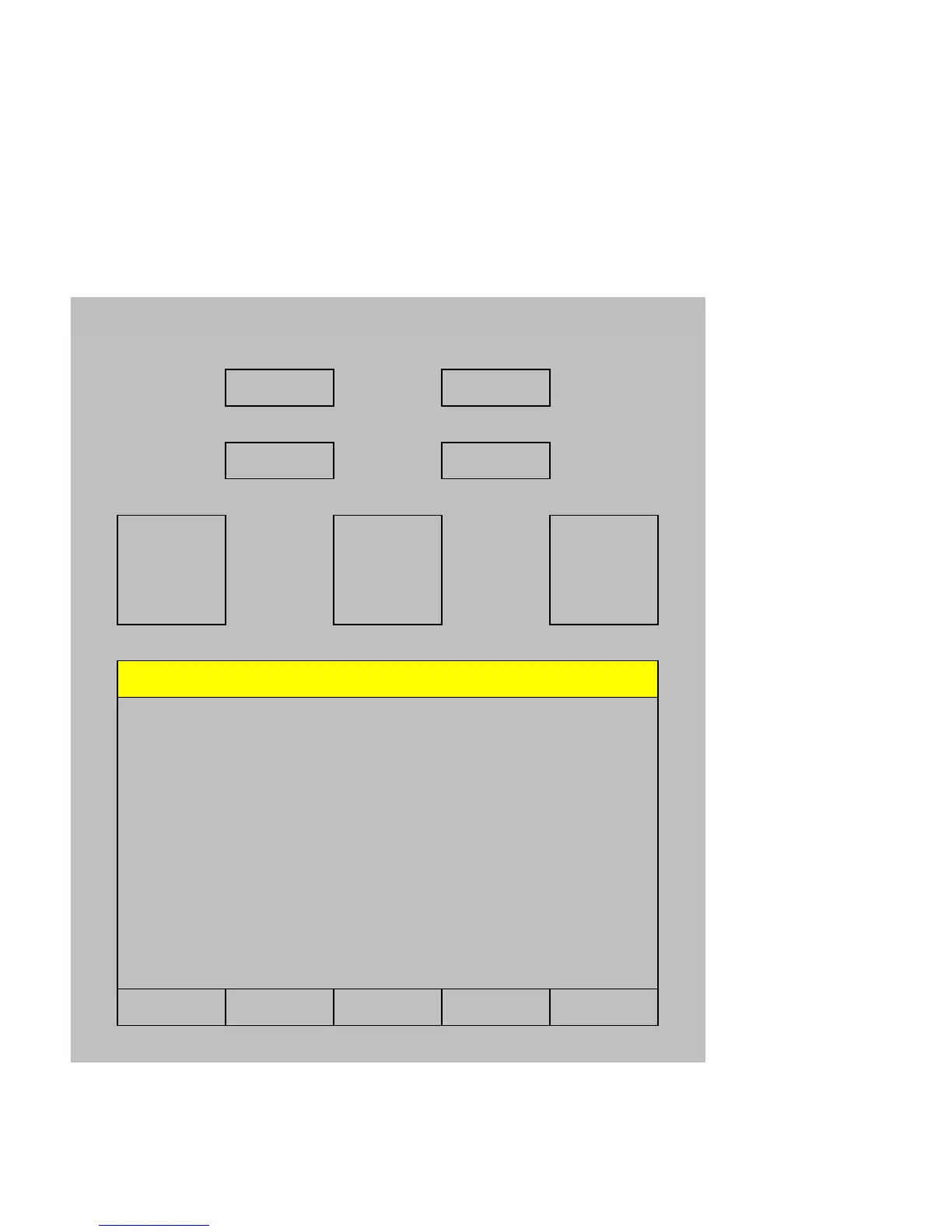
Manta 2 User-Interface Main Screen
Circulator is
ON
Manta 2 Logging
is
Capture One Line
of Data
"Snapshot"
to PC
or Amphibian w/o
Annotation
Clear Data from
PC or Amphibian
Display
Capture One Line
of Data
"Snapshot"
to PC
or Amphibian w/
Annotation
(most recent data line)
(rolling data)
connected on
COM 3
snapshot file:
C/Documents…
Manta 2 Logging is M2 log Interval:
15 min
M2 log file:
R/1.Log
These two buttons are
pull-down menus.
These five buttons are
“hot buttons” – short-cuts
to important and often-
used functions.
The line of data
highlighted in yellow is the
most recent line of data
sent from the Manta 2.
This area is continuously
updating, real-time data
from your Manta 2.
This area tabulates some
of the information you
might find handy.
PC or Amphibian Manta 2
OFF
OFF
10


 To Next Page