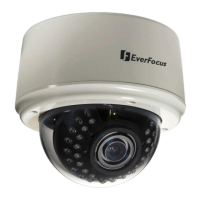
EDN228
13
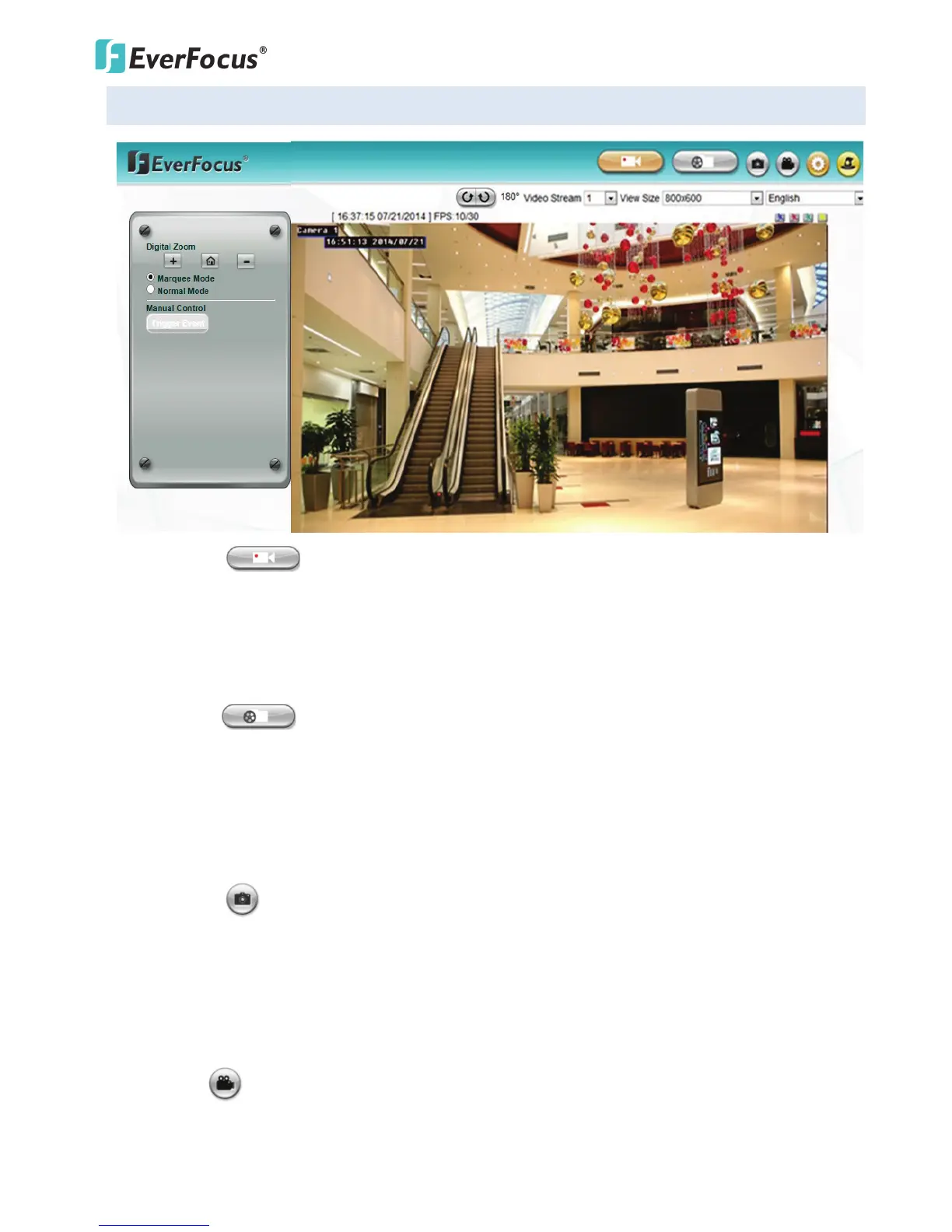
5.4 Live View Window
1. Live View
Click the Live View button to display the Live View window. If you experience video feed lag time (if
connected via Internet), you can reduce the resolution or limit the number of streams. See 6.2.1
Streaming.
2. Playback
Click the Playback button to play back the recorded data directly from the on-camera micro SD /
SDHC card. For this function to become active, you have to insert a micro SD / SDHC card into the
micro SD / SDHC card slot on the camera (see 6.2 Setting up the Playback Function). For the tested
card brands, please refer to Appendix A.
3. Snapshot
Click the Snapshot button to take a snapshot. By default, the snapshot will be saved at
C:\EverFocus\. To change the location, see Record to Local in 7.1.3 Storage.
Note: For Microsoft IE10 and above users, some settings have to be complete to enable this
function (see B. Snapshot/Record error message in 10. Troubleshooting).
4. Record
Click the Record button to start / stop recording the current video stream. By default, this icon is
only for one-minute video recording and the recordings will be saved at C:\EverFocus\. To change


 To Next Page