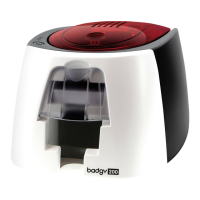
18
2- 4 Printing a c a rd
A large number of Windows applications allow documents to be printed (for example the tools in Microsoft’s Ofce suite, i.e. MS-Word,
MS-Ac c e ss, Ms-Exc e l, MS-Po we rPo int).
To gain familiarity with the layout of a card and conguring its formatting and printing, we suggest the following example.
ä
In Mic ro so ft
®
Wo rd
Afte r ha ving se t the Evo lis p rinte r a s the d e fa ult:
n Sta rt the MS-Wo rd a p p lic a tio n
n C lic k o n the File in the me nu b a r, the n o n Pa g e Se tup
n The Pa p e r ta b ha s a Pa pe r Size o p tio n, se le c t CR80 C a rd
n Fo r Wo rd 2010: c lic k the Pa g e la yo ut ta b , the n c lic k o n Size a nd se le c t ‘ C R80 C a rd‘
n In the Ma rg ins ta b , se t a ll ma rg ins to ‘ 0’ , the n in the O rie nta tio n se c tio n, se le c t La ndsc a pe .
n C lo se the wind o w b y c lic king O K.
Yo ur Wo rd wind o w sho uld now lo o k like this:
You are ready to customise your card by adding the various items that go to
ma ke up a c a rd :
n Lo g o a nd Illustra tio n
n Identication photo
n Fixe d a nd va ria b le te xts
n Ba r C o d e , e tc .
O nc e re a d y, c lic k o n File a nd the n o n Print.
2



 To Next Page