Page
How to Upload SilverPoint™ data to a Computer
Evolve allows you to upload your temperature logs to any USB flash drive for
display and analysis on your spreadsheet software such as Microsoft Excel™.
When you're ready to review the data extracted on a USB flash drive (see
instructions on how to download data above), simply insert the USB flash
drive into your computer and open the file in Microsoft Excel or any program
that can read a .CSV file.
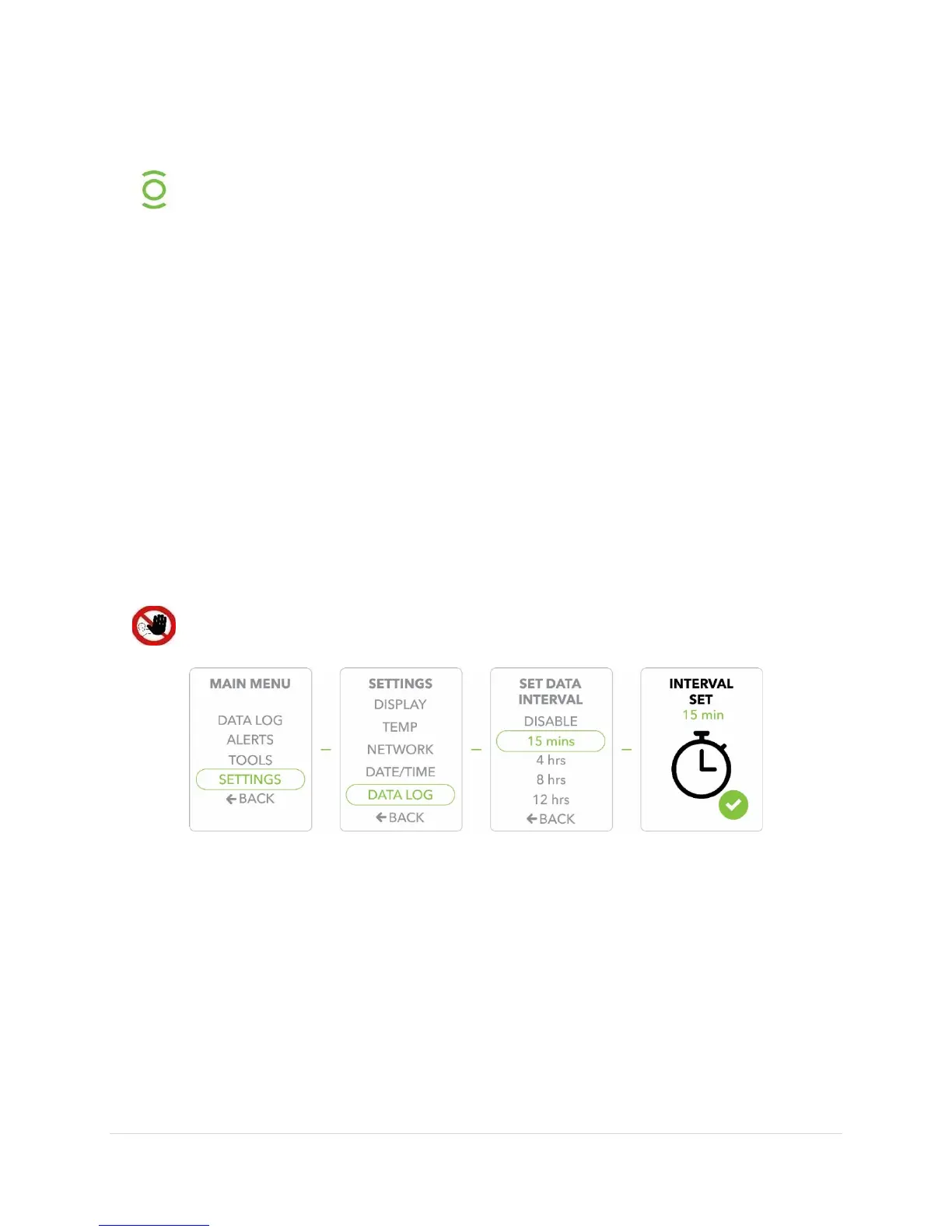
Adjusting the Data Log Interval
1) Press the
button to display the
.
2) Use the
buttons to move to the
option, Press the
button to confirm/select
.
3) Scroll to the
option, Press the
button to confirm/select
.
4)
to select the
and press the
button to confirm.
The
is the important setting for how often the unit pushes data to the
portal and data recordings to local memory.
5)
will display to confirm your selected
(the unit is
preprogrammed to record temperature readings every 15 minutes).
Disabling the data logging will also disable the data feed to the cloud.
Uploading and Viewing your Data
1) Once you have downloaded data to a memory stick, place the
drive into the
Port of your computer.
2) Open Microsoft Excel™ or equivalent program.
3) Select
,
.
4) Navigate to the Removable (USB) drive location.
5) Find the file download (look for file name starting with “Data Log_” and ending with
.csv).
6) Click to select
.


 To Next Page