Page
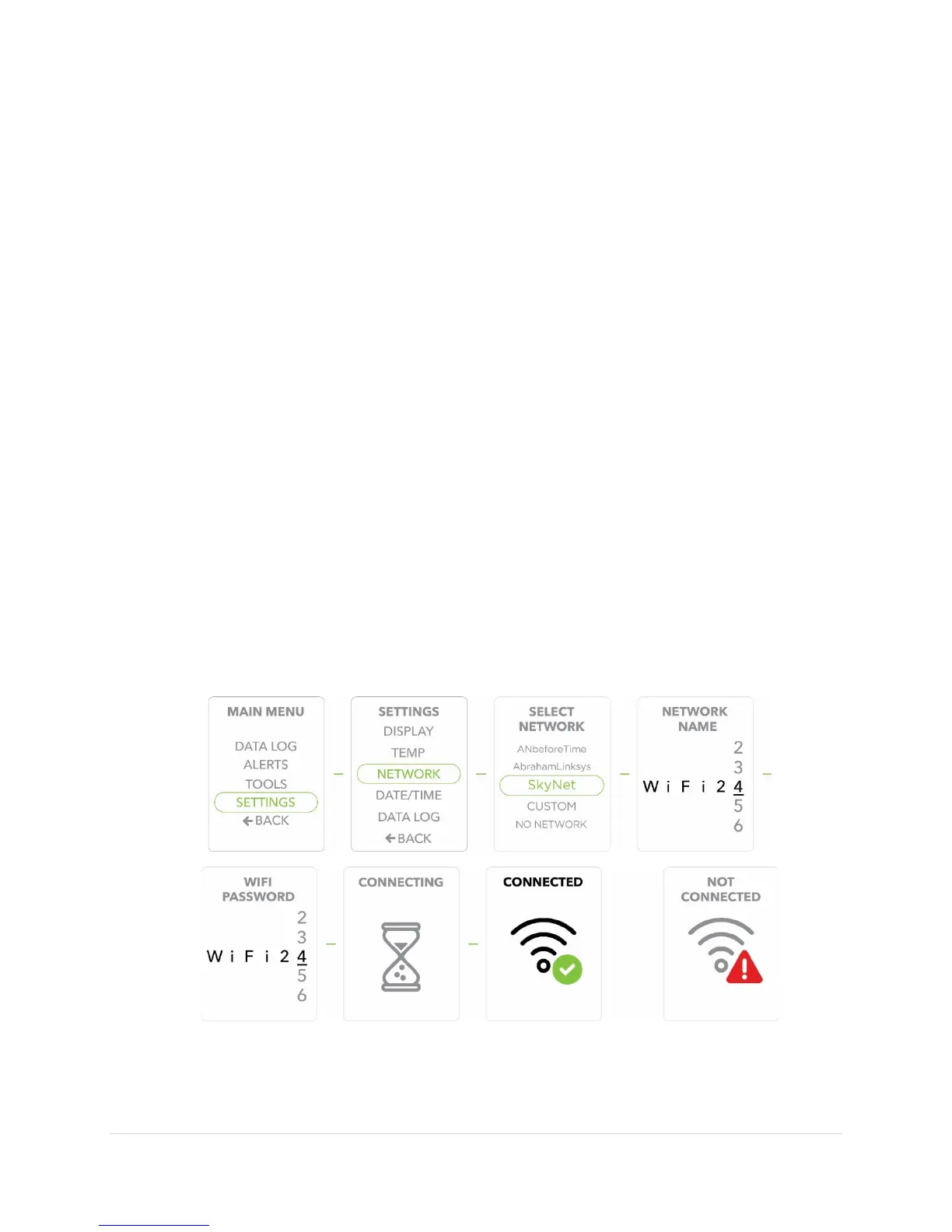
WiFi Connection/Connecting to a Network
1) Press the
button to display the
.
2) Use the
buttons to move to the
option, Press the
button to confirm/select
.
3) Scroll to the
option, Press the
button to confirm/select
.
4) All available Networks should appear in the display screen.
to select the desired
and press the
button to confirm (proceed to Step 7).
5) If the desired
does not appear in the display,
to
and press the
button to select
.
6) Use the
buttons to enter the
name one letter, number or symbol at a
time. Press the
button to confirm/select each character entered before
proceeding to the next. You must enter this information accurately with all upper and
lower case letters, numbers and symbols correctly identified.
7) Use the
buttons to enter the
one letter, number or symbol at a
time. Press the
button to confirm/select each character entered before
proceeding to the next. You must enter this information accurately with all upper and
lower case letters, numbers and symbols correctly identified.
8) Once the
is completely entered and confirmed, the display will show
. It may take several seconds for the connection to complete. Once the
unit has made the connection the display will show
. At this point the unit
is
and will begin the sequence of data pushed to the
portal.
9) If the unit does not complete the connection to
the display will show
. This can occur from an incorrect
entry or weak
signal.
In this case, repeat the steps above.


 To Next Page