8.0 Upgrading DLV50 Firmware
(i) Connect the DLV50 to Winmeter 5.0 software via the supplied USB cable. The DLV50 will
detect the USB connection and enter “PC<-->DLV50” mode.
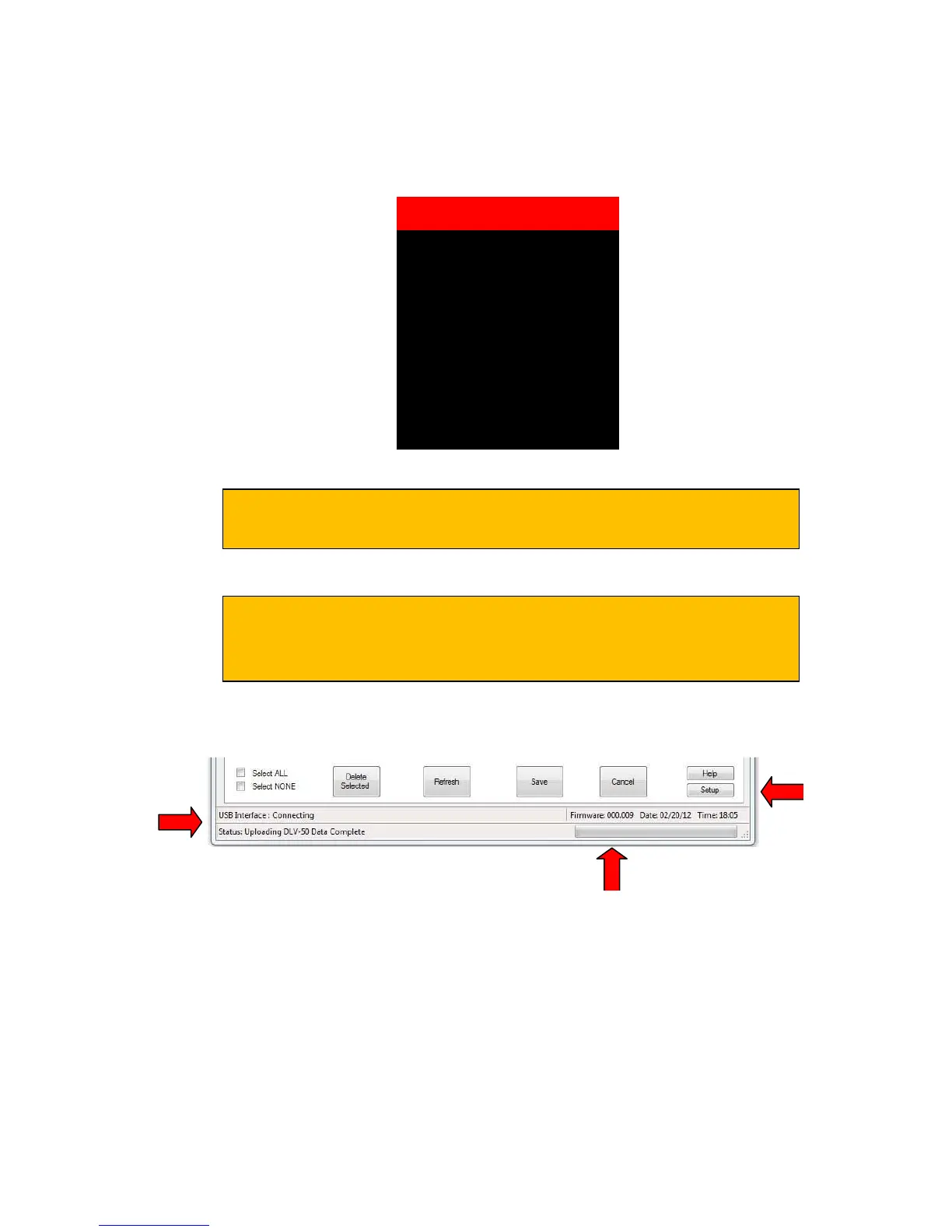
Once connected, the DLV50 connection status and current firmware revision will display in the
footer of the appropriate Interface window.
If the Winmeter 5.0 AutoStart software is NOT enabled, RUN the
Winmeter 5.0 software to initiate data transfer.
If the data transfer does not initiate automatically, ensure the DLV50 is
turned ON and connected correctly then select “Download Device” ->
“Via USB (search for device)” from the Winmeter 5.0 main window.
Current firmware
revision (000.009)
Device Interface
Status
Click “Setup” to
start the firmware
update process.
PC<-->DLV50



 To Next Page