DTP CrossPoint 4K Series Matrix Switchers • Matrix Software 77
2. Connect the PC to switcher via the front panel Configuration port.
3. Select (click) your DTP CrossPoint (see figure 36 on the previous page,
1
) and click
Connect (
2
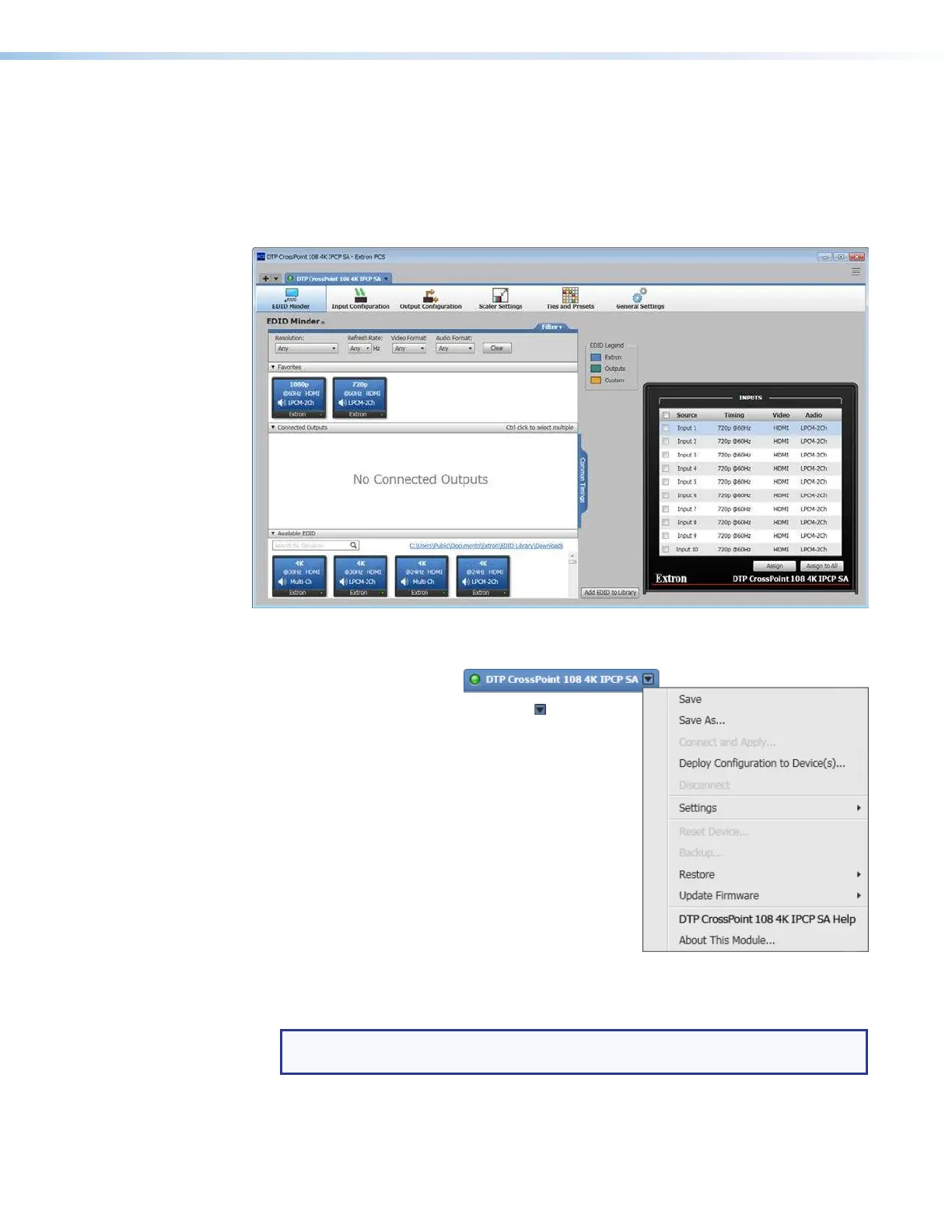
). PCS opens to the EDID Minder panel (see figure 37 below).
The PCS provides a way to assign and unassign a logo to one or more scaled outputs
(outputs 5 through 8) (see Assigning and Unassigning Logos on the next page).
For all other Product Configuration Software operations, see the PCS Help.
Figure 37. Product Configuration Software (DTP CossPoint 108 4K IPCP SA Shown)
Device Menu
Access the device menu is by clicking the icon on the
device tab above the menu bar.
• Save — Saves a configuration file consisting of a
complete set of matrix switcher settings, including
ties, presets, EDIDs, input video configurations, input
audio configurations, output video configurations,
output audio configurations, RS-232 insertion
setting, and screen saver settings, to a file. If no file
currently exists, the program prompts you for a file
name. The file extension is .extc.
• Save As... — Saves a configuration file to a new
location.
• Deploy Configuration to Device(s)... —
Calls the Device Discovery screen where you can
select a different or the same Extron device, connect to it, and open and apply a saved
configuration file to it.
NOTE: Deploy Configuration to Device(s) is unavailable for selection
when the Product Configuration Software is currently connected to a device.
• Open and Apply — Opens a saved configuration file and applies its settings to the
connected device shown on the currently selected device tab.
• Disconnect — Disconnects the PCS from the unit while leaving the program active.


 To Next Page