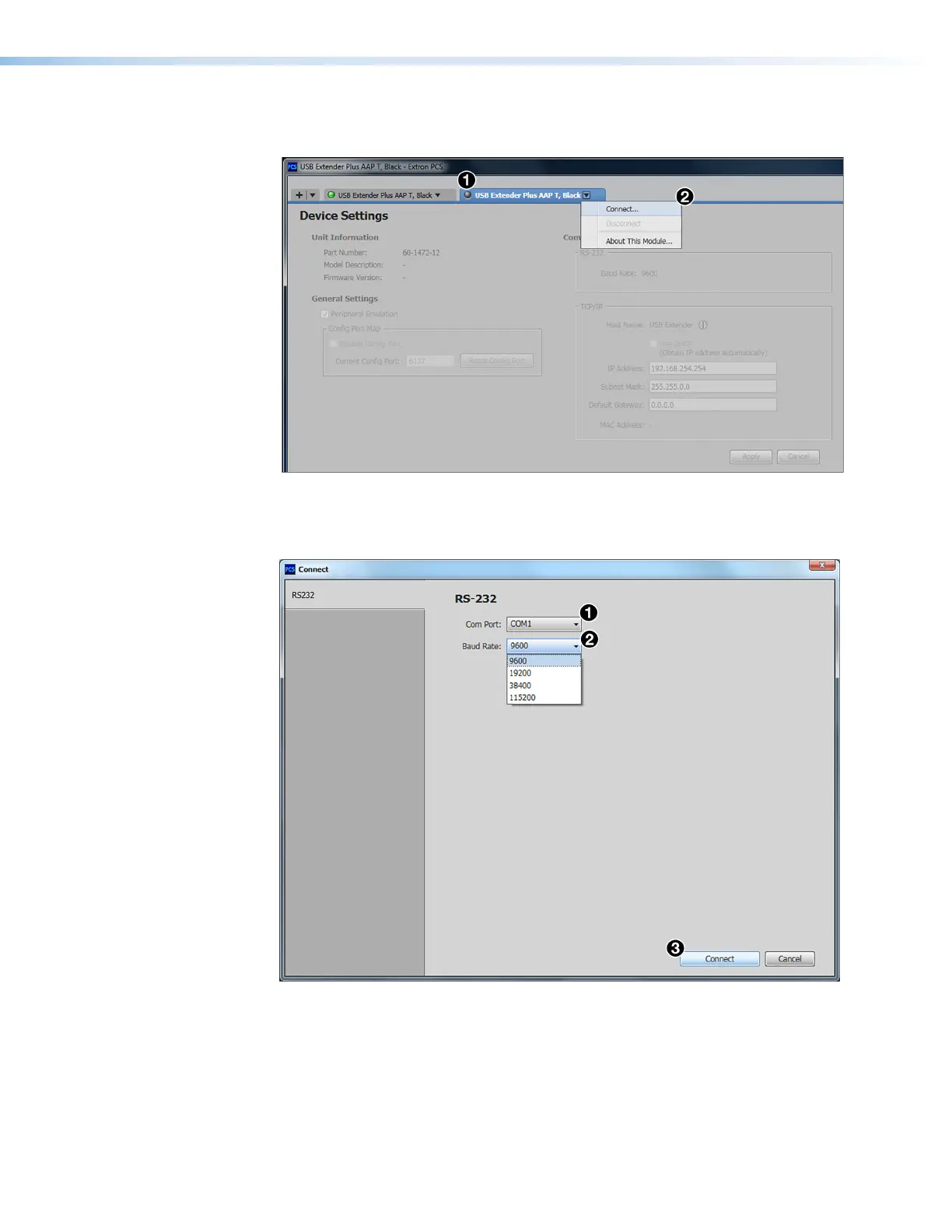
The dialog box closes and the Device Settings screen appears, with name of the
selected device on a new tab at the top of the screen (see figure 27,
1
).
Figure 27. Selecting Connect from the Device Tab Menu
6. Click the down arrow on the device tab and select Connect from the drop-down menu
(
2
). The RS-232 Connect window opens.
Figure 28. RS-232 Connection Window
7. From the Com Port drop-down menu (see figure 28,
1
), select the com port on your
computer to which the USB Extender Plus is connected.
8. From the Baud Rate menu (
2
), select the baud rate for your RS-232 connection (the
default is 9600).
9. Click the Connect button (
3
) at the bottom of the screen. The Device Settings
screen for your USB Extender Plus opens, showing all the current extender settings.
USB Extender Plus Series • Remote Configuration and Control 32


 To Next Page