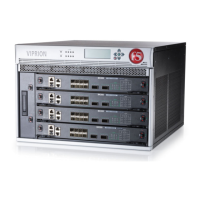
VIPRION LCD Panel
Platform Guide: VIPRION
®
3 - 7
To configure the cluster IP subnet mask
1. Press the X button to access the LCD panel menus.
2. Use the arrow keys to select the System menu and press the Check
button.
3. Use the arrow keys to select Cluster and press the Check button.
4. Use the arrow keys to select Cluster Mgmt and press the Check
button.
5. Use the arrow keys to select Cluster IP Mask and press the Check
button.
The LCD panel menu shows the current subnet mask of the cluster.
6. Use the arrow keys to configure the subnet mask of the cluster.
7. Press the X button until you return to the Cluster Mgmt menu.
8. Use the arrow keys to select the Commit option and press the Check
button.
The system saves the new subnet mask for the cluster.
To configure the default gateway for the cluster
1. Press the X button to access the LCD panel menus.
2. Use the arrow keys to select the System menu and press the Check
button.
3. Use the arrow keys to select Cluster and press the Check button.
4. Use the arrow keys to select Cluster Mgmt and press the Check
button.
5. Use the arrow keys to select Gateway and press the Check button.
The LCD panel menu shows the current gateway IP address of the
cluster.
6. Use the arrow keys to configure the gateway IP address of the
cluster.
7. Press the X button until you return to the Cluster Mgmt menu.
8. Use the arrow keys to select the Commit option and press the Check
button.
The system saves the new default gateway for the cluster.


 To Next Page