11
BootControlTab
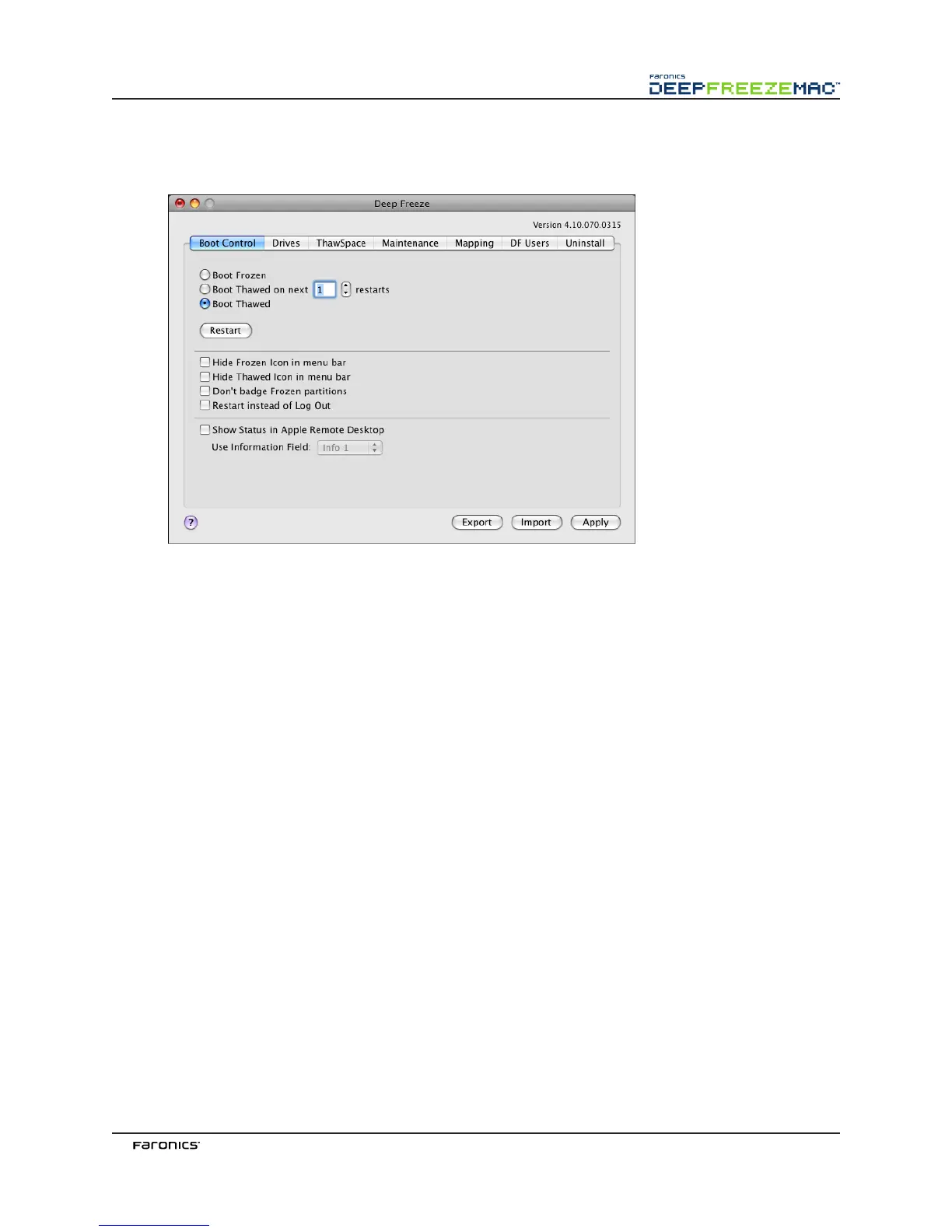
e Boot Control tab is used to change the status of Deep Freeze on a computer.
Use the three radio buttons provided to change the state of Deep Freeze:
• To set the computer to a Frozen state, choose Boot Frozen.
• To set the computer to a awed state for a specified number of restarts, choose Boot awed
on Next and specify the number of restarts (the number entered must be between 1-99).
• To set the computer to a awed state, choose Boot awed.
To restart the computer aer making changes, click Restart.
e following configuration options are available:
• To hide the Frozen icon, select the Hide Frozen Icon in menu bar checkbox.
• To hide the awed icon, select the Hide awed Icon in menu bar checkbox.
• To display Frozen partitions without a Deep Freeze icon, select the Don’t badge Frozen partitions
checkbox.
• To set the workstations to restart when a user logs out, select the Restart instead of Log Out
checkbox.
• To display the workstation status (Frozen or awed) remotely in Apple Remote Desktop, select
the Show Status in Apple Remote Desktop checkbox and select the desired Information Field.
e workstation will now write Frozen or awed to the selected Information Field during boot
time.
To view this status information in Apple Remote Desktop, select Edit > View Options and select
the matching Computer Info Field (1–4). Workstations will now show their current status, and
groups of workstations can be sorted by this status column.
To save any changes made, click Apply; changes take effect aer a restart.



 To Next Page