18
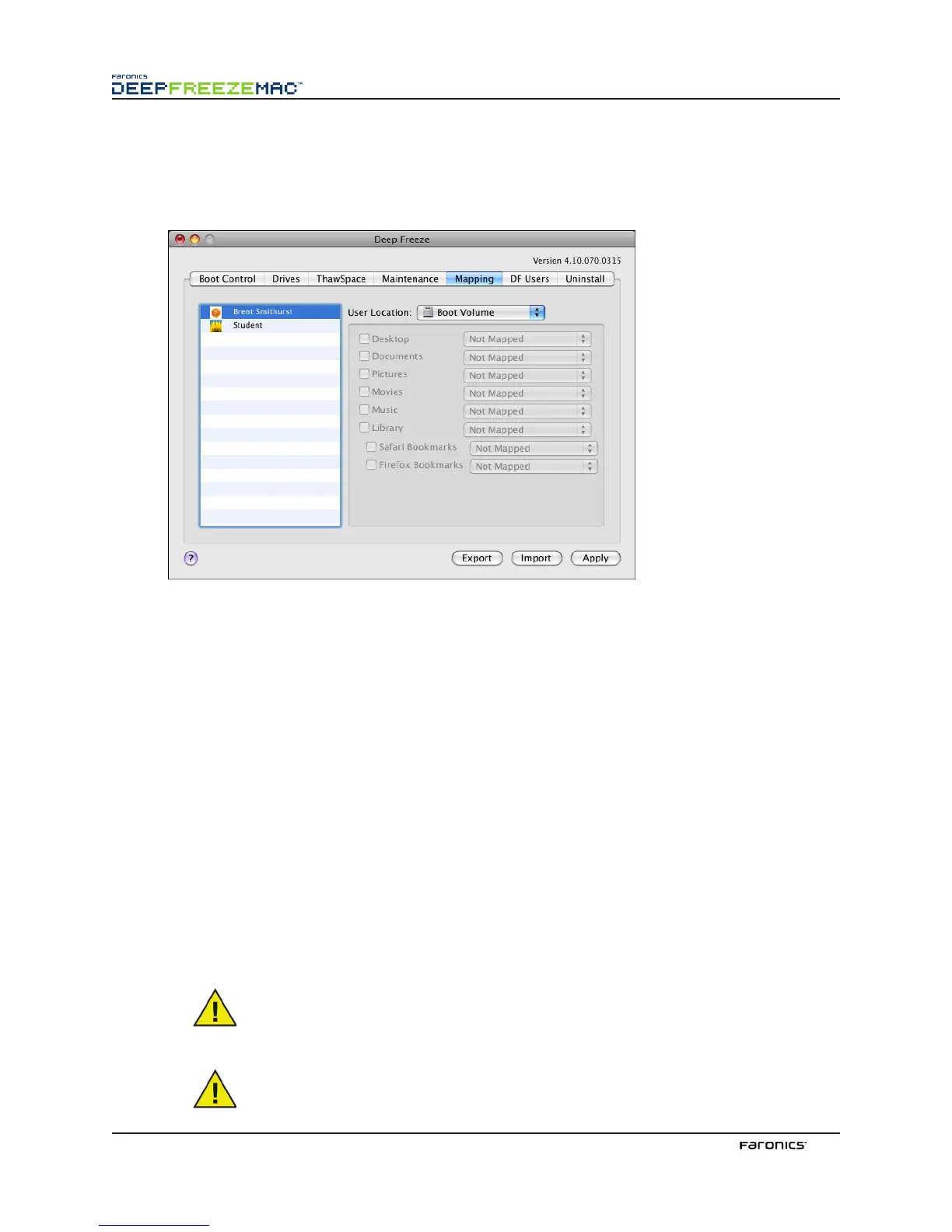
MappingTab
e Mapping tab is used to map the user’s home folder to a specific awSpace or partition, or to map
elements of a user’s home folder to a specific awSpace or partition. is feature is only available at
the administrator level. e current logged in user can not be mapped.
To map a user’s home folder to a target destination, select the user’s account and under User Location
select one of the options available: Boot Volume, User awSpace, Partition, or Custom.
Boot Volume
is option maps the user account to the volume the operating system is booted
from.
User awSpace
is option maps the user account to the corresponding User awSpace created
for this user. It is not recommended that User awSpaces be renamed because a
renamed awSpace will prevent access from the original user account.
Partition
e user account can be mapped to a specific partition listed in the Drives tab.
Custom is option lets certain elements (pictures, movies and, music, etc.) of a user
account be mapped to the User awSpace/Partitions. To do this, click on
the element and select the awSpace/Partition that it will be mapped to.
Custom mapped users must be located on the boot volume. Users can not
be mapped entirely to their User awSpace/any other volume and then
partially custom mapped to another location.
For bookmarks, the location must exist to be mapped; e.g. if a user has never
run Safari, it can not be mapped. Deep Freeze does not create the folders and
bookmarks for a user.
If an attempt to map to a location with insufficient space is made, the mapping action
will not take place.
e Short Name must match the Home Directory name in System Preferences >
Accounts > Account_Name > Advanced Options for mapping to work.



 To Next Page