15
ResizingaThawSpace
Once a awSpace is created, it can be resized by either increasing or decreasing the size of the
awSpace. Complete the following steps to resize one or more awSpaces.
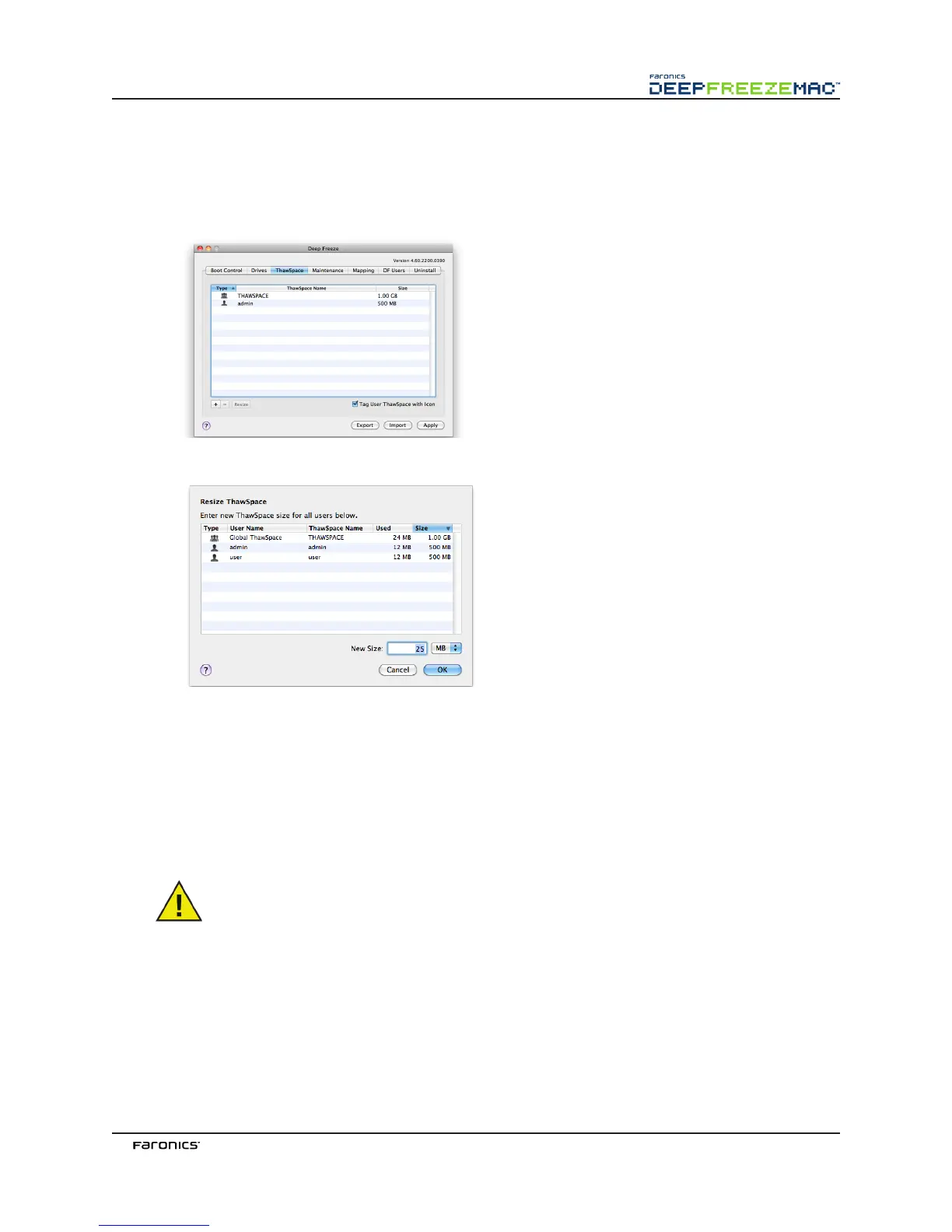
1. Click awSpace. Select one or more awSpaces and click Resize.
2. e following dialog is displayed:
3. In the New Size field, enter the size of the awSpace and use the drop-down menu to choose
if it is sized in MB or GB. e default size of a awSpace (User awSpace and Global
awSpace) is 10 MB.
4. Click OK to resize the awSpace(s), or Cancel to return to the tab without resizing the
awSpace(s).
5. In the awSpace tab, click Apply to resize the awSpace(s). A dialog prompts for the
administrative username and password. e change will not take effect without a restart.
Resizing a awSpace is supported only on Mac OS X 10.6 or higher. Once a awSpace
is resized, the changes will take effect only aer a restart.



 To Next Page