20
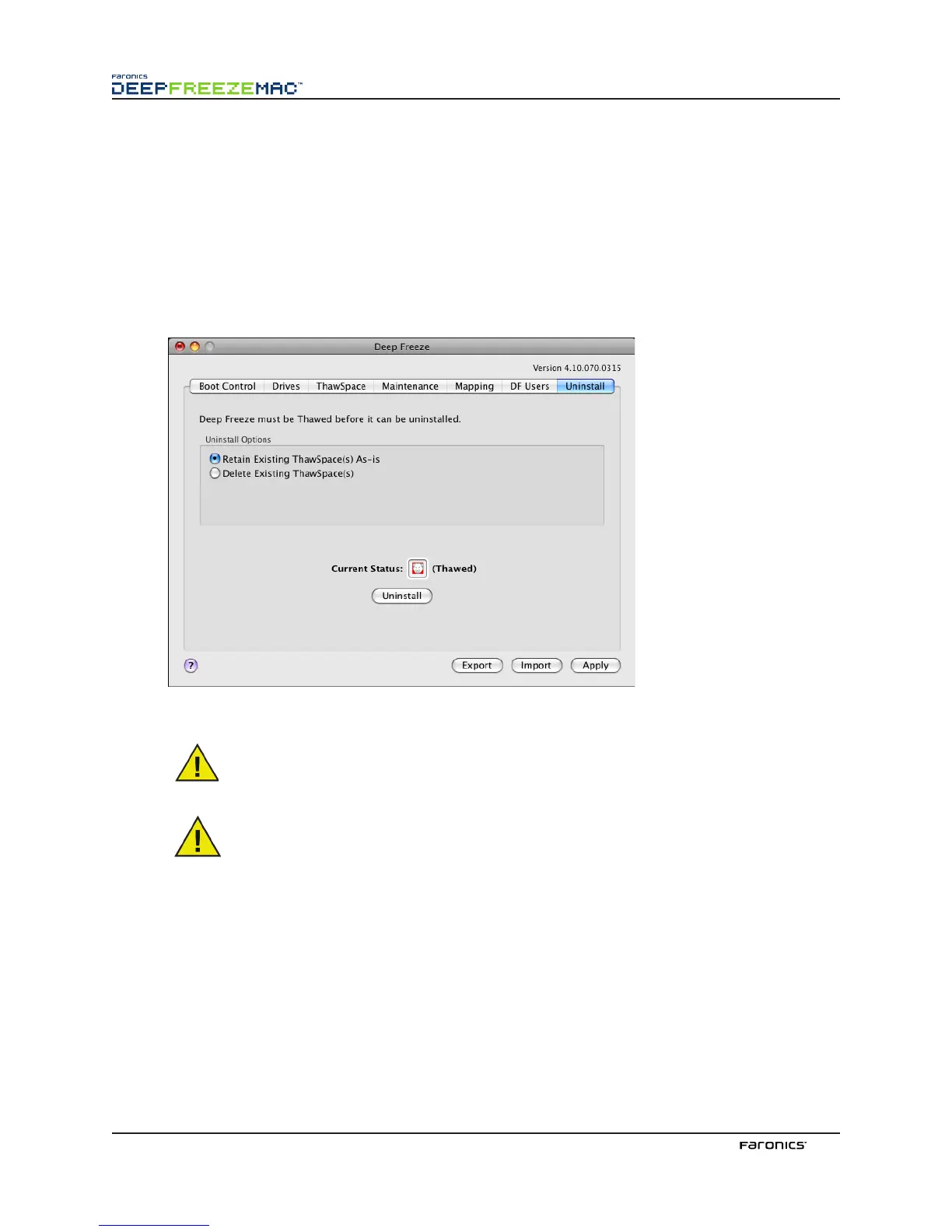
UninstallTab
A computer must be in a awed state for the Uninstall option to be available. If the computer is in
a Frozen state, the Uninstall option is not available. If there are existing awSpaces on a computer,
choose either to retain or delete them by selecting the preferred button.
If the option to retain awSpaces is chosen, all existing awSpaces are moved to the boot volume (/
Volumes/username.dmg). To access the boot volume, launch the Terminal and change the directory to
the boot volume /Volumes/username.dmg. awSpaces must be mounted manually by double-clicking
the icon.
To uninstall Deep Freeze, click Uninstall.
e computer restarts and Deep Freeze is uninstalled.
All program components are permanently deleted when Deep Freeze is uninstalled.
Before removing a awSpace, remove its profile or folder mapping.
ExportingandImportingCongurations
A file containing the configuration information set in the Deep Freeze Controller can be exported as a
property list file. e property list can be imported into another Deep Freeze Controller and deployed
to targeted computers.
To export the configurations set in the Deep Freeze Controller, click Export and save the file to a
preferred location.
To import a configuration file, click Import and browse to the location of the saved file. e computer
must be restarted for any changes to take effect from the imported file.
Drives, awSpace, and mapping pages are not exported or imported since they are not relevant to
other computers.



 To Next Page