21
UsingDeepFreeze
Aer Deep Freeze has been installed and a configuration has been assigned to a partition, the computer
can be operated as usual. e only visual evidence that Deep Freeze is installed on a computer are the
presence of a Deep Freeze icon in the menu bar (if configured), the Deep Freeze icon badge on each
Frozen volume (if configured), or any configured Global or User awSpaces.
Users can make changes to the computer, including renaming or deleting files and folders, downloading
files from the Internet, changing the desktop, and more. However, the Frozen volumes are completely
restored to their original configurations and contents at restart.
DeepFreezeIcons
When Deep Freeze is installed, the polar bear icon appears in the menu bar, if the icon has been
configured to appear:
e Frozen polar bear icon indicates that the computer is currently Frozen.
e awed polar bear icon indicates that the computer is currently awed.
SavingDocuments
On a computer that is Frozen, a user can permanently save documents to a awed volume on the
computer, a Global or User awSpace, a network location, or onto a CD, USB keychain drive, or
FireWire hard drive.
SoftwareInstallationandPermanentChanges
Permanent changes and soware installations can only be made to a awed computer, a awed
volume, or a awSpace on the computer. If a computer is in a Frozen state, any soware that has been
installed will be gone aer a restart.
A newly installed application should be run at least once while the computer or volume is awed in
order to create a preference file, dismiss registration dialogs, and initialize various values.
A newly installed application may require the computer to be restarted for setup to be completed. If
this is the case, it is recommended to restart the computer in a awed state, and then log in with the
same user account, run the application once, and then log out before setting the computer to restart in
a Frozen state.
CheckingforDeepFreezeUpdates
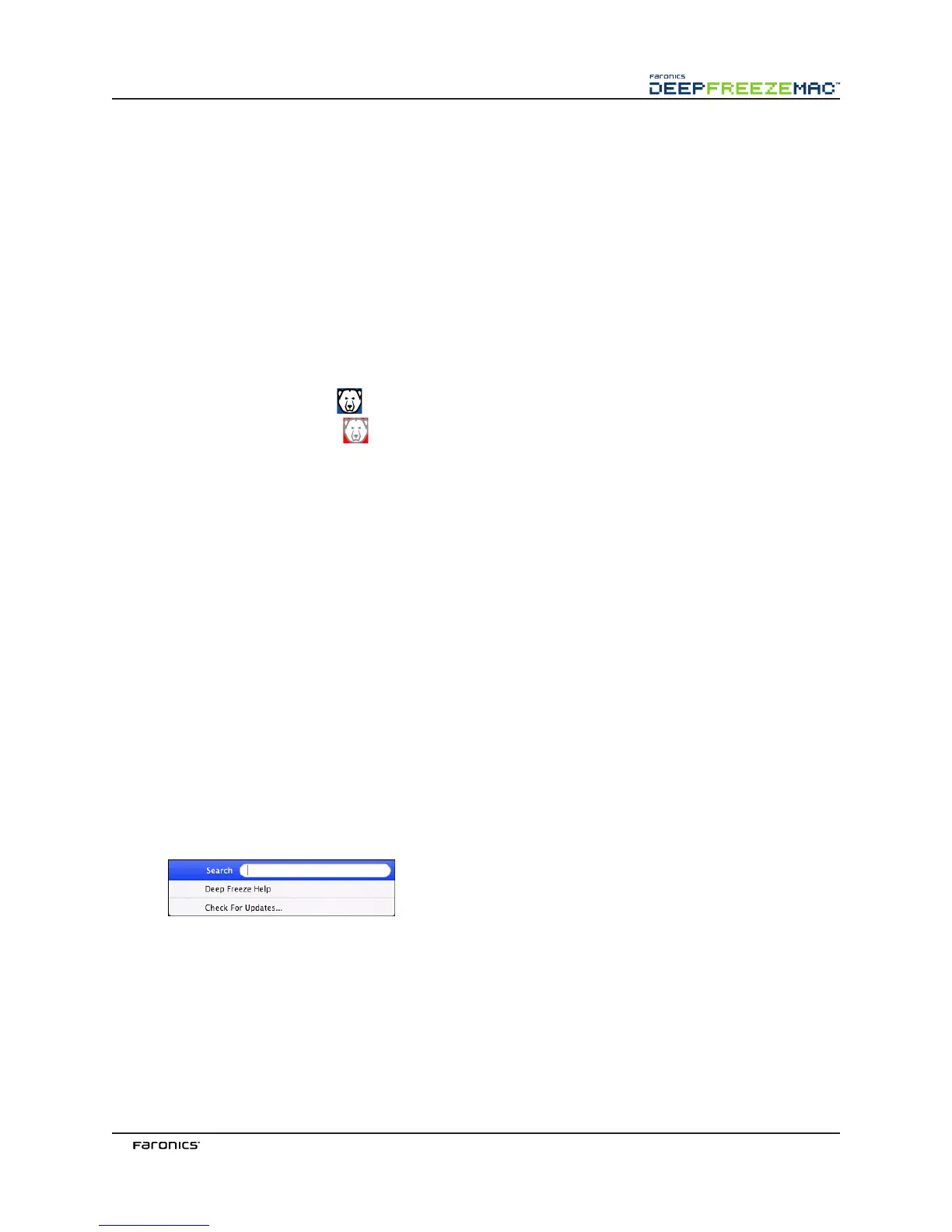
To check if the installed version of Deep Freeze is the most current one, select Help > Check For
Updates.
e default browser loads, stating if the installed version is up to date or if there is a more current one
available for download. Follow the links as applicable.
NOTE: Check whether the installed version is current via the ARD console by using the checkForUpdates
task.



 To Next Page