9
UsingtheDeepFreezeController
If all drives and partitions are Frozen on a computer, a user can create, save, change, and delete files.
However, all changes are temporary, unless a awSpace or awed partition is being utilized. e
complete contents of a Frozen drive or volume are restored at restart.
All changes made in the Deep Freeze Controller only take effect aer a restart.
OpeningtheDeepFreezeController
Use one of the following three options to open the Deep Freeze Controller:
•
Browse to Applications > Faronics > DFXControl.app and double-click.
•
Press Ctrl + Opt + Shi + F6.
•
Click the Deep Freeze icon in the menu bar and select Login.
CreatingtheFirstUser
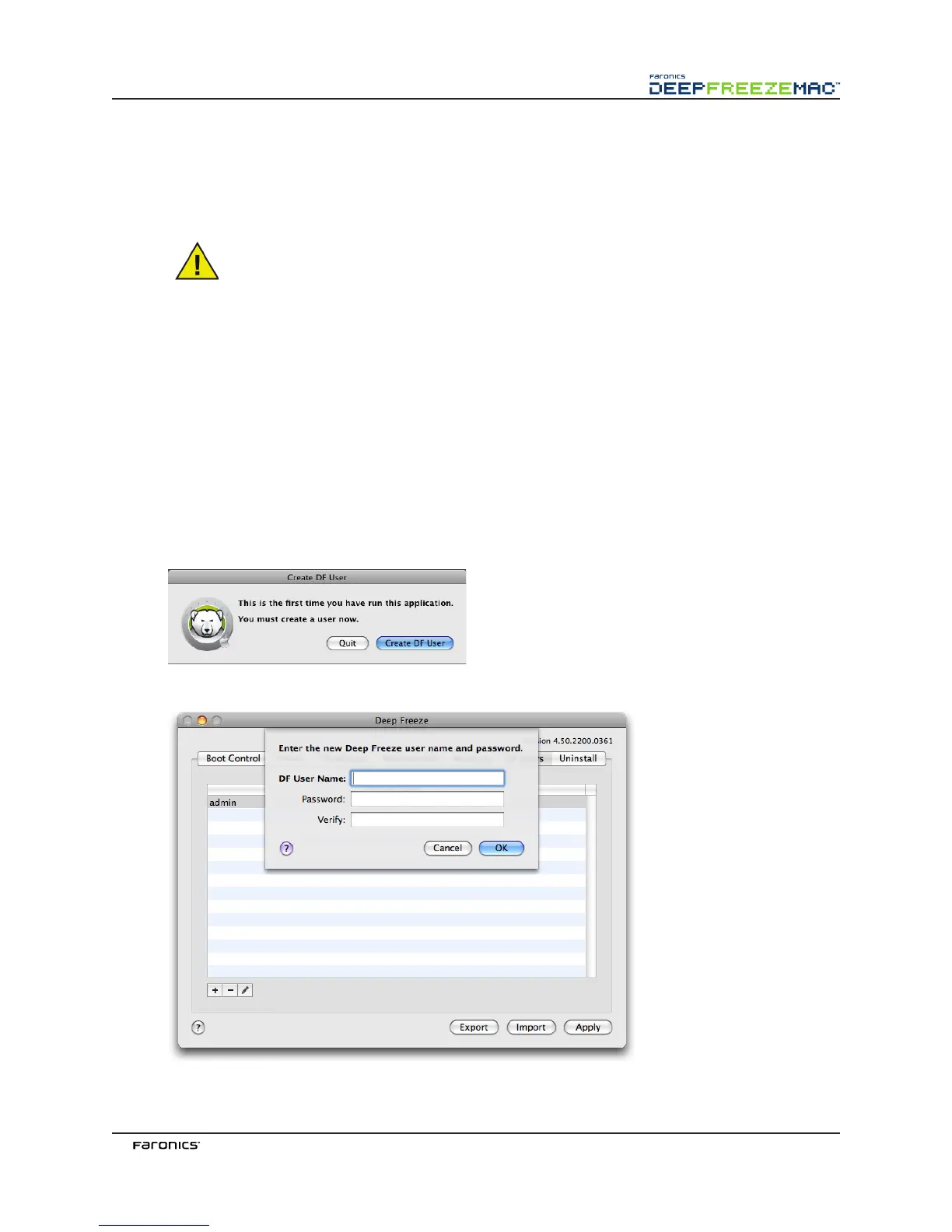
1. Unless a Deep Freeze user (DF User) was created using the Deep Freeze Assistant, the first
time Deep Freeze Controller is opened, there are no DF Users present. A prompt appears to
create a user, as shown:
2. Click Create DF User. e following dialog appears:



 To Next Page