FieldBee toolbox manual v.1.0
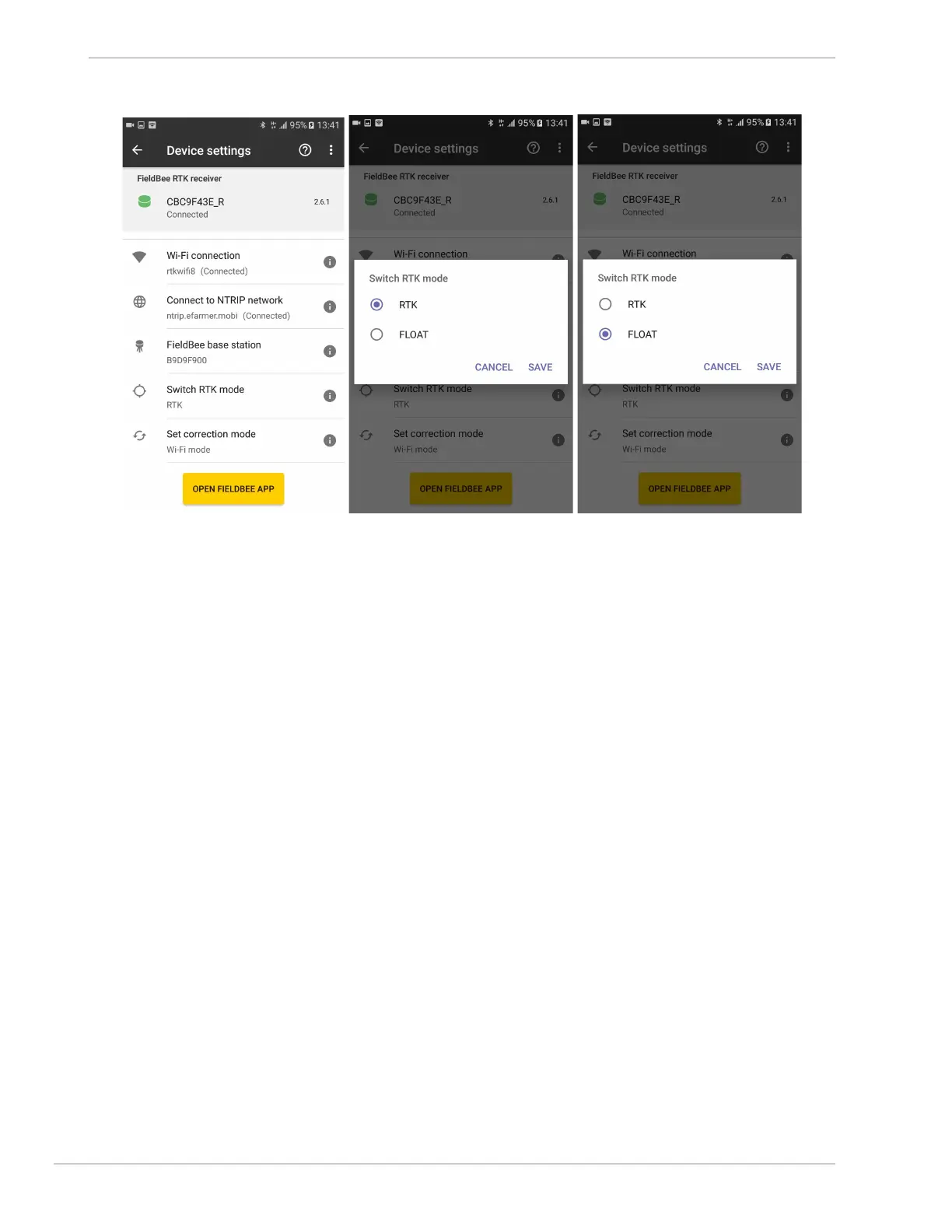
fig.8.1 fig.8.2 fig.8.3
Set correction mode
(for FieldBee RTK base station+FieldBee GNSS receiver kit)
Depends on working conditions and requirements FieldBee GNSS receiver can work in few modes:
1) Only Wi-Fi mode;
2) Only Radio mode;
3) Wi-Fi/Radio mixed mode.
Wi-Fi mode needs to be enabled for receiving correction via internet.
Radio mode needs to be enabled for receiving correction via radio.
Wi-Fi/Radio mixed mode needs to be enabled if base station is located in 2km range and there might be places without
GSM coverage at the field. So FieldBee will automatically switch between radio and internet reception channel.
To switch correction mode:
1) open FieldBee receiver setup Main Menu; (fig.1.2)
2) tap Set correction mode; (fig.9.1)
3) choose mode for further work according to your needs and connection parameters: (fig.9.2)
We suggest to use Wi-Fi mode if:
● field operations will be executed on hilly surface;
● distance to base station during operation will be more than 2 km;
● base station is located at house/office roof ;
● there are no straight view between base station and receiver during operation.
We suggest to use Radio mode if:
● field operations will be executed on flat surface (without hills and obstacles between base station and receiver );
● distance to base station during operation will be in range of 2 km;
We suggest to use Wi-Fi/Radio mixed mode if correction reception via Wi-Fi suddenly interrupts and Radio
mode will be available, e.g., You work at the field in the 2 km range and receive correction via Wi-Fi and drive
around some huge obstacle or hill that interrupts correction reception via Wi-Fi ( no internet coverage etc.). In
this case Radio mode will be activated receiver will continue get correction via Radio channel.


 To Next Page