13
Data logging and customer support
Status
Location
Profile
Stopped
Refresh
File Size
2024-02-29-13-31-11_minimal 1'466 MiB
1'813 of 5'888 MiB used (4'074 free)
2
3
4
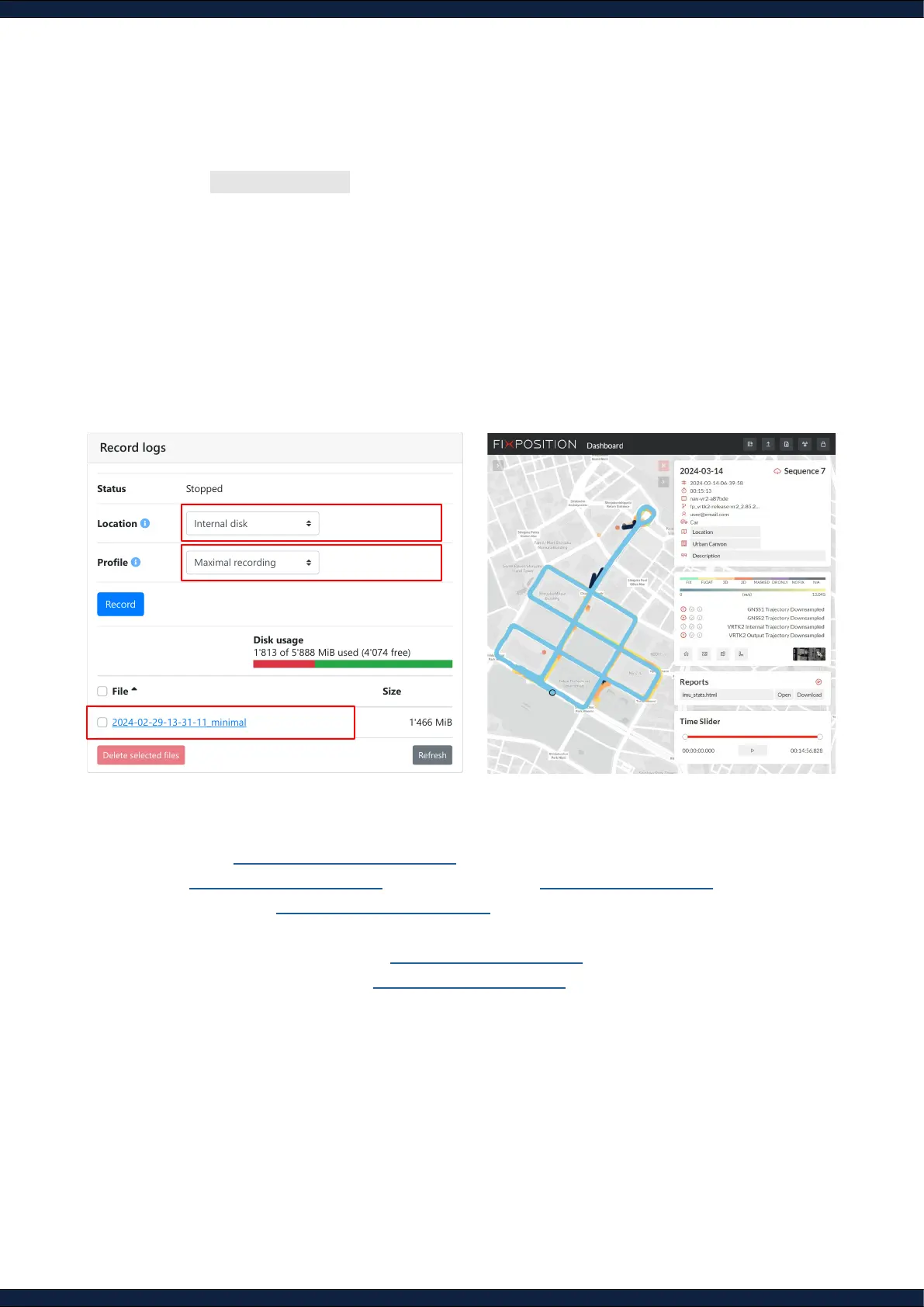
1. Navigate to System ↪ Logs
2. Choose the logging location
A. Internal disk: Embedded memory, max. around 6 GB (up to ~20min of “Maximal“ recording)
B. External USB: Storage connected to USB-C port. May consume additional CPU resources
3. Choose the logging level
A. Minimal: Smallest le, only minimal data (no GNSS or camera)
B. Medium: Larger le, does not contain images.
C. Maximal: Largest le, contains all data (incl. images). Allows to reprocess the trajectory
4. Retrieve the logs from the web-interface by clicking on the log name
5. Get support
A. Browse the Vision-RTK 2 Documentation for rich description of all features
B. Email support@xposition.com to get access to the Fixposition Dashboard, and upload the
log les to the Fixposition Data Uploader
1
to accelerate debugging and analyze the
sequence
C. Report other technical issues at Fixposition JIRA platform
D. Request customer support at support@xposition.com
1
All shared data is visible only to the uploader, the uploader’s company domain (if explicitly asked to do so), and selected Fixposition employees.


 To Next Page